Do Alarm Sensors Need Wi-Fi Everything You Need to Know
Most alarm sensors do not need Wi-Fi. They talk to a hub using low-power radio, and the hub handles internet access. Cameras and video doorbells are the exception because they stream video.
The first question most buyers ask is do alarm sensors need wifi to work. The short answer is no for most door and window sensors, but your system still depends on your home network in important ways. This guide explains how sensors communicate, what happens when Wi-Fi drops, and what to verify before you buy or upgrade.
Do Alarm Sensors Need Wi-Fi? The Short Answer
Most alarm sensors do not use Wi-Fi. Door, window, motion, and glass-break sensors use low-power radio signals to talk to a central hub. That hub is the only part that connects to your router and the internet.
If your Wi-Fi goes down, most sensors keep working locally. The siren can still sound. Local automations can still run. But remote alerts, cloud video, and professional monitoring may stop unless you have cellular backup.
Cameras and video doorbells are the main exception because they stream video.
How Alarm Sensors Actually Communicate: Z-Wave, Zigbee, RF, and Matter

Alarm sensors use short-range radio protocols instead of Wi-Fi. The most common are Z-Wave, Zigbee, and proprietary RF. Matter is newer and works over Thread or Wi-Fi depending on the device.
Z-Wave and Zigbee create a mesh network. Each device can pass signals to the next device. That means a sensor far from the hub can still be heard through a nearby repeater.
Proprietary RF is common in simpler or older systems. The sensor talks only to its base station, often at 433 MHz. Range is usually shorter, but the system does not depend on your Wi-Fi at all.
Why Low-Power Mesh Protocols Beat Wi-Fi for Sensors
Wi-Fi uses more power than Z-Wave or Zigbee. A Wi-Fi sensor would need bigger batteries or frequent charging. Mesh protocols also avoid competing with your phones, laptops, and streaming devices for bandwidth.
Because they use a separate radio, sensors keep working even when your Wi-Fi router is congested. That separation is a real reliability advantage for a security system.
The Exception: Standalone Wi-Fi Sensors and Cameras
Some sensors connect directly to Wi-Fi without a hub. They are convenient and need no base station, but they have limits.
Every Wi-Fi sensor adds load to your router. If your router drops, the sensor goes offline. Battery life also tends to be shorter. Cameras and video doorbells are the most common Wi-Fi-dependent devices because they need fast upload speeds for video.
What Really Needs a Connection: The Hub, Router, and Cellular Backup
The hub is the brain of the system. It receives signals from sensors, runs local automations, and sends alerts to the cloud. The hub connects to your router over Wi-Fi or Ethernet.
If the router loses internet, the hub still works locally. You lose remote access, but the system is not dead. Cellular backup changes the picture. A small cellular modem inside the hub takes over when your ISP goes down. Alerts still reach your phone, and professional monitoring still works.
The Hub Is the Only Device That Requires Internet Access
Sensors do not need internet. The hub does. Without internet, the hub can still sound the siren and run local automations. It cannot send push alerts or allow remote control.
Confirm the plan includes cellular backup if you want alerts while away.
Cellular Backup: What Happens When Your Router or ISP Goes Down
When your router loses internet, a hub with cellular backup switches to the cellular network. Alerts still reach your phone. Professional monitoring still works.
Without cellular backup, your system becomes local-only until internet returns. Some hubs also include a backup battery for short power outages. Check the manual for the exact behavior.
Placement, Range, and Home Layout: Maximizing Signal Reliability
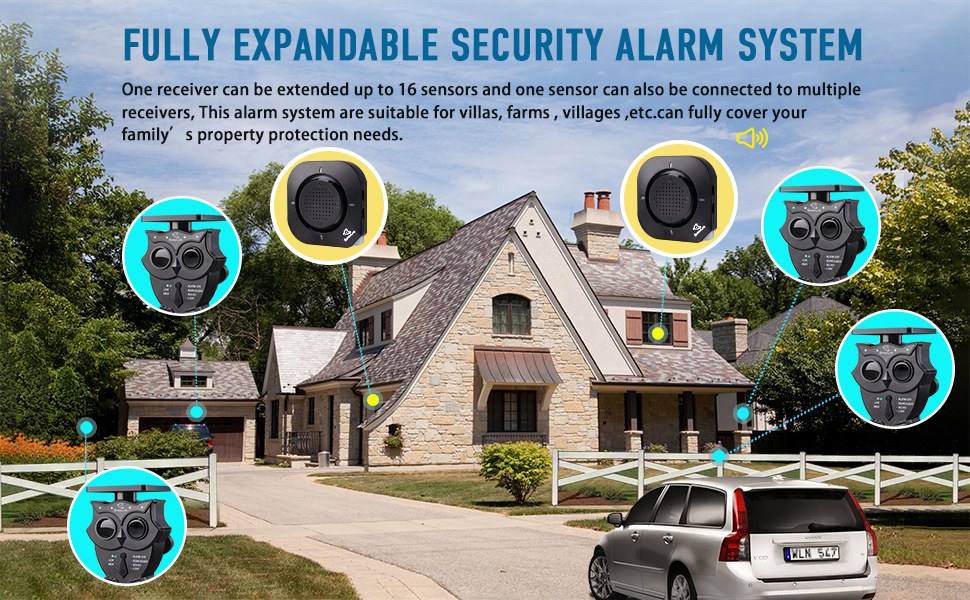
Placement affects everything. A sensor behind a metal door frame may not reach the hub. A hub hidden in a basement may not hear sensors on the second floor. Plan placement before you install anything.
Hub Placement and Common Sources of Interference
Place the hub centrally, away from large metal objects, fish tanks, and thick concrete walls. Keep it off the floor. Avoid placing it near a microwave, baby monitor, or other devices that cause radio interference.
In a large home, add a range extender or choose a system that supports mesh repeaters. Test each sensor after installation, not just the ones near the hub.
Renters vs. Homeowners: Installation and Portability Constraints
Renters should look for peel-and-stick sensors that do not require drilling. Check your lease before making holes. Many wireless sensors use double-sided tape and leave no permanent marks.
Homeowners have more freedom to mount sensors and choose a professionally installed system. A hub-based system with battery sensors is easier to move than a fully wired one.
Cameras and Video Doorbells: The Wi-Fi-Dependent Exception
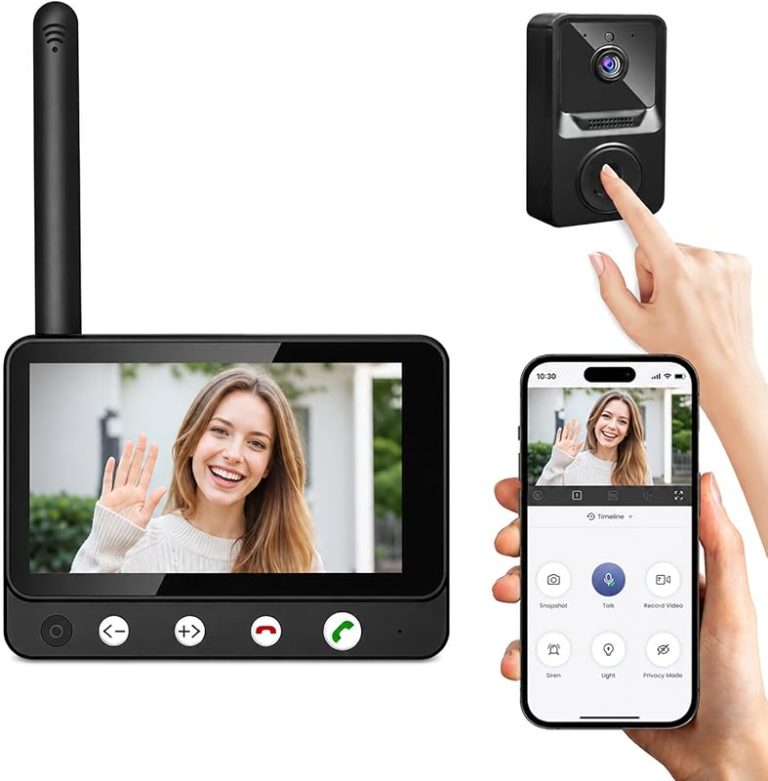
Cameras and video doorbells are the real exception. They need Wi-Fi to stream video and send alerts. A camera without internet can often record locally, but you cannot view it remotely.
If you want remote viewing, plan for a strong Wi-Fi signal at the camera location. Learn more about whether security cameras need internet to record.
Video doorbells work the same way. They can ring a local chime without Wi-Fi, but remote viewing and alerts depend on the connection. Here is a closer look at how video doorbells work without Wi-Fi.
Field of View, Night Performance, and Two-Way Audio
Field of view tells you how much the camera sees. Wide lenses cover more area but can distort edges. Night performance depends on infrared LEDs and sensor quality.
Two-way audio lets you talk to visitors, but it only works with a stable connection. Check the exact specs for the model you are considering.
Bandwidth, Cloud Storage, Power, and Weather Resistance
Streaming video uses upload bandwidth. If your upload speed is low, video may buffer or drop. Cloud storage requires a plan and keeps clips on the vendor’s servers. Local storage keeps clips on a microSD card or base station.
Outdoor cameras need a weather rating and proper power. Some run on batteries, some plug in, and others use low-voltage wiring. Verify the exact requirement before mounting anything.
Privacy Zones, Neighbor Privacy, and Local Recording Rules
Point cameras away from neighbors’ windows and public sidewalks when possible. Many cameras let you set privacy zones to block parts of the image.
Audio recording is regulated in some states. Check local rules before enabling two-way audio or continuous recording. Review who can access the footage. Delete clips you no longer need.
Smart Locks: What Still Works When Wi-Fi Drops
Smart locks are different from sensors. The lock itself works locally with the hub. You can still use keypads and physical keys when Wi-Fi is down. Remote locking and unlocking stop without internet.
Some locks connect directly to Wi-Fi. Others use Z-Wave or Zigbee through a hub. Most smart locks include a physical key backup for when the battery dies or the network fails. Here is what to know about smart locks with physical keys.
Deadbolt Fit, Door Handing, and Physical Key Backup
Before buying a smart lock, measure your door and check the deadbolt size. Door handing refers to which side the hinges are on. Most locks support both, but check the manual.
A physical key backup is important. If the lock loses power or the network drops, you still need a way in.
Batteries, Auto-Lock Behavior, Shared Access, and Integrations
Smart locks run on batteries. Low battery warnings matter because a dead lock can leave you stranded. Auto-lock is convenient but can cause problems if the door is not fully closed.
Shared access lets you give codes to family, guests, or caregivers. You can revoke codes at any time. Check which voice assistants and smart home platforms the lock works with.
Monitoring Plans, Permits, and False Alarms
Monitoring is the service that watches your system and calls for help. You can self-monitor or pay a company to monitor. Both have tradeoffs, and the right choice depends on your budget and schedule.
- The household receives alerts and decides what action to take.
- Usually has lower ongoing cost.
- Does not guarantee emergency dispatch.
- A monitoring center may review eligible alarms.
- Dispatch availability depends on the plan and event.
- Fees, contracts, permits, and false-alarm rules may apply.
Self-Monitoring vs. Professional Dispatch
Self-monitoring means you get the alert and decide what to do. It is cheaper but requires you to be available. Professional monitoring means a monitoring center can confirm an alarm and call emergency services.
This usually requires a monthly plan and a reliable connection. Cellular backup is strongly recommended for professional monitoring.
Sirens, Permits, False Alarm Fines, and Contract Terms
Some cities require an alarm permit. Others charge fines for repeated false alarms. Check the rules for your address before you sign up.
Read the contract carefully. Some plans require a 12-month or 24-month commitment. Ask about cancellation fees, equipment ownership, and what happens if you move.
Privacy and Cybersecurity: Securing Your Sensors and Account
A smart alarm system collects data about when you are home and when you are not. That data is valuable, so protect it like your bank account.
Wi-Fi Bands, Firmware Updates, and Multi-Factor Authentication
Use WPA2 or WPA3 on your router. Check whether your devices support 2.4 GHz, 5 GHz, or both. Enable automatic firmware updates when available.
Turn on multi-factor authentication for your alarm account. A strong password alone is not enough.
Account Recovery, Shared Users, Cloud Retention, and Vendor Support Lifecycles
Know how to recover your account if you lose your phone. Review who has access and remove people who no longer live in the home.
Check how long cloud recordings are kept and how to delete them. Consider the vendor’s support lifecycle. A device that stops getting updates becomes a security risk, so choose brands with a clear support commitment.
Troubleshooting and Final Checks
Start with the simplest checks. Most sensor problems come from batteries, range, or interference.
Sensor Not Responding: Range, Battery, and Interference Checks
Replace the battery first. Then check the distance between the sensor and the hub. Move the hub or add a repeater if needed.
Look for metal objects, thick walls, or other radios near the sensor. Test the sensor again after each change. If it still fails, remove and re-add the device in the app.
Hub Offline: Router, Power, and Firmware Recovery Steps
Check the power cable and the outlet. Then check your router and modem. Restart the hub only after confirming the router is back online.
Update the hub firmware in the app. If the hub still shows offline, contact support with your model number and a description of the steps you already tried. If a camera will not reconnect, see this guide for a security camera not connecting to Wi-Fi.
What to Verify Before You Buy or Upgrade
Before buying, check these items:
- Does the system use a hub or direct Wi-Fi?
- Does the monitoring plan include cellular backup?
- What happens during a power outage?
- Are batteries replaceable and easy to find?
- Does the system support Matter, Z-Wave, or Zigbee for future expansion?
- What are the contract terms and cancellation fees?
- How long does the vendor support the device?
The key takeaway is simple. Choose a hub-based system for reliable sensors, add cellular backup for outage protection, and treat cameras as the Wi-Fi-dependent part of your setup. Verify each device’s requirements before you buy, and keep your account and firmware updated.
Frequently Asked Questions
Most alarm sensors do not need Wi-Fi. Door, window, and motion sensors use low-power radio protocols like Z-Wave, Zigbee, or proprietary RF to talk to a hub. The hub is the only device that needs internet access.
Your sensors and hub keep working locally. The siren can still sound, and local automations still run. Remote alerts, cloud video, and professional monitoring stop unless your hub has cellular backup.
Cameras need Wi-Fi for remote viewing and cloud recording. Some models can record to a local microSD card without internet, but you cannot check the feed from your phone. Video doorbells have similar limits.
Most smart locks work locally with a hub or through a keypad. You can still unlock with a physical key or keypad code when Wi-Fi is down. Remote locking and unlocking stop without internet.
Professional monitoring adds a monthly cost but means a monitoring center can verify an alarm and request emergency dispatch. It requires a reliable connection, and cellular backup is strongly recommended. Self-monitoring is cheaper but depends on you being available.
Replace the battery first, then check the distance between the sensor and the hub. Look for metal objects, thick walls, or other radios causing interference. If the sensor still fails, remove and re-add it in the app.




4 Comments