Can Security Cameras Be Hacked Through Wi-Fi Heres How
Yes, a Wi-Fi camera can be hacked, but the weakness is usually a weak password, old firmware, or an exposed port, not the Wi-Fi signal itself. Secure the account, update the firmware, and isolate cameras on their own network to close most real-world attack paths.
Can security cameras be hacked through wifi? Yes, they can. Wi-Fi is usually the delivery path, not the root cause. This guide explains how attackers reach cameras and how to spot a compromise. It also covers how to secure the cameras you already own.
Most camera hacks start with a weak password, an unpatched camera, or an exposed network port. The habits that protect your laptop also protect your cameras.
Yes, Security Cameras Can Be Hacked Through Wi-Fi — Here’s How It Happens
Why Wi-Fi Is the Vector, Not the Root Cause
Think of Wi-Fi as the road, not the burglar. A camera on a poorly secured network is easy to reach. Firmware is the camera’s built-in software. A camera with a unique password, current firmware, and no open ports is a much harder target.
Attackers scan the internet for exposed cameras. They also target cloud accounts linked to camera apps. The weak link is a credential or a setting, not the radio signal.
What a Real Camera Hack Looks Like Today
Real hacks are rarely dramatic. An attacker quietly logs into your account and watches the feed. They may add a new user so they can return later. Some use the camera as a stepping stone to reach your laptop or smart lock.
The Five Most Common Ways Attackers Reach a Camera

Default Passwords and Credential Stuffing
Many cameras ship with a default admin login such as “admin” and “123456.” Attackers try these logins across thousands of devices. Credential stuffing uses email and password pairs leaked from other sites.
Outdated Firmware and Known Exploits
Vendors publish fixes for known flaws. A camera that never updates stays vulnerable. Open the app and install any pending update. If the vendor no longer offers updates, the camera is a growing risk.
Port Forwarding and Exposed RTSP or ONVIF Feeds
Some users open router ports to view a camera remotely. That exposes the video stream to the internet. RTSP and ONVIF are common video streaming standards. Automated scanners find those open ports in minutes.
Weak Account Recovery and Stolen Cloud Credentials
Cloud accounts are a prime target. If your email and password leaked in a breach elsewhere, attackers will try them on your camera account. Weak recovery questions make account theft easier. A unique password and MFA stop most of these attempts.
Some brands have been studied closely for these risks. If you own one, our guide on how hackers can get into Blink cameras walks through the specific weak points and fixes.
Malware or Compromised Devices Already Inside Your Home Network
A hacked phone, laptop, or smart plug can act as a foothold. Once inside your network, attackers scan for cameras and other weak devices. This is why isolating cameras on their own network is so valuable.
How to Tell If Your Camera Has Already Been Compromised
Unusual Pan, Tilt, or Indicator-Light Behavior
A camera that moves on its own is a red flag. So is an indicator light that blinks when nobody is watching. Many apps show an icon when the live view is active. Learn what that icon looks like.
Unknown Login Alerts, New Shared Users, or Strange Audio
Many apps send an alert when a new device signs in. A shared user you never added is a serious warning. Two-way audio that clicks on by itself may mean someone is listening. Check the app’s device and session list.
Spiking Bandwidth and Unexpected Data Usage
A hacked camera can stream constantly to an attacker. Watch your router’s traffic stats or your internet provider data usage. A sudden jump with no change in your own habits is worth investigating.
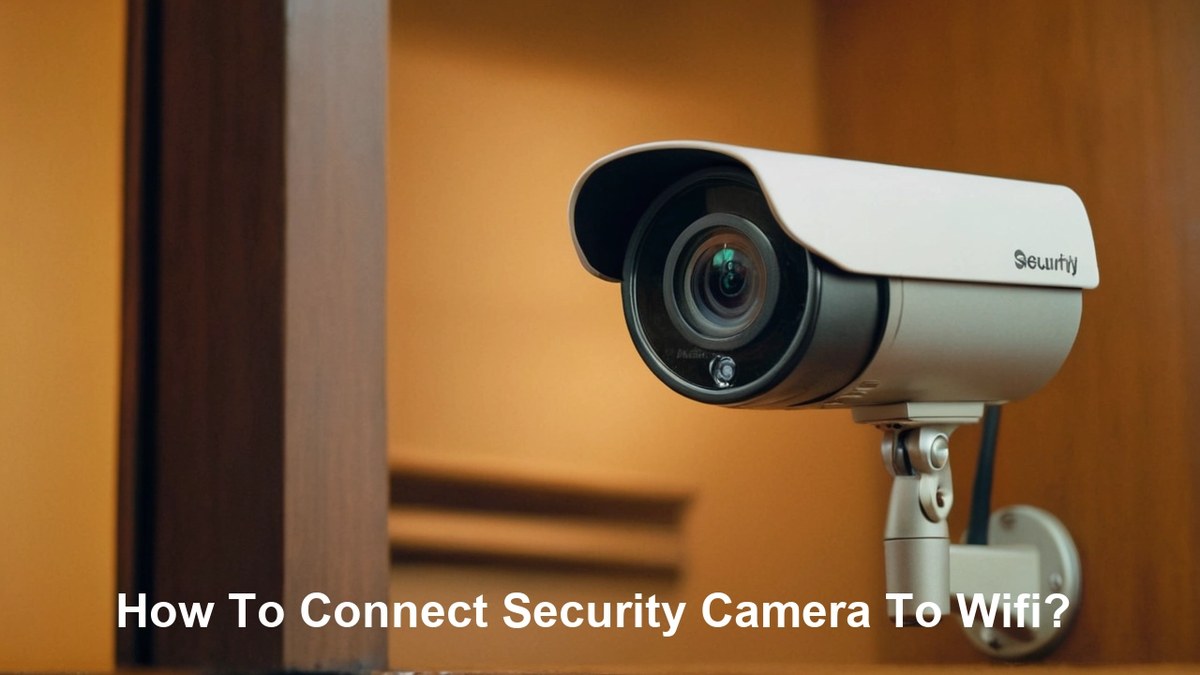
How to Secure a Wi-Fi Camera You Already Own
Change Default Credentials, Enable MFA, and Use a Password Manager
Give every camera account a long, unique password. Turn on multi-factor authentication for the main account. A password manager makes this easy because you do not have to memorize each password.
Update Firmware and Turn On Auto-Update
Open the app and check for updates. Turn on auto-update if the app offers it. If not, add a monthly reminder to check manually. Firmware fixes are the fastest way to close known holes.
Put Cameras on a Separate IoT Network or VLAN
Many routers offer a guest network or a separate IoT SSID (network name). IoT means Internet of Things. Put cameras, doorbells, and smart plugs there. That way, a hacked camera cannot easily reach your computer or phone.
Disable UPnP, Port Forwarding, and Unused Remote Access
UPnP lets devices open router ports by themselves. Turn it off in the router settings. Remove any port-forwarding rules you created for camera feeds. Use the vendor app for remote viewing instead of opening ports manually.
Set Privacy Zones and Disable the Mic When You Don’t Need It
Privacy zones block parts of the image from being recorded or shown. Use them to hide neighbors’ windows or public areas. Mute the microphone when you do not need audio. Less captured data means less risk if an account is stolen.
What to Look for When Buying a Camera That Resists Hacking
Vendor Security Track Record and Vulnerability Disclosure
Search for past breaches before you buy. A vendor that publishes security advisories and responds quickly is easier to trust. A vendor with a history of ignored flaws is a warning sign.
Local Storage and On-Device Processing vs Cloud-Only Designs
Local storage keeps video inside your home on an SD card or hub. On-device detection reduces the data sent to the cloud. Cloud-only cameras depend entirely on the vendor’s account security and servers.
Matter, Thread, and Local Hub Compatibility
Matter and Thread are newer smart home standards that help devices work together. A local hub can keep video traffic off the internet entirely. Check the exact model to see which standards it actually supports.
Physical Privacy Shutters and Hardware Kill Switches
A physical shutter blocks the lens when you want privacy. A hardware kill switch cuts power completely. These simple features protect you even if the software is compromised.
If you want to avoid Wi-Fi dependence altogether, read our guide on security cameras that work without Wi-Fi. It covers local-recording and cellular options.
Router and Wi-Fi Settings That Protect Every Camera on Your Network
Use WPA3 or WPA2-AES — and Avoid WPA/WEP
WPA3 is the newest Wi-Fi security standard. WPA2-AES is the older minimum you should accept. WPA and WEP are broken and should never be used. Check your router’s wireless security settings today.
Change Router Admin Login, Disable WPS, and Limit Guest Access
Routers ship with default admin logins that are easy to find online. Change yours to a unique password. Disable WPS, which can be exploited to guess the Wi-Fi password. Review the guest network so visitors cannot reach your cameras.
Segment Cameras, Doorbells, and Locks on a Dedicated IoT SSID
A dedicated IoT network keeps smart devices separate from your main devices. Most routers can create this with a guest network or a second SSID. If your router supports VLANs, use them for even stronger isolation. A VLAN is a virtual network that separates devices.
Separation does not help if the power goes out. See our guide on how security cameras behave during an internet outage. It explains what your camera will do when the connection fails.
Placement, Power, and Installation Tradeoffs That Affect Security
Mounting Height, Field of View, and Tamper-Resistant Hardware
Mount cameras high enough to stay out of reach. Point them at entry points, not at neighbors’ windows. Tamper-resistant screws and anti-theft mounts slow down physical attacks.
Wired vs Battery Power: Retention, Uptime, and Video Gaps
Wired cameras record continuously and stay online. Battery cameras sleep to save power and may miss the first seconds of an event. If continuous recording matters, choose wired or a model with a local hub.
Weatherproofing, Night Performance, and Neighbor Privacy Zones
Outdoor cameras need a proper weather rating. Night vision matters for identifying people after dark. Use privacy zones to avoid recording neighbors’ yards or public sidewalks.
Renter Constraints: Non-Destructive Mounts, Shared Wi-Fi, and Landlord Routers
Renters may not be allowed to drill holes. Use adhesive or clamp mounts that leave no damage. Shared Wi-Fi means shared risk, so ask about the network before adding cameras. If the landlord controls the router, ask before changing security settings.
Why No Camera Is Ever “Unhackable” — and What That Means for You
Cloud Retention, Subscription Costs, and Professional Monitoring Tradeoffs
Cloud plans store video offsite but add a monthly cost. Without a plan, some cameras only offer live viewing. Check what happens to recordings if the subscription lapses. Some brands keep clips, while others delete them quickly.
If you are comparing brands, read our breakdown of the downsides of Ring cameras. It covers common subscription and privacy complaints.
Vendor Support Lifecycles and End-of-Life Cameras
Vendors stop updating older models after a few years. An end-of-life camera receives no security fixes. Replace it before support ends, or accept that it will become a growing risk.
Alarm Systems, Cellular Backup, and the Limits of Self-Monitoring
Self-monitoring means you respond to alerts yourself. Professional monitoring adds a call center that can contact emergency services. Cellular backup keeps the system online when Wi-Fi is down. Each layer adds cost but also adds strength.
Your 10-Minute Security Camera Hardening Checklist
Step-by-Step: From Default Login to Verified Secure Setup
Work through these steps in order. You can secure most cameras in about ten minutes.
Log in with the default credentials. Then set a long, unique password for the camera and its app account.
Turn on multi-factor authentication for the main app account so a stolen password is not enough.
Install pending updates and turn on auto-update if the app supports it.
Move cameras to a separate IoT SSID or guest network so a breach cannot reach your computers.
Disable UPnP, remove port-forwarding rules, and use the vendor app for remote viewing.
Add privacy zones and mute the microphone when you do not need audio.
Maintenance Habits: Monthly Logins, Firmware Checks, and App Permission Reviews
Security is not a one-time task. Once a month, open the app and check the firmware version. Review the list of shared users and remove anyone you do not recognize. Check app permissions and revoke anything the camera does not need. Look at the session list for unknown logins.
These habits take a few minutes and catch most problems early. Cameras are a useful layer of home security. They are not a substitute for locks, fire safety, or emergency services. In an immediate emergency, call 911 when it is safe to do so.
Can security cameras be hacked through wifi? Yes. The attack almost always targets a weak password, old firmware, an exposed port, or a stolen cloud account. Secure the account, update the device, isolate the network, and check the app monthly. Those steps close the vast majority of real-world camera hacks.
Frequently Asked Questions
Yes. Attackers usually reach a camera through a weak password, old firmware, an exposed port, or a stolen cloud account. Wi-Fi is the path they use, not the root cause.
Watch for unknown login alerts, new shared users, camera movement on its own, strange audio, and sudden bandwidth spikes. Check the app’s session list and remove anything you do not recognize.
Default passwords and credential stuffing are the most common entry points. Attackers try known default logins or email and password pairs leaked from other sites.
Yes. A separate IoT network or guest SSID keeps cameras away from your computers and phones. If a camera is hacked, the attacker cannot easily reach your other devices.
It depends on the model. Some cameras keep recording to local storage, while others stop until the connection returns. Check your camera’s manual or app for outage behavior.
Check for updates at least once a month and turn on auto-update if the app offers it. Firmware fixes close known security holes, so regular updates are essential.