24ghz vs 5ghz Security Camera Which Should You Choose
For most homes, 2.4GHz is the better band for security cameras because it travels farther and passes through walls more reliably. Use 5GHz only when the camera sits close to the router and needs high bandwidth for continuous 4K recording.
Understanding the 2.4ghz vs 5ghz security camera question starts with one simple fact: most security cameras work better on 2.4GHz. This guide explains why, when 5GHz is worth using, and how to choose the right band for your home and camera placement.
The Short Answer: Why 2.4GHz Wins for Most Security Cameras
For most US homes, 2.4GHz is the safer and more reliable band for security cameras. It reaches farther, passes through walls better, and keeps a stable connection at the distances cameras usually sit from the router. 5GHz is faster, but it weakens quickly over distance and through building materials.
Range, Penetration, and Reliability Beat Raw Speed
Security cameras are usually mounted at the edge of the property: front door, back porch, garage, or driveway. Those spots are often far from the router, behind several walls. 2.4GHz covers a larger area and handles obstacles better than 5GHz.
Cameras also need a steady connection more than a fast one. A dropped connection means missed alerts and gaps in recording. Reliability matters more than speed for a security device.
When the 5GHz Band Is the Better Choice
5GHz makes sense in a few specific situations. If the camera sits in the same room as the router and records 4K video continuously, 5GHz can handle the higher data load. It can also be the better choice in a crowded apartment building where many 2.4GHz networks overlap and cause interference.
What’s the Real Difference Between 2.4GHz and 5GHz Wi-Fi?

Both bands are part of the same Wi-Fi system, but they behave differently. The main differences are speed, range, and how they react to obstacles. Understanding those differences helps you pick the right band for your camera.
Speed vs. Range: The Trade-Off You Can’t Avoid
2.4GHz offers slower top speeds but covers a much larger area. 5GHz offers faster speeds but loses signal strength quickly. This is a physical trade-off you cannot fix in settings.
In real homes, the gap in speed rarely matters for a security camera. The gap in range often does.
How Walls, Floors, and Building Materials Affect Each Band
Walls, floors, concrete, brick, and metal all absorb or reflect Wi-Fi signals. 2.4GHz pushes through drywall and wood more easily. 5GHz weakens significantly with each wall and is strongly blocked by concrete, brick, and metal.
An outdoor camera mounted on a brick exterior wall is a common place where 5GHz fails.
Band Congestion: More Devices, More Interference
Modern homes have more connected devices than ever. Phones, smart speakers, TVs, and appliances often use 2.4GHz. Microwaves and baby monitors also operate in that range. This can create congestion.
5GHz has more available channels and usually sees less interference. That makes it attractive, but only if the camera is close enough to use it.
| Band | Best for | Main strength | Main limitation |
|---|---|---|---|
| 2.4GHz | Most indoor and outdoor cameras | Long range and wall penetration | Slower speed and more interference |
| 5GHz | Close-range 4K continuous recording | Higher speed and less congestion | Short range and weak through walls |
How Your Security Camera Actually Uses Wi-Fi
To choose the right band, you need to know what the camera does with your network. Most cameras upload video to the cloud or a local hub. Live view streams video to your phone. Both tasks need a stable connection, but not a huge amount of speed.
Video Upload, Live View, and Local Playback Demands
Cameras use more upload bandwidth than download. When you watch a live view, the camera sends video up to the cloud and then back down to your phone. A weak upload connection causes buffering and missed events.
Continuous Recording vs. Event-Triggered Alerts
Continuous 24/7 recording sends video all day long. Event-triggered cameras send short clips only when motion or sound is detected. Continuous recording uses more bandwidth, but most cameras compress video well enough that 2.4GHz can handle it.
If your camera records continuously and sits far from the router, you may need to adjust the video quality or add a hub.
Why Most 2K and 4K Cameras Don’t Need 5GHz Speeds
A 2K or 4K camera typically needs only a few megabits per second to upload video. 2.4GHz can deliver that in most homes, even at moderate distances. The real bottleneck is often your internet upload speed from the provider, not the Wi-Fi band.
If your camera connects to a local hub or base station, the band matters even less. The hub handles the heavy work and connects to your router over Ethernet. Cameras that can operate without a cloud connection are a good option when your internet is unreliable. See how security cameras work without Wi-Fi for more detail.
When 5GHz Makes Sense for Your Camera Setup
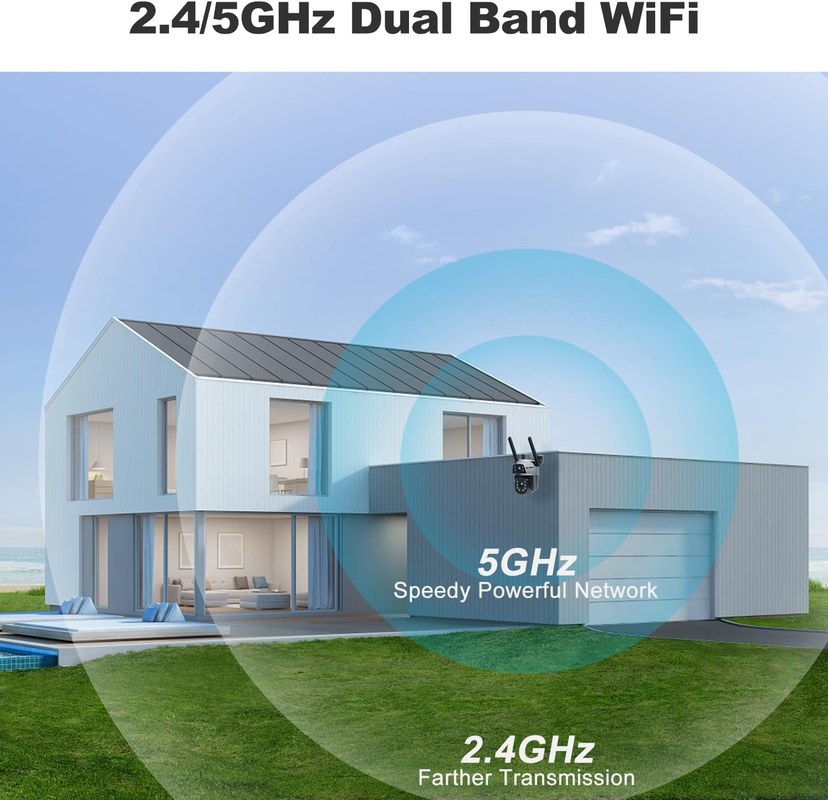
5GHz is not useless for cameras. It works well in narrow conditions where the camera is close to the router and needs high bandwidth. Those conditions are less common than most buyers expect.
Close-Range Placement and High-Bandwidth Recording
If a camera sits within 15 to 20 feet of the router with few walls between them, 5GHz can support high-bitrate 4K recording. This setup works best in a home office, a hallway near the router, or a room directly above it.
5GHz-Only Cameras and Video Doorbells: What to Watch For
Some newer cameras and video doorbells support only 5GHz. Others are dual-band but default to one band. Check the exact model specs before buying. If your router combines both bands under one network name, the camera may connect to the wrong band and then drop off.
Video doorbells are a special case. They sit at the front door, often far from the router, behind a thick exterior wall. A 5GHz-only doorbell may struggle in that spot.
Mesh Networks, Hubs, and Band Steering: How They Change the Decision
Mesh Wi-Fi systems and band steering can change the equation. Band steering automatically moves devices to the best band. That sounds helpful, but some older cameras do not handle the switch well and drop offline.
If your camera connects to a hub, the hub may use Ethernet to reach the router. That reduces the importance of the camera’s Wi-Fi band. In that case, the camera only needs a stable connection to the hub, which is often nearby.
Home Layout and Placement: Choosing the Right Band for Your Space
Your home’s layout should drive the decision more than the camera’s resolution. Think about where the camera will sit, what walls are in the way, and where the router lives.
Single-Story vs. Multi-Story Homes: Where Each Band Fails
In a single-story home, 2.4GHz usually covers the entire floor plan. A 5GHz signal may reach the far end of the house, but often with weak performance. In a two-story home, a camera on the second floor may be far from a router in the basement or first floor. 5GHz will likely fail there.
For multi-story homes, 2.4GHz is the safer default. If you need better coverage, a mesh system with a node near the camera is a better fix than switching bands.
Outdoor Cameras, Weatherproofing, and Exterior Wall Materials
Outdoor cameras face the toughest conditions. They must push a signal through exterior walls, which are often thicker and denser than interior walls. Brick, stucco, and siding block 5GHz more than 2.4GHz.
If you are choosing a camera for a backyard, garage, or driveway, 2.4GHz is usually the right band. For more guidance on placement, see our guide to choosing the best outdoor camera.
Renter Constraints: No Drilling, Battery Power, and Router Limitations
Renters face extra limits. You may not be able to move the router or drill holes for a wired setup. Many renters choose battery cameras, which often use 2.4GHz to save power and keep a stable connection.
ISP-provided routers also limit your control. Some do not let you separate the 2.4GHz and 5GHz bands. In that case, you may need to use the app to guide the camera to the right band during setup.
How to Set Up and Switch Your Camera’s Wi-Fi Band
Setting up the right band is usually a one-time task. The key is to check the specs, prepare your network, and follow the app instructions carefully. Doing it right the first time prevents most connection problems.
Check the Specs Before You Buy: 2.4GHz-Only, 5GHz-Only, or Dual-Band
Look at the product page, box, or manual for the Wi-Fi band. Many cameras are 2.4GHz-only. Some are dual-band and let you choose. A few are 5GHz-only. Knowing this before you buy saves time and returns.
Separate Your SSIDs or Use Band Steering: Pros and Cons
Separate SSIDs give you control. Name the 2.4GHz network “MyHome_2.4” and the 5GHz network “MyHome_5”. Then connect the camera to the one you want. The downside is that phones and other devices may not move between networks smoothly.
Band steering is automatic, but it can push a camera to 5GHz and cause drops. If that happens, disable band steering or separate the bands.
Step-by-Step: Connecting a Camera to the Right Band
Check the manual or product page for 2.4GHz-only, 5GHz-only, or dual-band support.
Separate the SSIDs or disable band steering in the router settings if needed.
Use the app to join the camera to the 2.4GHz network unless it is close to the router and needs 5GHz.
Check the signal strength in the app and watch for disconnects over the next few days.
Troubleshooting: When Your Camera Keeps Dropping Off the Network
A camera that drops offline is a serious problem. It means no alerts and no recording. The first step is to figure out whether the issue is a weak signal or the wrong band.
Weak Signal vs. Wrong Band: How to Diagnose the Real Problem
Open the camera app and check the signal strength. If the signal is low, the camera is too far from the router or too many walls are in the way. If the signal looks strong but the camera still drops, the band may be the problem.
Some cameras show the connected band in the app. If it says 5GHz and the camera is far away, switch it to 2.4GHz.
Neighbor Interference, Microwaves, and Other 2.4GHz Disruptors
2.4GHz is crowded. Neighboring networks, microwaves, baby monitors, and cordless phones can interfere. If the camera drops at certain times of day, interference may be the cause.
5GHz avoids much of this interference, but only if the camera is close enough to hold a solid signal.
Router Placement, Extenders, and the Limits of Wi-Fi Range
Router placement matters. Put the router high, central, and away from thick walls or metal objects. A Wi-Fi extender can help, but it adds latency and may cause connection issues with cameras.
For a camera in a far corner of the property, a mesh node or a wired connection is more reliable than an extender.
Privacy, Cybersecurity, and the Bandwidth You’re Paying For
The band you choose affects reliability, but security depends on how you manage the camera and account. A stable connection also matters for firmware updates, which patch known vulnerabilities.
Firmware Updates: Why a Stable Connection Matters More Than Speed
Firmware updates usually download automatically. A camera that drops offline may miss critical security patches. A stable 2.4GHz connection is often better than a fast 5GHz connection that disconnects.
MFA, Account Recovery, and Shared Users
Enable multi-factor authentication (MFA) on your camera account. Use a unique, strong password. Review shared users and remove people who no longer live in the home. These steps matter more than the Wi-Fi band. For a closer look at account risks, read our guide on how to tell if someone is watching your camera.
Cloud Retention, Subscriptions, and the Real Ownership Cost
Cloud plans add a monthly or yearly cost. Local storage avoids subscriptions but has risks: a thief can take the camera or memory card. Consider the total cost of the device, plan, and any accessories before you buy.
Final Verdict: Which Band Should You Choose for Your Camera?
For nearly every home, 2.4GHz is the right band for security cameras. It gives you the range and wall penetration that outdoor and far-placement cameras need. Use 5GHz only when the camera is close to the router and needs high bandwidth for continuous 4K recording.
A Simple Decision Framework Based on Your Home and Placement
- Default to 2.4GHz for most cameras, doorbells, and outdoor placements.
- Use 5GHz only if the camera is within 15-20 feet of the router with few walls between.
- Check the specs before buying. A 5GHz-only camera may not work at the front door.
- If the camera drops offline, switch bands before buying new equipment.
Next Steps: Test, Monitor, and Adjust Your Setup
Set up the camera on 2.4GHz first. Check the signal strength in the app. Watch for disconnects over the first week. If the camera struggles, move the router, add a mesh node, or consider a wired connection.
Choose 2.4GHz for almost every security camera because it offers the range and reliability cameras need. Reserve 5GHz for close-range, high-bandwidth setups. Check the specs, connect to the right band, and monitor the signal after setup to keep your camera online and your home protected.
Frequently Asked Questions
No. Most security cameras work fine on 2.4GHz, which offers better range and wall penetration. 5GHz only helps when the camera is close to the router and needs high bandwidth for continuous 4K recording.
Many camera makers choose 2.4GHz because it reaches farther and keeps a more stable connection at typical camera placements. It is also cheaper to implement and works with more routers.
Separate your router’s SSIDs so the 2.4GHz network has a different name, then reconnect the camera to that network in the app. If your router uses band steering, disable it or use the app to select the band during setup.
Usually not. Video quality depends on the camera’s sensor, lens, and bitrate settings, not the Wi-Fi band. A stable 2.4GHz connection delivers the same image as 5GHz in most homes.
Yes, but it may add latency and cause connection drops. A mesh node or a wired connection is more reliable for cameras placed far from the router.
Check the signal strength in the app first. If it is low, move the router, add a mesh node, or switch the camera to 2.4GHz. If the signal is strong, check for interference from neighbors or appliances.




One Comment