Fix Security Camera Connected to Wi-Fi But No Live View
A camera can show online in the app while the live view stays black or frozen. Most cases come from weak signals, router settings, power issues, or a lapsed subscription.
A security camera connected to wifi but no live view is one of the most frustrating smart home problems. The camera shows online in the app, yet the video stays black, frozen, or stuck loading. This guide explains why that happens and walks you through the safest fixes in order. If the camera cannot connect at all, start with our guide on fixing a security camera that will not connect to Wi-Fi.
Why Your Camera Is Connected to Wi-Fi But Has No Live View
A camera can join your Wi-Fi network and still fail to stream video. Connection and streaming are two separate jobs. Most causes fall into five groups: network, power, app, subscription, or hardware. Work through them in the order below to find the real problem.
The Difference Between “Connected” and “Streaming”
“Connected” means the camera can talk to your router. “Streaming” means the camera can send live video to the app through the internet. A camera can be connected but unable to stream. Think of it like a phone that shows full signal bars but cannot load a webpage. The camera may also be connected to the router but blocked by settings between the camera and the internet.
The Most Common Causes at a Glance
- Weak or unstable Wi-Fi signal
- Low upload speed or a crowded network
- Router settings that block video traffic
- Power adapter or battery problems
- Outdated firmware or wrong app permissions
- Lapsed cloud subscription
- Full or failing SD card
Most of these have simple fixes. The next section covers the fastest ones first.
Quick Fixes to Try Before Deep Troubleshooting

Start with safe, reversible steps. These solve many blank-feed problems in minutes. You do not need to change any settings to try them.
Reboot the Camera and Router
Unplug the camera and wait 30 seconds. Plug it back in and let it fully restart. Then reboot your router and wait for the lights to settle. Temporary network glitches often clear after a full restart. Check the live view again before moving on.
Update and Reinstall the Mobile App
Open your phone’s app store and check for updates. Log out of the camera app, then log back in. If the feed is still blank, delete the app and reinstall it. Make sure you know your login details first. Check that the app has permission to use the camera, microphone, and local network on your phone.
If the camera still shows no live view, the problem may be deeper. The next sections cover network, power, and account issues.
Wi-Fi Signal, Bandwidth, and Camera Placement
Weak signals cause many “connected but no live view” cases. The camera may stay online with a faint signal but lack the strength to send video. Distance, walls, and interference all matter.
2.4 GHz vs. 5 GHz: Which Band Should Your Camera Use?
Most security cameras use 2.4 GHz Wi-Fi because it travels farther and passes through walls better. The 5 GHz band is faster but has a shorter range. If your camera sits far from the router, 2.4 GHz is usually the better choice. Check the camera manual for supported bands. Some cameras only work on 2.4 GHz. Learn more about the differences between 2.4 GHz and 5 GHz for security cameras.
Upload Speed and Bandwidth Requirements
Live view depends on upload speed, not download speed. Most cameras need about 1 to 4 Mbps upload per video stream. Run a free speed test on the same network as the camera. If other devices stream video or download large files, they can crowd the network. Pause heavy use and test again.
Placement Tips for a Stable Signal
Keep the camera within a reasonable distance of the router. Avoid thick walls, metal objects, mirrors, and large appliances between them. Raise the camera or router to reduce interference. A mesh Wi-Fi system can help in larger homes. If the signal is borderline, the camera may connect but fail to stream.
Router and Network Settings That Block Live View
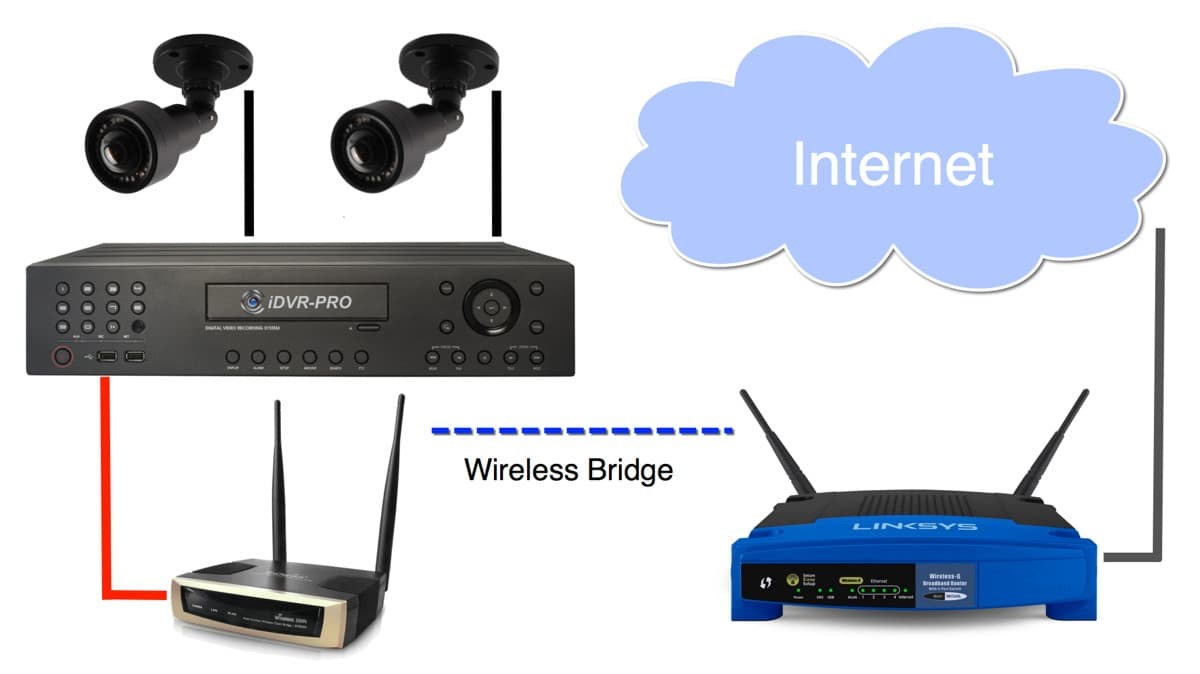
Some routers block the traffic cameras need. The camera may still connect to Wi-Fi, but the app cannot reach it. Two settings cause most of these problems.
AP Isolation and Guest Networks
AP isolation, also called client isolation, stops devices on the same network from talking to each other. Many guest networks have this enabled. If your camera is on a guest network, the app may not find it. Move the camera to your main network, or disable AP isolation in the router settings.
Firewall, UPnP, and Port Forwarding
Firewalls can block the ports cameras use for video. UPnP lets cameras open the needed ports automatically. If UPnP is off, streaming may fail. Check your router manual for the exact setting. You can test with the firewall off, but turn it back on after the test. If the camera works with the firewall off, adjust the firewall rules instead of leaving it disabled.
Power Supply and Hardware Faults That Interrupt Video
Power problems can keep a camera online but stop video. A camera needs steady power to run the sensor, Wi-Fi radio, and video encoder at the same time.
Power Adapter and Cable Issues
Check the power adapter, cable, and outlet. A loose or damaged cable can cause intermittent failures. Try a different outlet. For battery cameras, check the charge level. A low battery may keep the camera online but prevent live streaming. Use only the adapter the manufacturer lists for your model.
Weather and Temperature Effects on Outdoor Cameras
Outdoor cameras face heat, cold, and moisture. Extreme temperatures can make a camera overheat or shut down. Check the operating temperature range in the manual. Inspect seals, vents, and cables after storms. If the camera is exposed to direct sun, a shaded mount may help.
Firmware, App Permissions, and Account Issues
Software problems are common and easy to fix. Outdated firmware and wrong app permissions can block the live view even when the network is fine.
Update Firmware and Check App Permissions
Open the camera app and look for a firmware update. Many apps update firmware automatically, but some require a manual check. On your phone, confirm the app can access the camera, microphone, and local network. Denied permissions can produce a black screen or endless loading.
Re-Login, Shared Users, and Account Recovery
Log out of the app, then log back in. This refreshes your session and often clears stuck feeds. If you share the camera with family members, remove and re-add them if their feeds fail. If you changed your Wi-Fi password, update it inside the camera app. If the account is locked, use the official recovery process.
Subscription, Storage, and Cloud Retention Problems
Some cameras hide the live view when a plan lapses. Others stop recording when storage fails. Check your account and storage before replacing hardware.
Cloud Subscription Lapse and Retention Limits
Some brands require an active subscription for live view. If the plan expired, the feed may stop. Check the billing status in your account. Cloud plans also have retention limits. Older clips may vanish after a set number of days. That is normal and not a hardware fault.
SD Card and Local Storage Failures
A full or failing SD card can interrupt recording and sometimes the live feed. Format the card through the app. If the problem returns, try a new card from the manufacturer’s supported list. Local storage keeps video on your property and works without a monthly plan. See how local storage for security cameras compares to cloud storage.
- Video stays on an SD card or recorder on your property.
- No monthly fee, but the card can fill or fail.
- Access depends on the app and your network.
- Video uploads to the provider’s servers.
- Requires an active plan and a stable upload connection.
- Retention limits control how long clips stay available.
Privacy, Cybersecurity, and When to Replace the Camera
Sometimes the problem is not the network. A compromised account or an outdated camera can cause odd behavior. Secure the account first, then decide if the camera is worth keeping.
Lock Down Your Account With MFA and Strong Passwords
Use a unique password for your camera account. Enable multi-factor authentication (MFA) if the brand offers it. Review shared users, logged-in devices, and third-party integrations. Remove anything you do not recognize. A secure account also protects your privacy. Review your security camera privacy settings to limit who can see the feed.
End-of-Life Cameras: When to Repair vs. Replace
Old cameras may stop receiving firmware updates. Without updates, streaming bugs may never be fixed. Check the manufacturer’s support page for your exact model. If the camera is end-of-life, replacement is often safer and cheaper than repeated repairs. Newer models also include stronger security features.
A security camera connected to wifi but no live view usually comes down to network, power, software, subscription, or storage. Start with reboots and app updates, then check signal strength and router settings. Secure your account with MFA and review your storage plan. If the camera is old and unsupported, replacement may be the safest fix.
Frequently Asked Questions
A camera can join your Wi-Fi network but fail to stream video. Common causes include a weak signal, low upload speed, router settings, power problems, outdated firmware, a lapsed subscription, or a failing SD card.
Yes. The camera may stay connected with a faint signal but lack the strength to send video. Move the camera closer to the router or use a mesh system to improve the signal.
Live view sends video from the camera to the app through the internet, which uses upload bandwidth. Most cameras need about 1 to 4 Mbps upload per stream. Heavy use on the same network can crowd that bandwidth.
Some brands require an active cloud plan for live view. Check the billing status in your account. If the plan expired, renew it or move to a camera that supports free local viewing.
Most security cameras work best on 2.4 GHz because it travels farther and passes through walls better. Check your camera manual for supported bands. If the camera is far from the router, 2.4 GHz is usually the safer choice.
If the camera no longer receives firmware updates or the manufacturer lists it as end-of-life, replacement is often safer. Old cameras may keep failing to stream and may lack modern security protections.