Security Camera Privacy Settings Explained in Detail
Privacy settings control what your camera records, who can view it, and how long footage stays saved. Start with privacy zones, audio toggles, and account security, then review them every few months.
Security camera privacy settings explained: these are the controls inside your camera app that decide what your camera records, who can view it, and how long footage stays saved. This guide walks through each setting, shows where problems appear, and gives you a simple plan for locking down your home security system.
What Are Security Camera Privacy Settings and Why They Matter
Privacy settings are the tools that keep your cameras from recording things you do not want recorded. They also control who can see your live feed and stored clips. Used well, they protect your family, your guests, and your neighbors.
These settings matter because cameras record real people in real places. A camera aimed at a sidewalk may capture strangers. A camera inside your home may record a private conversation. Without the right settings, footage can end up in the wrong hands or stay stored longer than you want.
Every brand uses different names for these controls. Some call them privacy zones. Others call them activity zones or motion masks. The exact menu depends on your camera model and app version, so keep your product manual handy.
Start With the Basics: Privacy Zones, Motion Masking, and Audio Toggles
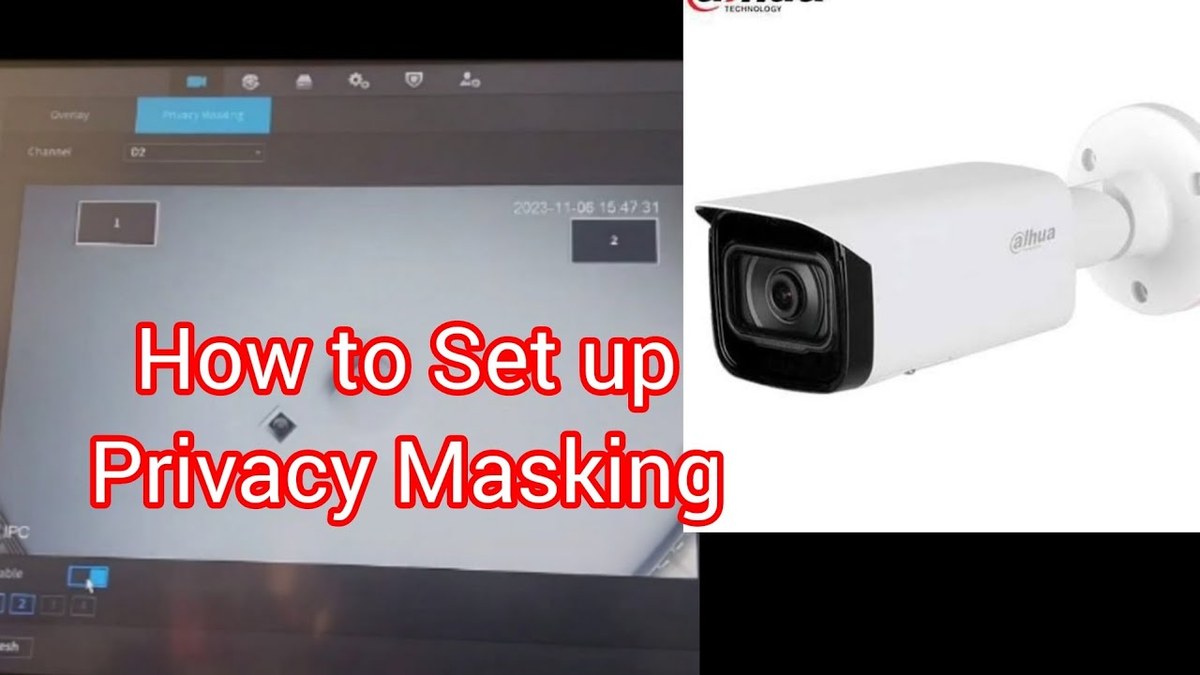
Start with the three controls that shape what your camera sees and hears. They are privacy zones, motion masking, and audio toggles. Each one solves a different problem and works best when you understand the difference.
Privacy Zones vs. Motion Masking: What’s the Difference?
A privacy zone blocks part of the image from recording. That area appears blacked out or grayed out in the footage. Use this for a neighbor’s window, a shared hallway, or a spot you simply do not want recorded.
Motion masking is different. The camera still records the whole view, but it ignores motion inside the masked area. Use this to stop alerts from a busy street or a tree that moves in the wind.
The main difference is simple: privacy zones stop recording. Motion masks stop alerts. If you want both, you may need to set up both.
Audio Recording Toggles and State-Specific Rules
Most cameras can record sound, but you can usually turn that off. Look for an audio toggle in the camera’s video settings.
Audio rules vary by state. Some states require everyone in a conversation to agree to recording. Others do not. Before you enable audio, check your state’s recording law. When in doubt, keep audio off.
Placement and Field of View: Camera Angles That Respect Boundaries
Good privacy starts before you open the app. The angle of the camera decides what gets recorded in the first place. Aim your camera at your own property, not at your neighbor’s.
Video Doorbell and Outdoor Camera Placement for Renters and Homeowners
A video doorbell should cover your entryway and package area. Avoid aiming it directly at a neighbor’s door or window. A small turn of the lens can make a big difference.
Outdoor cameras work best when they cover driveways, yards, and entry points. Check your lease or HOA rules before mounting anything. Renters may prefer mounts that do not require drilling. Homeowners have more freedom, but local rules still apply.
For help choosing the right outdoor model, see our guide on which camera is best for outside.
Indoor Cameras: Private Mode, Scheduling, and Power/Wi-Fi Constraints
Indoor cameras need extra care. Use private mode when you are home. Many apps have a button that turns the camera off, and some models include a physical lens cover.
Scheduling is another option. You can set the camera to turn off during certain hours, such as when the family is home in the evening. This reduces the chance of recording private moments.
Power and Wi-Fi also matter. A camera that loses power stops recording. A camera with a weak signal may miss events. Place it within range of your router, and check whether your camera needs a 2.4 GHz or 5 GHz band. Some cameras work offline with local storage; learn more about using a security camera without Wi-Fi.
Storage and Subscriptions: Who Can Access Your Footage?

Your footage has to live somewhere. That place decides who can reach it and for how long. The two main options are local storage and cloud storage.
Local Storage vs. Cloud Retention and Subscription Tiers
Local storage saves clips on a memory card, base station, or network video recorder. You control the hardware, but a thief can take it, and you are responsible for backups.
Cloud storage sends clips to the vendor’s servers. It usually costs a monthly or yearly fee. Retention periods vary, so check how long clips stay before they are deleted.
- No monthly fee for the storage itself.
- Works during internet outages on many models.
- You must manage capacity, backups, and theft risk.
- Clips are saved off-site and easy to view anywhere.
- Requires a plan and a working internet connection.
- Retention and deletion are controlled by the vendor.
If your camera depends on cloud storage, an outage can pause recording. See our guide on whether a security camera works during an internet outage to understand the limits.
Monitoring Plans, Dispatch Limits, and Footage Sharing
Some plans add professional monitoring. A monitoring center may review alarms and call emergency services. Dispatch is not guaranteed for every event, and response depends on the plan.
Plans also control footage sharing. Some apps let you share clips with family or neighbors. Review who has access and remove anyone who no longer needs it.
Account Security and Shared Access: Locking Down Your System
A camera is only as private as the account that controls it. If someone gains access to your account, they can watch your feed and change your settings. Locking down the account is a top priority.
Multi-Factor Authentication, Strong Passwords, and Account Recovery
Enable multi-factor authentication, or MFA, on every security account. MFA asks for a second code after your password. It blocks most unauthorized logins.
Use a strong, unique password. Do not reuse a password from another site. Check your account recovery options too, so a stranger cannot reset your password with simple details.
If you suspect someone else has access, act fast. Our guide on someone watching your Ring camera explains the warning signs and next steps.
Managing Shared Users, App Permissions, and Hub/Wi-Fi Band Considerations
Shared users can see your feed and clips. Review the list often and remove people you no longer live with. Some apps let you limit what each user can do.
Check app permissions on your phone too. A camera app may not need access to your contacts or location. Deny permissions that are not required for the camera to work.
If your camera connects through a hub, keep the hub’s firmware updated. Use a modern Wi-Fi password and consider placing older devices on a separate network.
Privacy Beyond Cameras: Smart Locks and Alarm Systems
Cameras are not the only devices that collect private data. Smart locks track who enters your home. Alarm systems record when you come and go. Both need the same attention.
Smart Lock Access Logs, Backup Keys, and Auto-Lock Behavior
Smart locks keep an access log. Review it to see which codes were used and when. Delete codes for guests, cleaners, or former residents after they leave.
Always keep a physical backup key. A smart lock can fail if the battery dies or the motor breaks. The key is your reliable fallback.
Check auto-lock behavior. Some locks lock automatically after a set time. Others stay unlocked until you tell them to lock. Choose the setting that fits your household.
Alarm Systems: Permits, False Alarms, and Professional vs. Self-Monitoring
Alarm systems can be self-monitored or professionally monitored. Self-monitoring sends alerts to your phone, and you decide what to do. Professional monitoring adds a monitoring center that may dispatch help.
Some cities require an alarm permit. Repeated false alarms can lead to fines. Check the rules for your address before relying on professional dispatch.
Troubleshooting Common Privacy Setting Problems
Privacy settings can fail in frustrating ways. The good news is that most problems have simple fixes. Start with the easiest check and work from there.
Privacy Zones Not Saving or Alerts Firing in Masked Areas
If your privacy zone does not save, redraw it and confirm the zone in the app. Some apps require you to tap a save button after drawing. Restart the camera if the zone still disappears.
Alerts from masked areas are common. Motion masking may not apply to person detection on some models. Check whether the alert comes from a different detection mode, such as package or vehicle alerts.
Firmware Updates, Vendor Support Lifecycle, and Decommissioning Old Devices
Firmware updates fix bugs and close security gaps. Check for updates in the app and on the vendor’s support page. Enable automatic updates when available.
Every device has a support lifecycle. When a vendor stops updating a model, the camera becomes less safe over time. Plan to replace it before support ends.
When you remove an old camera, reset it to factory settings. Delete the device from your account and remove any stored clips. This keeps your data out of the next owner’s hands.
Maintenance and Next Steps: Building a Privacy-First Security Setup
Privacy settings are not set-and-forget. Your home changes, your household changes, and your camera software changes. A short review a few times a year keeps everything in line.
Running a Quarterly Privacy Audit
Every three months, review your camera list. Check each camera’s privacy zones, audio toggle, and recording schedule. Confirm that only current household members have app access.
Review your storage plan too. Look at how many clips are saved and how long they stay. Delete clips you no longer need and update your password if anything looks unusual.
When to Adjust Settings as Your Home and Neighborhood Change
Adjust settings after big life changes. A new neighbor may need more privacy coverage. A new roommate should get limited access. A new layout may require moving a camera.
Seasonal changes matter as well. Trees grow and can block a camera’s view. New streetlights can create glare. Walk around your property and check each camera’s view from the app.
Privacy settings are the difference between a helpful camera and an invasive one. Start with privacy zones, audio toggles, and careful placement. Then lock down your account, review storage, and audit your setup every few months. The safest system is the one you check on a regular basis.
Frequently Asked Questions
A privacy zone is a part of the camera’s view that is blocked from recording. The area appears blacked out in the footage. Use it for neighbor windows or shared spaces you do not want captured.
It depends on your state’s recording law and your comfort level. Some states require everyone in a conversation to consent to recording. When in doubt, keep audio off.
It can happen if someone gains access to your account. Enable multi-factor authentication, use a unique password, and review shared users regularly. If you suspect access, remove unknown devices and reset your password.
No. Local storage keeps clips on a memory card or base station without a monthly fee. Cloud plans add convenience but also add another party that can access your data.
Motion masking may not apply to every detection mode. Person, package, or vehicle detection can trigger separate alerts. Check each detection setting and update your firmware if the problem continues.
Review them every three months or after major changes. New roommates, new neighbors, or a new home layout can all require new privacy zones and access rules.





2 Comments