If you have the battery-powered Nest Doorbell, remove it carefully and charge it with the correct cable and power source. If you have the wired model, check wiring and transformer compatibility instead of trying to recharge it like a battery device.
How to Charge Google Nest Doorbell depends on the exact model. Battery-powered and wired versions work differently. If you have the battery model, you can remove it and recharge it with a USB cable. If you have a wired model, it usually draws power from your home wiring instead of charging like a battery device.
How to Charge a Google Nest Doorbell: The Fast Answer and What You Need First
The fast answer is simple. Only the battery-powered Google Nest Doorbell needs regular charging. The wired version is designed to stay powered by low-voltage doorbell wiring.
Before you start, check your exact model. You also need a USB cable and a safe place to recharge it indoors.
If your goal is a quick recharge, plan for a short removal from the mount. Then return it to the same spot after charging. If your goal is fewer recharges, placement, motion settings, and Wi-Fi quality matter just as much as the battery itself.
Identify Which Google Nest Doorbell Model You Have Before Charging
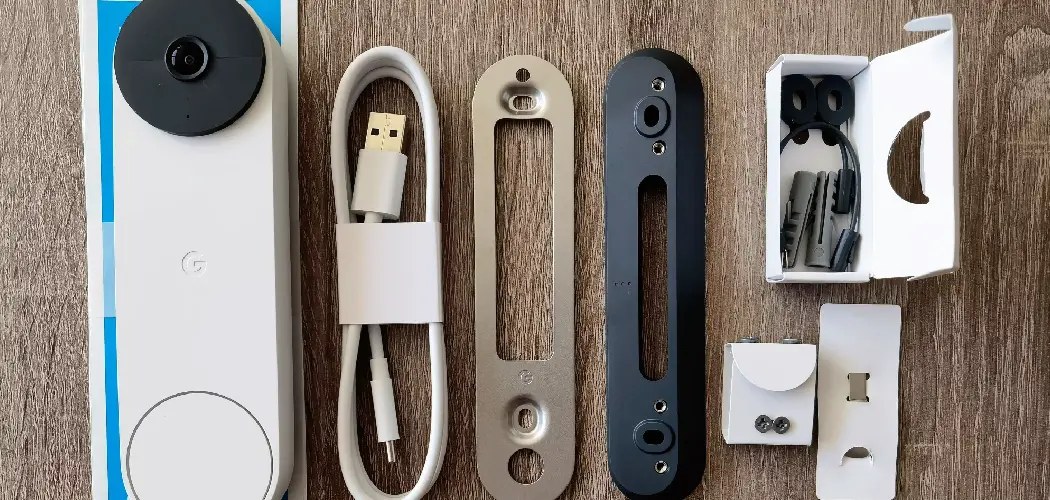
Compare Google Nest Doorbell models before choosing the right charging method.
You need the exact model because charging steps are not the same. Battery-powered Nest Doorbells can be removed and recharged. Wired Nest Doorbells rely on a constant power feed, so they do not follow the same charging routine.
Battery-powered Nest Doorbell vs. wired Nest Doorbell
A battery-powered model has an internal battery that you recharge with a cable. A wired model connects to your home’s doorbell circuit and may use that power for daily operation.
Some homes have a chime connector or transformer setup. That setup affects how the wired model runs.
If you are still deciding between power styles, a wired vs. battery doorbell comparison can help you think through access, charging, and installation tradeoffs. Battery models are usually easier for renters. Wired models may fit homes with existing doorbell wiring better.
Checking the model in the Google Home app or on the device
The Google Home app often shows the device name and settings tied to the model. You can also check the label on the doorbell itself or the box if you still have it.
If the name includes battery wording, that is a strong sign you need periodic recharging.
Model confirmation matters because charging time, connector type, and removal steps can vary. If the app and the physical label disagree, trust the exact product label and the current manual. That is the safest way to avoid using the wrong power method.
How to Charge a Google Nest Doorbell Safely Step by Step
Charging a battery-powered Nest Doorbell is usually straightforward. Still, you should do it carefully. The main goals are to avoid damaging the mount, protect any wiring, and make sure the battery begins charging once connected.
1
Confirm requirements
Verify the exact model, power, network, storage, placement, household, rental, and platform requirements.
2
Plan safe placement
Consider privacy, field of view, weather, height, doors and windows, wiring, and emergency access.
3
Install and secure
Follow the exact manual, update firmware, use a unique password, and enable MFA.
4
Test and maintain
Test alerts, recording, outage behavior, batteries, users, permissions, and backup procedures.
Removing the doorbell from its mount without damaging wiring
Start by checking whether your doorbell is wired into a house circuit. If it is, turn off power at the breaker before touching any wiring.
If you are not comfortable working around low-voltage wiring, use the exact manual or a qualified installer.
Battery models usually release from the bracket with the proper tool or a small security release. Pull straight and avoid twisting hard. If you feel resistance, stop and recheck the mounting method.
Using the correct USB cable, power source, and charging time
Use the cable type and power source listed in the manual for your exact model. A standard USB power adapter from a reliable outlet is usually the safest choice.
Avoid damaged cables, loose adapters, and outdoor charging.
Charging time varies by model, battery level, and adapter output. The app may show charging status, but the exact time can still change based on the starting battery level.
If the battery was deeply drained, expect a longer wait before the device is ready again.
Reinstalling and confirming the battery is charging properly
After charging, return the doorbell to the mount and secure it fully. Then check the Google Home app for battery status, connection status, and recent activity.
If the app does not update right away, give it a few minutes and refresh the device view.
A good sign is a stable battery indicator and normal event alerts. If the doorbell still shows low power, recheck the cable, the adapter, and the seating on the mount. A loose fit can interrupt charging or power delivery.
Where and How Your Home Setup Affects Charging and Power<
Home setup can affect how easily the doorbell charges and stays powered
Your home setup changes how easy charging feels over time. Renters may need a removable setup. Homeowners with existing wiring may prefer fewer battery swaps.
Weather, height, and access also matter because they affect how often you can reach the device.
Apartment, townhouse, and rental constraints
Renters often need a no-drill or low-damage setup. That can make battery charging more practical because you can remove the doorbell without changing the wall or doorframe much.
Still, check lease rules before mounting anything outside.
Townhomes and apartments also raise privacy concerns. A doorbell should point at your own entry area, not unnecessary shared space.
If you need a broader setup discussion, our no-drill mount guide covers the kind of access and placement issues renters often face.
Homeowner setups with existing doorbell wiring
Homeowners with a working doorbell circuit may prefer a wired Nest Doorbell because it can stay powered continuously. That reduces the need to remove and recharge a battery.
The tradeoff is that the wiring must be compatible and installed correctly.
Weather exposure, mounting height, and access for recharging
Outdoor exposure can make charging more inconvenient. High mounts may need a ladder or extra help.
If the camera sits above a porch or stair landing, plan a safe way to remove it and bring it indoors.
Mounting height also affects motion detection and privacy. A higher angle may catch more of the walkway, but it can also include more public space. That can matter for neighbors and for local rules about recording shared areas.
Wi-Fi, App, and Hub Requirements That Affect Performance After Charging
Charging is only part of the job. After the battery goes back in place, the doorbell still needs a solid network connection and the right app access.
If Wi-Fi is weak or permissions are wrong, the doorbell may seem “charged” but still work poorly.
2.4 GHz vs. 5 GHz Wi-Fi considerations
Many video doorbells work better near the router or a strong mesh node. Some support 2.4 GHz, some support 5 GHz, and some use both.
The exact band support depends on the model, so check the manual before changing your network.
For a doorbell, upload speed matters because it sends video out to the cloud or app. A strong signal near the front door helps reduce lag, failed live views, and delayed alerts.
If your network is unstable, charging alone will not fix the experience.
Google Home app permissions, account access, and device sharing
The Google Home app controls alerts, history access, and shared users. If the wrong account is signed in, the device may look offline or missing.
Make sure every household member uses the correct shared access setup.
Shared access should be limited to people who actually need it. That keeps settings cleaner and reduces privacy risk. If a guest, roommate, or caregiver no longer needs access, remove them from the account list.
Firmware updates and connection issues after reinstallation
After reinstalling, the doorbell may need a short time to reconnect and update. Firmware is the built-in software that helps the device run.
If the app prompts for an update, let it finish before judging performance.
If the device stays offline, check the router, the app account, and the battery seat. Then restart the app and, if needed, the router. Only after those steps should you consider a reset.
That order solves many simple issues without extra risk.
Battery Life, Alerts, and Video Performance: What to Expect in Daily Use
Battery life depends on how often the doorbell wakes up, records, and sends alerts. More motion events mean more drain.
Stronger Wi-Fi and cleaner settings can help the battery last longer between charges.
Motion activity, live view frequency, and battery drain
Frequent motion alerts use more power than occasional ones. Live View also draws extra battery because it streams video on demand.
If you check the feed often, expect more charging cycles.
You can usually reduce drain by narrowing motion zones and tuning alert sensitivity. That helps the doorbell focus on real activity near the door.
It also cuts down on unnecessary notifications that make the battery work harder.
Night vision, audio, and field of view considerations
Night vision helps the camera see in low light, but it can still be affected by porch lighting and reflections. Audio quality depends on placement, noise, and network strength.
A busy street or echoing entryway can make conversations less clear.
Field of view is the area the camera can see. A wider view may capture more of the entry path, but it can also include neighbors or sidewalks. That is useful to think about before you settle on a permanent mount.
Neighbor privacy, privacy zones, and alert tuning
Privacy zones let you block parts of the image from recording in some setups. They are helpful when a camera faces shared walkways, a neighbor’s door, or a public sidewalk.
Not every feature is available on every model or plan, so verify before relying on it.
Alert tuning matters too. Too many notifications can lead people to ignore them. Too few can leave you unaware of real activity. The best setting is the one that matches your home, not a generic default.
Charging Problems and Troubleshooting Common Google Nest Doorbell Issues
Most charging problems have a simple cause, such as a bad cable, a weak adapter, or a loose mount. Start with reversible checks first.
Only move to wiring or reset steps if the easy fixes fail.
Doorbell not charging, slow charging, or battery not holding power
If the battery does not charge, try a different cable and a different outlet. Make sure the connector is seated fully.
If the battery charges very slowly, the adapter may not be strong enough for the model’s needs.
If the battery charges but drains quickly, the problem may be usage, Wi-Fi strength, or a battery that no longer holds power well. Heavy motion, frequent live views, and poor signal can all increase drain.
If the battery still fails after basic checks, review the manual or contact support.
App says offline after charging
An offline message does not always mean the doorbell is broken. It can mean the device has not reconnected yet, the account is wrong, or the Wi-Fi signal is weak.
Wait a few minutes, then check the app and router status.
If the app still shows offline, confirm the device is mounted correctly and powered. Then restart the app and, if needed, the router. If the problem continues, remove and re-add the device only after you confirm the exact model instructions.
Wiring, transformer, and compatibility limitations for wired models
Wired Nest Doorbells depend on compatible low-voltage wiring and a suitable transformer. If the transformer is wrong, the doorbell may not power correctly or may act unstable.
This is not a charging issue, but it can look like one.
When wiring is uncertain, stop and verify the exact voltage and chime setup. If you need a deeper setup reference, our chime setup guide and hardwire guide explain the kinds of compatibility checks that matter for powered doorbells.
Subscriptions, Storage, and Ownership Costs After You Set It Up
Charging is only one part of ownership. You should also think about storage, alerts, and any subscription plan.
Those choices affect what you can review after an event and how much the doorbell costs over time.
What Nest Aware changes for video history and event storage
Google’s subscription options can change how much video history you can access and how long recordings stay available. Exact plan features can change, so verify current terms before you rely on them.
Without the right plan, some history and alert features may be limited.
Without a Plan$0
Basic live access and alerts may still work, depending on model and account setup.
Video history and advanced event features may be limited.
Monthly PlanVerify current price
May add longer history and richer event features.
Check retention and device limits before subscribing.
Annual PlanVerify current price
May lower the monthly equivalent cost.
Review cancellation and renewal terms first.
Cloud retention, local limitations, and monitoring tradeoffs
Cloud storage is convenient because you can review clips from anywhere, but it depends on your account and internet access. Local storage, when available on a product, can reduce cloud dependence but may have capacity and access limits.
The right choice depends on how you want to review events.
Local Storage
Can keep clips on nearby hardware.
May reduce ongoing subscription dependence.
Can still be lost if the device is removed or damaged.
Cloud Storage
Usually easier to access from the app.
Depends on internet and account access.
May require a paid plan for full history.
Total cost of ownership: accessories, subscription, and power setup
Total cost includes the doorbell, mounting hardware, possible adapters, and any plan you choose. If your setup needs a ladder, a chime kit, or a pro installer, those costs can matter too.
Over time, battery charging also adds a small but real maintenance task.
Privacy, Cybersecurity, and Maintenance Tips for Long-Term Use
Good charging habits are only part of safe ownership. You should also protect the account, review permissions, and keep the device clean.
Those steps help the doorbell stay useful without creating avoidable privacy or security problems.
Two-factor authentication, shared users, and account recovery
Use a unique password and turn on two-factor authentication, also called MFA. That adds a second sign-in step.
It helps protect the camera feed if someone learns your password.
Keep a record of who has access. Remove old roommates, contractors, or family members who no longer need it.
Also make sure account recovery options, like your phone number and email, are current.
Keeping firmware current and reviewing device permissions
Firmware updates can fix bugs, improve stability, and patch security issues. App updates matter too.
When possible, keep the router updated as well, since the whole connection chain affects the doorbell.
Also review third-party connections. If the doorbell is linked to other smart home services, only keep the ones you use. Fewer links can mean fewer places where settings can go wrong.
Routine cleaning, seasonal checks, and safe recharging habits
Clean the lens and housing gently with a soft cloth. Check the mount after storms, heat waves, or freezing weather.
Seasonal checks help catch loose hardware, weak signal, or battery issues before they become bigger problems.
When you recharge, use the same safe routine every time. Remove the unit carefully, charge it indoors, and confirm it reconnects properly.
That habit protects the hardware and makes future troubleshooting easier.
Final Takeaway
The easiest way to charge a Google Nest Doorbell is to confirm that you have the battery model, remove it carefully, and recharge it with the correct cable and power source. If your doorbell is wired, focus on wiring compatibility instead of charging. For renters and homeowners alike, the safest next step is to verify the exact model and follow the current manual before making any power changes.
Battery-powered models need periodic charging, while wired models usually draw power from home wiring. Check the Google Home app and the device label to confirm the exact model before you remove anything.
Use the cable and power source listed in the exact model manual. A damaged cable or weak adapter can slow charging or prevent the battery from filling properly.
It may still be reconnecting, the Wi-Fi signal may be weak, or the account may be signed into the wrong profile. Check the mount, app, router, and device status before resetting anything.
It may still power on, but many features depend on Wi-Fi. Alerts, live view, and cloud access usually need a stable connection to work well.
Basic operation may still work without a plan, but storage and some event features can be limited. Check the current Google plan details before you rely on video history.
Reduce unnecessary live views, narrow motion zones, and improve Wi-Fi strength near the front door. Frequent alerts and weak signal usually shorten battery life.
Hi, I'm Marcus Sterling, a smart home security expert with over 5 years
of hands-on experience testing and reviewing hundreds of security cameras, smart locks, and alarm systems. My mission is to make smart home security accessible, affordable, and easy to understand—and every review I publish is 100% independent, unbiased, and honest. I don't accept payments for positive reviews, just practical advice to help you secure your home with confidence.
View on Amazon Quick Security Answer Place carbon monoxide detectors on every level of your home, outside each sleeping area, and near attached garages. Mount them at the height in the manual, keep them away from fuel-burning appliances, and test them monthly. Smart Home Security Guide Knowing where to place carbon monoxide detectors is one…
Quick Security Answer Ring doorbell video quality is usually good when the camera has the right angle, enough light, and a stable Wi-Fi connection. If the image looks weak, start with placement, power, and network checks before replacing the device. Ring doorbell video quality depends on more than the camera label. In most homes, you…
View on Amazon Quick Security Answer A typical US home works well with three to five motion sensors, plus one per extra exterior door and one on the main traffic path. Adjust the count for open or compartmentalized layouts, pets, and professional monitoring choices. Smart Home Security Guide Wondering how many motion sensors do i…
View on Amazon Quick Security Answer Choose a door sensor first for simple, reliable entry-point alerts. Add a motion sensor when you need to detect movement inside a room. Smart Home Security Guide When you compare a door sensor vs motion sensor, you are comparing two jobs: knowing when a door opens and knowing when…
Quick Security Answer Check the app settings, then look at placement, power, and Wi-Fi. Most Ring motion issues come from a narrow zone, a poor angle, or a weak connection. When a ring video doorbell not sensing motion issue shows up, the cause is usually simple. It is often placement, app settings, power, or Wi-Fi….




One Comment