How to Secure Home Security Cameras from Hackers in 2025
Secure your cameras by isolating them on a guest network, using unique passwords with MFA, and patching firmware regularly. Most camera hacks are opportunistic, so basic protections stop most attacks before they start.
Learning how to secure home security cameras from hackers starts with your network, not the camera itself. This guide covers router settings, account protection, firmware updates, placement, and storage. It also covers a maintenance routine you can finish in one afternoon.
Why Home Security Cameras Get Hacked (and the Real Risk)
Most camera hacks start with weak passwords, outdated firmware, or cameras exposed directly to the internet. Reused credentials from an unrelated data breach are a common entry point. Known software vulnerabilities that were never patched are another.
The real risk is not usually a stranger watching live video for fun. It is a stranger who gains access to your account, clips, two-way audio, or home network. That access can lead to stalking, harassment, or a wider intrusion into your other devices.
No camera is unhackable. The goal is to make yours a harder target than the average household. Most attacks are opportunistic, so basic protections stop most of them.
Different brands face different risks. For example, Blink camera security depends heavily on account settings and the vendor’s backend. The same principle applies across most consumer cameras. The account is the main attack surface.
Secure the Foundation: Router, Wi-Fi, and a Separate IoT Network
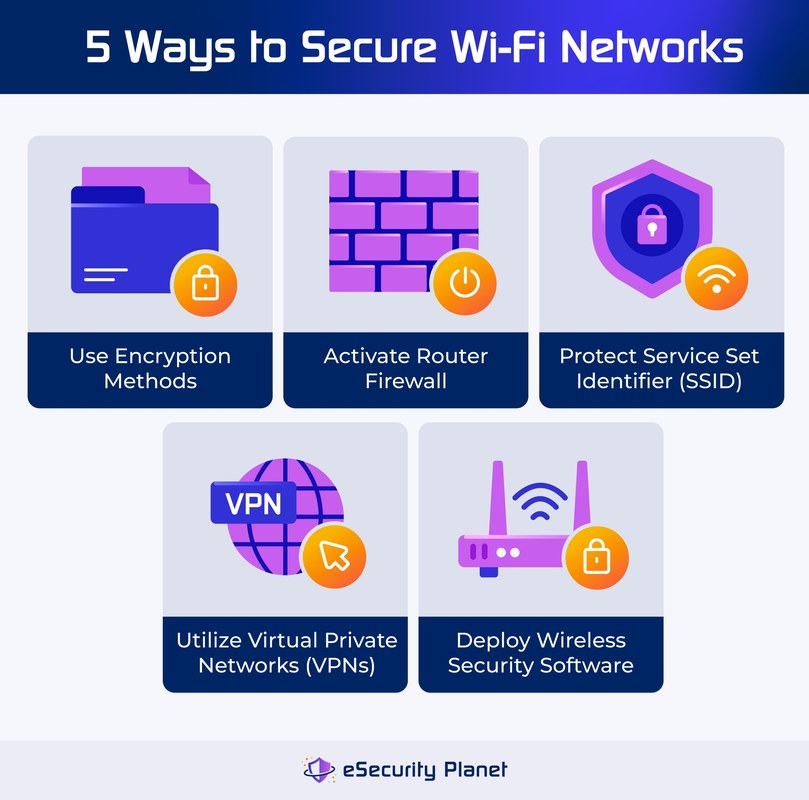
Your router is the front door for every connected device. If the router is weak, the cameras behind it are weak too. Start with the router before you touch the camera app. This section covers the three network changes that matter most.
Change Default Router Credentials and Enable WPA3
Most routers ship with a default admin username and password. Change both on day one. Use a long passphrase for the router admin account and store it in a password manager.
Enable WPA3 if your router supports it. If not, WPA2-AES is the minimum acceptable option. Do not use WEP or WPA, which are outdated and easy to crack.
Turn off remote router administration unless you truly need it. If you do, require a VPN or a strong unique password plus two-factor authentication.
Put Cameras on a Guest Network or IoT VLAN
A guest network keeps cameras separate from your computers and phones. Most modern routers offer a guest Wi-Fi option in the admin panel. Create one, give it a neutral name, and connect only your smart home devices to it.
A VLAN is a more advanced version of the same idea. It requires a managed switch or a router with VLAN support. If that sounds complex, the guest network is enough for most homes.
When a Wired Connection Makes Sense
Wired cameras using Ethernet or Power over Ethernet (PoE) avoid Wi-Fi interference and are harder to intercept. They also keep working when wireless networks fail. If you have a fixed outdoor camera, a wired connection is worth the extra effort.
For video doorbells, wiring is often about power rather than data. A wired doorbell still uses Wi-Fi for video. Check whether your security camera works during an internet outage before relying on it in an emergency.
Lock Down Your Account: Passwords, MFA, and Recovery
Your camera account is the most direct path for an attacker. A strong password and multi-factor authentication (MFA) block most account takeover attempts. This section explains how to lock down both the app account and the email behind it.
Use Unique Passwords and Enable MFA on Every Account
Never reuse a password from another website. Use a password manager to generate and store a long random password for each camera app. Enable MFA wherever the app offers it, preferably with an authenticator app rather than SMS.
MFA means that even if a password leaks, the attacker still needs a second factor. That second factor is usually a code on your phone. It is the single most effective account protection available.
Protect the Email Account That Controls Your Cameras
The email address tied to your camera account is a recovery backdoor. If an attacker controls that email, they can reset your camera password and lock you out. Secure that email with a unique password and MFA too.
Review the recovery options on that email account. Remove old phone numbers, old recovery emails, and unused app passwords. Also check which devices currently have active sessions.
Keep Firmware and Apps Current (and Know When to Retire a Camera)

Firmware updates patch known vulnerabilities. An unpatched camera is an invitation to attackers. Updates are not optional for security cameras. You also need to know when a camera reaches the end of its support life.
Enable Automatic Updates and Track the Vendor’s Support Lifecycle
Turn on automatic updates in the camera app and the router admin panel. If automatic updates are not available, set a calendar reminder to check monthly.
Also note when the vendor stops supporting your model. Support lifecycles vary by brand and model. A camera that no longer receives patches becomes a growing risk over time.
Replace Cameras That No Longer Receive Patches
When a vendor ends support, the camera will eventually have an unpatched vulnerability. That does not mean it will be hacked tomorrow, but the risk increases over time. Plan to replace end-of-life cameras, especially indoor ones with microphones.
Some brands have better security track records than others. If you are researching a specific model, check whether that brand has documented security issues before buying.
Placement, Privacy Zones, and Neighbor Privacy
Placement affects both security and privacy. A camera pointed at a neighbor’s window creates legal and social problems. Privacy zones reduce those problems without removing the camera. Good placement also makes installation easier for renters.
Choose Mounting Spots and Set Up Privacy Zones in the App
Mount cameras to cover your own entry points, driveways, and walkways. Avoid pointing them at public sidewalks, neighboring homes, or areas where guests expect privacy. Many apps let you draw privacy zones that black out part of the image. Use them.
Check your state and local rules about audio recording. Some states require consent from all parties. Recording audio without consent can create legal exposure even if the video is legal.
Renter-Friendly Installation and Power Options
Renters should avoid drilling holes when possible. Many cameras mount with adhesive strips, magnetic bases, or clamp-style brackets that do not damage walls. Check your lease before installing anything permanent.
Battery cameras are the easiest renter option because they need no wiring. Plug-in cameras need an outlet near the mounting spot. Outdoor cameras should be weather-rated, but verify the exact IP rating for your model.
Secure Your Footage: Cloud, SD Cards, and Local Storage
Footage is a target too. An attacker who reaches your account can watch, download, or delete clips. Choose storage that matches your privacy needs and budget. Both cloud and local options have trade-offs.
Cloud Storage: Encryption, Retention, and Subscription Costs
Cloud storage records to the vendor’s servers. It is convenient and survives camera theft. But it depends on your internet connection and the vendor’s security. Check the retention period and subscription price. Also check whether encryption is end-to-end or only in transit.
Some vendors offer rolling clips that expire after a set number of days. Others keep events until you delete them. Read the plan details before you buy.
- Keeps footage on an SD card or network video recorder (NVR) in your home.
- No monthly fee and works during internet outages for some models.
- An attacker with physical access, or a thief, can steal the card or recorder.
- Stores clips on the vendor’s servers and survives camera theft.
- Requires a subscription on most brands and a stable upload connection.
- Account security and vendor practices determine who can access the footage.
SD Cards and NVRs: Encrypt and Physically Secure Them
If you use an SD card, choose one that supports encryption if the camera offers it. Keep the card slot covered. For NVRs, place the recorder in a locked closet or cabinet, not next to the front door.
Remember that local storage still needs the same account protections. An attacker who logs into your account may be able to view or format the local card remotely.
Close Every Backdoor: Shared Users, Integrations, Locks, and Alarms
Your camera is not the only device in your home. Shared users, third-party integrations, and other smart devices can all become entry points. Close those backdoors with the same discipline you apply to the camera.
Audit Shared Users and Review Third-Party Integrations
Review the list of people who can access your camera account. Remove former partners, roommates, contractors, or anyone who no longer needs access. Do this at least once per quarter.
Third-party integrations, like voice assistants or automation platforms, add convenience but also add risk. Connect only the integrations you actually use. Revoke unused ones.
Smart Locks and Alarm Systems Need the Same Protection
A smart lock is a higher-stakes device than a camera. If an attacker reaches your lock account, they may be able to unlock a door. Apply the same rules. Use a unique password, MFA, current firmware, and regular user audits.
Alarm systems with professional monitoring add another layer. Verify whether your plan includes cellular backup, dispatch, permits, and false-alarm fees. A camera cannot replace emergency services.
Signs of a Compromise and a Maintenance Routine That Prevents It
Early detection limits the damage. Know the warning signs and have a recovery plan ready. A quarterly maintenance routine takes about 15 minutes and prevents most problems before they start.
Warning Signs and How to Recover If You Suspect a Breach
Common signs include the camera moving on its own. Two-way audio may activate unexpectedly. You may see unknown devices on your network. Or you may get login alerts from unfamiliar locations. Also watch for settings changes you did not make, like new shared users or disabled privacy zones.
A Quarterly Security Checklist
Set a recurring reminder every three months. The full check takes about 15 minutes.
Securing your cameras comes down to a few repeatable habits. Isolate them on a guest network. Protect the account with a unique password and MFA. Patch firmware. Audit access regularly. No camera is unhackable, but these steps make yours a poor target. Start with the router, then the account, and finish with a quarterly checklist.
Frequently Asked Questions
Put cameras on a separate guest network, use a unique password with MFA, and enable automatic firmware updates. These three steps stop most opportunistic attacks.
A guest network or IoT VLAN is strongly recommended. It keeps cameras isolated from your computers and phones, so a compromised camera cannot easily reach other devices.
A strong password alone is not enough. Enable MFA, keep firmware updated, and review shared users regularly. Weak links like an unsecured email account or old firmware can still be exploited.
Stop using the app, change the camera password, enable MFA, sign out all devices, and review shared users. Update firmware and, if the issue continues, factory reset the camera and reconnect it on a guest network.
Both have trade-offs. Cloud storage survives camera theft but depends on the vendor’s security and a subscription. SD cards have no monthly fee but can be stolen with the camera. Secure the account either way.
Run a full security check every three months. Review passwords, MFA, firmware updates, shared users, integrations, and storage settings. The check takes about 15 minutes.



2 Comments