Most Ring Wi-Fi connection problems come from weak signal, band mismatch, or power trouble. Start with the router, password, and battery or wiring before you reset anything.
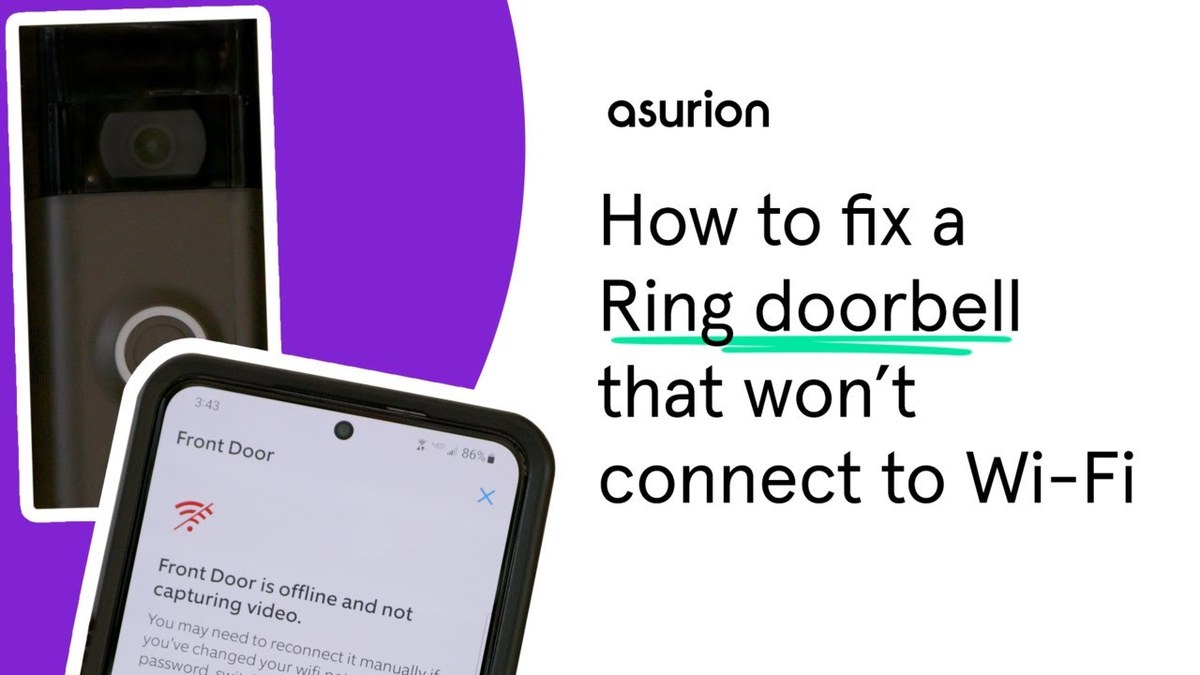
When a ring video doorbell not connecting to wifi problem shows up, the cause is usually simple. It is often weak signal, a setup mismatch, or power trouble. Start with the easiest checks first. Then move to Wi-Fi compatibility, app setup, and wiring if needed.
Why a Ring Video Doorbell Stops Connecting to Wi-Fi
A Ring doorbell usually fails to connect for one of four reasons. These are weak signal, wrong band, recent router changes, or low power. The app may also look stuck if the doorbell is offline. It can also happen if the phone is on a different network. A setup interruption can cause the same issue.
Common causes: weak signal, band mismatch, router changes, or power issues
Weak signal is common at front doors. Walls, siding, brick, and distance can block Wi-Fi.
Band mismatch matters too. Many doorbells work best on 2.4 GHz. Some home networks steer devices to 5 GHz. Others use one shared network name.
Router changes can also break setup. A new password, a renamed network, a firmware update, or a changed security setting may force the doorbell to reconnect.
Power issues matter as well. If the battery is low or the wiring is unstable, the device may not stay online long enough to finish setup.
How to tell whether the issue is the doorbell, the app, or the network
If the Ring app cannot find the device at all, the problem may be setup mode. It may also be the phone’s network connection.
If the app sees the device but says it is offline, the doorbell may be too far from the router. It may also be losing power.
If other smart devices also struggle, the network is likely the main issue.
Marcus Sterling’s Security Note: a doorbell that connects near the router but fails at the front door often points to signal loss. That is a practical clue, not a full diagnosis.
Quick Fixes to Try First
Quick fixes can help a video doorbell reconnect to Wi-Fi.
Begin with safe, reversible steps. Restart the doorbell, the router, and the phone app before changing settings or removing the device. These simple checks solve many connection problems without tools or wiring work.
Restart the doorbell, router, and phone app
Power-cycle the router first if the whole home seems unstable. Then restart the phone and close the Ring app fully before reopening it.
If the doorbell has a removable battery, reseat it or recharge it if the battery is low. For wired models, make sure the breaker is on. Also make sure the chime or transformer has power.
Check the Ring device’s battery, wiring, or transformer power
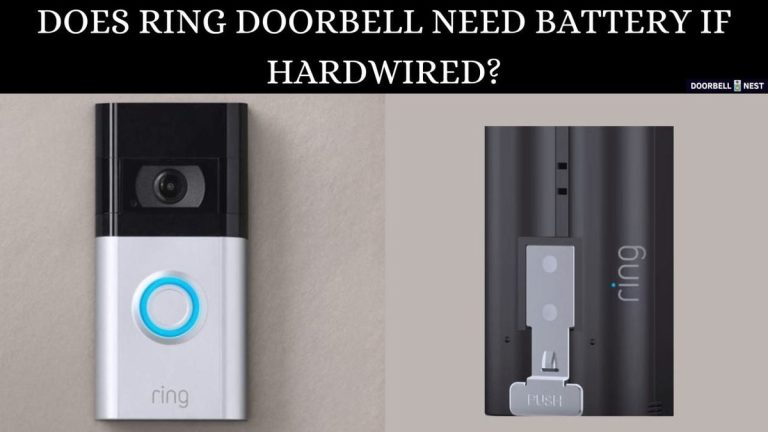
Battery-powered models need enough charge to complete setup and stay connected. Hardwired models depend on steady low-voltage power.
If the battery is weak or the transformer is underpowered, the device may drop offline during setup. It may also never finish joining Wi-Fi.
Confirm the Wi-Fi password, SSID, and network name are correct
SSID means the network name you see in Wi-Fi lists. A small typo in the password can stop setup. A similar-looking network name can do the same.
If your router has both a main network and a guest network, use the main one unless the manual says otherwise.
Check Wi-Fi Compatibility and Signal Strength
Compatibility issues are common with doorbells because they sit outside. They also depend on a stable signal. If the network is too weak or the router settings do not match the doorbell’s needs, the device may never complete pairing.
2.4 GHz vs. 5 GHz support and why many doorbells prefer 2.4 GHz
2.4 GHz usually reaches farther than 5 GHz. That helps at front doors and entryways. It also passes through walls better.
Many video doorbells prefer 2.4 GHz for that reason, even if your home network also offers 5 GHz. If your router uses one combined name for both bands, you may need to separate them during setup.
Router distance, wall materials, and exterior placement challenges
Front doors often sit at the edge of Wi-Fi coverage. Brick, metal doors, concrete, stucco, and low-E glass can weaken the signal.
If the router is across the house or in a basement, the doorbell may connect poorly. This can happen even when your phone has strong Wi-Fi inside.
Mesh systems, extenders, and access point placement for entryways
Mesh systems can help, but node placement matters. Put a mesh node or access point closer to the entryway if the signal is weak outside.
A basic extender may help too. But it can also add delay or create roaming issues if placed too far from the main router.
Re-Add the Doorbell in the Ring App<
Re-adding the doorbell in the Ring app can help restore Wi-Fi connection.
If setup failed once, removing the device and adding it again often clears the problem. This is especially useful after a password change, router swap, or interrupted installation. Use the exact model steps in the app or manual, since setup screens can vary.
Remove and reconnect the device after a failed setup
Delete the failed device entry only if the app keeps reusing a broken setup attempt. Then start over from setup mode.
This can clear stale network data and force a clean pairing process.
Use setup mode, QR code, or device-generated Wi-Fi network
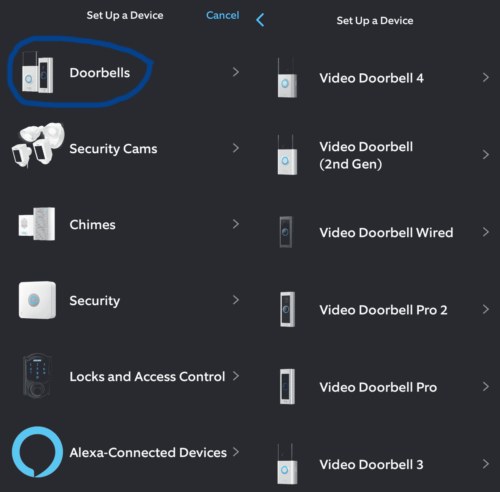
Most Ring doorbells use a setup mode that creates a temporary device Wi-Fi network or asks you to scan a QR code. Follow the prompts slowly and stay close to the doorbell during pairing. Keep your phone on the correct home Wi-Fi network when the app asks for it.
Update the Ring app and doorbell firmware before retrying
An outdated app can cause pairing errors. So can older firmware on the doorbell itself.
If the device can briefly connect, let it finish any update before testing again. A stable update often improves connection behavior and fixes setup bugs.
Installation and Power Issues That Affect Connectivity
Power problems can look like Wi-Fi problems. A doorbell that resets, blinks oddly, or drops offline during setup may not be getting stable power. Battery and wired models fail in different ways, so the fix depends on the exact design.
Battery-powered vs. hardwired models and what each needs
Battery models need a charged battery and a clean contact fit. Hardwired models need proper voltage and steady transformer output.
If a battery doorbell is nearly empty, charge it first. If a wired doorbell keeps failing, check the transformer and wiring path before blaming the router.
Transformer voltage, chime kit compatibility, and wiring limitations
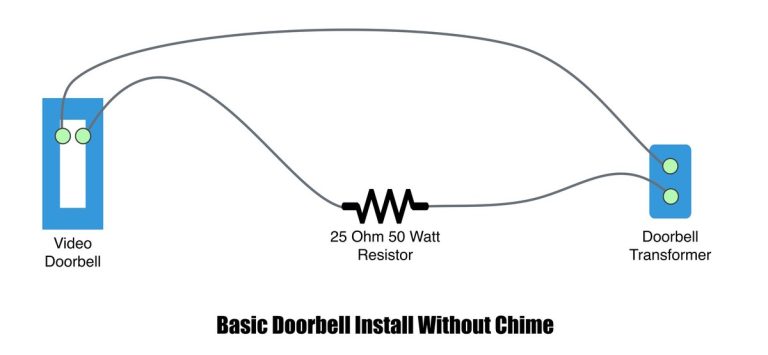
Hardwired doorbells depend on the exact transformer and chime setup. If the transformer output is too low, the doorbell may not stay online.
Some installs also need a chime kit, power kit, bypass, or adapter. Always check the exact manual before changing wiring.
Rental vs. homeowner considerations for drilling, mounting, and power access
Renters may need approval before drilling or changing wiring. Homeowners may still need a pro if the transformer is hidden, old, or hard to reach.
If you cannot confirm the power source or mounting surface, stop and check the manual or ask a qualified installer.
Optimize Placement, Alerts, and Performance Around the Home
Placement affects more than the camera view. It also affects Wi-Fi strength, motion alerts, weather exposure, and how often the doorbell wakes up. A good install balances signal, privacy, and daily use.
Doorbell height, angle, field of view, and motion detection tradeoffs
Mounting height and angle can change what the camera sees and how often it triggers. A doorbell placed too low may miss faces. Too high, and it may catch more sidewalk traffic.
If the doorbell is near a path or street, motion alerts may become noisy unless you narrow the detection area.
Weather exposure, shade, and night performance near the front door
Rain, direct sun, and deep shade can affect performance. Bright sun may cause glare. Dark porches can reduce detail at night.
If the entryway is exposed, make sure the mount and power setup match the product’s outdoor rating and the exact manual.
Neighbor privacy, privacy zones, and reducing unwanted motion alerts
Privacy zones can block parts of the view that include a neighbor’s doorway, window, or shared walkway. That helps reduce complaints and keeps alerts focused on your entryway.
It also lowers the chance of recording more than you need.
Security, Privacy, and Account Access Settings
Sometimes the doorbell is connected, but the account setup makes it seem broken. Shared logins, missing permissions, or weak account security can block alerts and video access. Review the account before you assume the device failed.
Enable MFA, review shared users, and secure account recovery options
Use a unique password and turn on multi-factor authentication, or MFA. MFA adds a second check when someone signs in.
Review any shared users too. If a family member changed settings or left the household, remove old access and confirm recovery details are current.
Review cloud storage, video retention, and notification permissions
Some features depend on a subscription or account settings. If recordings or alerts are missing, check whether cloud storage is active and whether phone notifications are allowed.
Also confirm that the app can send alerts on the phone’s current operating system settings.
Check privacy settings for audio, recordings, and linked devices
Doorbells can involve video, audio, and linked smart devices. Review what is recorded, who can see it, and which third-party integrations are connected.
If you do not use a feature, turn it off to reduce exposure.
When to Reset, Replace, or Contact Support
If the doorbell still will not connect after basic checks, reset options may help. If resets do not work, the issue may be the router, the battery, or aging hardware. At that point, collect the right details before contacting support.
Soft reset, factory reset, and when each makes sense
A soft reset is a simple restart. A factory reset erases the device and returns it to setup mode.
Use the soft reset first. Use the factory reset only when the app keeps failing, the Wi-Fi data is clearly wrong, or the device will not recover after a router change.
Signs of router incompatibility, aging hardware, or failed batteries
If other devices connect fine but the doorbell never finishes setup, router compatibility may be the issue. If the battery drains very fast or the device reboots often, the battery or internal hardware may be wearing out.
Older routers, weak extenders, and mixed security settings can also cause repeat failures.
What to gather before contacting Ring or your internet provider
Before you call support, write down the doorbell model, router model, Wi-Fi band, error message, and the steps you already tried.
If the problem affects other devices, tell your internet provider too. That helps them separate a doorbell issue from a home network issue.
Final Takeaway
If your Ring doorbell will not join Wi-Fi, start with signal, band, password, and power checks. Then re-add the device in the app, confirm compatibility, and reset only if needed. If wiring, transformer, or router settings are unclear, follow the exact manual or contact a qualified professional.
The most common causes are weak signal, the wrong Wi-Fi band, a changed password, or low power. Start with the router, the app, and the doorbell battery or wiring before trying a reset.
Many video doorbells work best on 2.4 GHz because it reaches farther and passes through walls better. If your router combines 2.4 GHz and 5 GHz under one name, you may need to separate them during setup.
Try a simple restart first. Use a factory reset only after basic checks fail or if the device keeps getting stuck during setup.
Yes. A weak battery or unstable wired power can stop the doorbell from finishing setup or staying online.
A subscription usually is not required just to join Wi-Fi, but some video storage and alert features may depend on a plan. Check the current Ring plan details for your model and region.
Gather the model name, router model, Wi-Fi band, error message, and the steps you already tried. That makes it easier for Ring or your internet provider to find the real cause.
Hi, I'm Marcus Sterling, a smart home security expert with over 5 years
of hands-on experience testing and reviewing hundreds of security cameras, smart locks, and alarm systems. My mission is to make smart home security accessible, affordable, and easy to understand—and every review I publish is 100% independent, unbiased, and honest. I don't accept payments for positive reviews, just practical advice to help you secure your home with confidence.
Quick Security Answer Ring Battery Doorbell Plus installation is usually a manageable DIY project if your Wi-Fi is strong and the mounting spot is clear. Renters should check lease rules first, and anyone with uncertain wiring should stop and follow the manual or hire help. ring battery doorbell plus installation is usually a straightforward DIY…
Quick Security Answer A wired video doorbell can be a practical upgrade if your transformer, chime, and Wi-Fi all match the model’s requirements. Renters and shared buildings should check rules first, because wiring access and mounting limits can change the best option. Wiring video doorbell usually means connecting a new smart doorbell to the low-voltage…
Quick Security Answer Yes, many Ring battery doorbells can be hardwired to existing low-voltage doorbell wiring. In most homes, that wiring helps charge the battery rather than replace it. can ring battery doorbell be hardwired is a common question. Many Ring battery models can connect to existing low-voltage doorbell wiring. But that wiring usually helps…
Quick Security Answer The Ring Battery Doorbell Plus is easiest to set up when you charge it first, pair it in the app, then mount it after testing the view. It works best with solid 2.4 GHz Wi-Fi, careful placement, and the current subscription terms you verify before buying. The ring battery doorbell plus manual…
Outdoor security cameras help us monitor entrances, yards, and other areas around a home. Solar panels can make these cameras easier to place because they use sunlight to help maintain the battery, reducing the need for frequent charging. The Blink Outdoor 4 Solar Panel is designed for the fourth-generation Blink Outdoor camera. It can support…