Use the Ring app to reconnect the doorbell to the new Wi-Fi network, then test live view, motion alerts, and audio. If setup fails, check power, signal strength, and account access first.
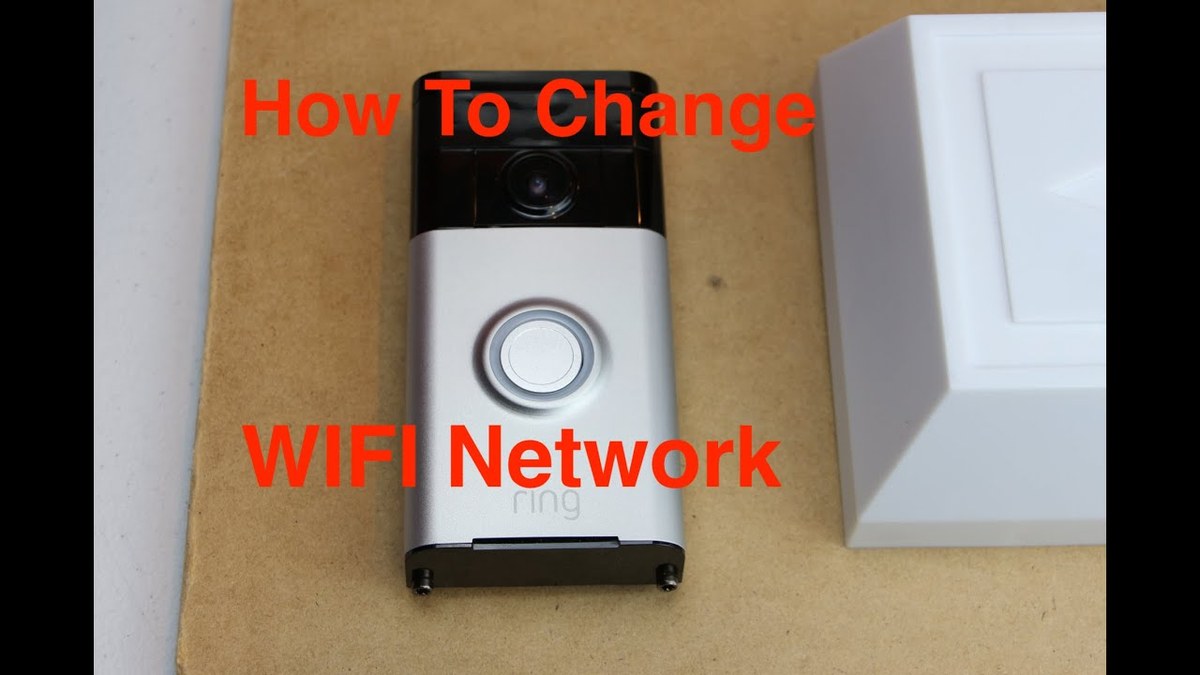
Ring video doorbell change wifi is usually a quick app-based update, not a full reinstall. In most homes, you reconnect the doorbell in the Ring app, confirm the new network, and test alerts, live view, and two-way audio.
How to Change the Wi-Fi on a Ring Video Doorbell
Changing the Wi-Fi means telling the doorbell to join a new router or network name. The steps can vary by model, but most Ring doorbells use the same basic process.
Quick answer: use the Ring app to reconnect the doorbell to the new network, then verify live view, alerts, and motion detection
Open the Ring app. Go to the device settings and choose the Wi-Fi change or reconnect option.
Follow the prompts to place the doorbell back in setup mode. Then join the new network and finish the connection check.
After that, test the features you use most. Check motion alerts, open live view, and place a quick two-way audio call.
When a Wi-Fi change is needed: new router, new ISP, password update, or moving to a different home
Most people change Wi-Fi after replacing a router or switching internet providers. Others do it after a password update, a mesh network upgrade, or a move to a new home.
If the SSID, which is the network name, changes, the doorbell usually needs a fresh setup. The same is true if you move the device to a new address.
Before You Start: Check Power, App Access, and Network Requirements
Check power, app access, and network requirements before changing Wi-Fi.
Before you reconnect anything, make sure the doorbell can stay powered. Also make sure you can still access the Ring account.
A simple check now can save a failed setup later.
Confirm the doorbell has enough battery or transformer power to stay online during setup
Battery-powered models should have enough charge to finish setup. Hardwired models should have stable transformer power and a working chime path, if required by the model.
If power is uncertain, check the exact manual before you continue. For wired setups, our hardwire Ring battery doorbell article can help you think through the wiring side.
Make sure you can sign in to the correct Ring account and still have access to two-factor authentication
You need the same account that owns the device. If two-factor authentication is on, confirm you can still receive the code.
This matters more than many people expect. A Wi-Fi change often goes smoothly, but account access can block the final step.
Review Wi-Fi basics: 2.4 GHz support, signal strength, router location, and mesh network considerations
Many video doorbells rely on 2.4 GHz Wi-Fi for better range through walls and doors. Some homes also use mesh systems. These can help coverage, but they may create roaming issues if the doorbell shifts between nodes.
Step-by-Step Setup for Reconnecting Ring to a New Wi-Fi Network
The safest approach is to use the app, follow the prompts, and keep the doorbell close to the router during setup. That reduces pairing errors and makes it easier to confirm the new connection.
1
Confirm requirements
Verify the exact model, power, network, storage, placement, household, rental, and platform requirements.
2
Plan safe placement
Consider privacy, field of view, weather, height, doors and windows, wiring, and emergency access.
3
Install and secure
Follow the exact manual, update firmware, use a unique password, and enable MFA.
4
Test and maintain
Test alerts, recording, outage behavior, batteries, users, permissions, and backup procedures.
Open the device settings in the Ring app and choose the Wi-Fi change or reconnect option
Start in the app. Select the doorbell and open the device settings.
Look for a Wi-Fi change, reconnect, or device health option, depending on the model and app version.
If you cannot find the exact menu, use the in-app help or the model manual. App labels can change over time.
Put the doorbell into setup mode and follow the in-app prompts
Most Ring devices need setup mode before they can join a new network. The app will walk you through the steps, which may include pressing a button on the device.
Keep the phone near the doorbell during pairing. That helps the device and app stay in sync.
Scan the QR code or enter device details if the app requests identification
Some devices ask for a QR code scan or a device ID. This is normal and helps the app identify the correct doorbell.
Have the code ready before you begin. If the label is damaged, check the box or manual for the backup location.
Test the connection with a live view check, motion alert, and two-way audio call
After setup, test three things: live view, motion alerts, and audio. These checks show whether the doorbell is truly online and usable.
If alerts are slow or video is choppy, the network may still need adjustment.
Placement, Home Layout, and Signal Strength Considerations<
Doorbell placement and home layout can affect Wi-Fi signal strength.
Wi-Fi strength depends on more than router speed. Walls, distance, and exterior materials can all affect how well the doorbell stays connected.
How walls, siding, metal doors, and long driveways can weaken the connection
Exterior walls can block signal, especially if they contain brick, stone, or metal. Long driveways and detached garages can also make the connection weaker.
If the doorbell sits far from the router, the app may still connect, but video quality can suffer.
When a Wi-Fi extender or mesh node helps, and when it can create roaming issues
A Wi-Fi extender can help if the doorbell is just outside router range. A mesh node can also improve coverage in larger homes.
But too many network changes can confuse some devices. If the doorbell keeps hopping between nodes, simplify the setup and retest.
Choosing placement for better field of view, motion detection, and night performance
Placement affects more than signal. It also changes what the camera sees, how motion is detected, and how well night video works.
Try to avoid angles that point directly at a neighbor’s windows or walkway. That helps protect privacy and reduces unwanted alerts.
Renter and Homeowner Constraints That Affect Reconnection
Renters and homeowners often face different limits. The right Wi-Fi fix depends on whether you can change wiring, move the router, or drill new holes.
Battery-powered versus hardwired models in apartments, condos, and single-family homes
Battery models are usually easier for apartments and condos. They need less wiring and can be simpler to move later.
Hardwired models may fit better in single-family homes with existing doorbell wiring. If wiring is unclear, use the exact manual or a qualified installer.
What to consider if you cannot modify wiring, drill new holes, or move the router
Renters may need to work around lease rules and building limits. In that case, a battery model, a non-drill mount, or a mesh node may be the safest path.
If the router location cannot change, focus on signal path and placement. Small changes can help more than expected.
Shared access, landlord approval, and preserving the previous setup when moving out
If other household members use the app, keep shared access organized. Name the device clearly so everyone knows which doorbell is which.
Before moving out, remove your account access and restore any property changes you made. That keeps the transfer cleaner for the next resident.
Troubleshooting Common Wi-Fi Change Problems
Most connection issues have simple causes. Start with the safest checks first, then move to resets only if needed.
Doorbell will not connect: reboot the router, restart the app, and retry setup mode
Restart the router and reopen the app. Then put the doorbell back into setup mode and try again.
This solves many problems caused by temporary network glitches or stale app data.
Wrong password, hidden network, or incompatible band settings
A wrong password is one of the most common problems. Hidden networks and band settings can also block setup.
Check that the network name is spelled correctly and that the doorbell supports the band you selected. If your router has separate 2.4 GHz and 5 GHz names, use the one the device supports.
Weak signal, dropped video, delayed alerts, or choppy audio after reconnection
These symptoms often point to weak signal or network congestion. A router that is too far away can still connect, but not perform well.
Try moving the router, adding a mesh node, or reducing interference from nearby devices. Then retest live view and motion alerts.
When to reset the device and when to contact Ring support
Use a reset only after the basic checks fail. A reset can clear the current setup and may require you to pair the doorbell again.
If the device still will not connect after a reset, contact Ring support and have the model name, account email, and router details ready.
Privacy, Cybersecurity, and Shared Access After the Network Change
A Wi-Fi change is a good time to review account security. It only takes a few minutes, and it can reduce account and privacy risks.
Why updating Wi-Fi is a good time to review account security, MFA, and password hygiene
Use a unique password for the Ring account. Turn on multi-factor authentication, also called MFA, if it is available.
Also update your router password and Wi-Fi security settings. A secure home network matters as much as a secure device account.
Check shared users, app permissions, and device naming for household privacy
Review who can see the device and who can receive alerts. Remove users who no longer need access.
Clear device names also help. A simple label like “Front Door” is easier to manage than a vague name.
Use privacy zones, motion settings, and neighbor-facing angle adjustments to reduce unwanted capture
Privacy zones can block parts of the image. Motion settings can also reduce alerts from sidewalks or neighboring yards.
Angle the camera so it watches your entryway, not public areas more than necessary. That is a practical privacy step for shared neighborhoods.
Storage, Subscriptions, Maintenance, and Long-Term Ownership Costs
Wi-Fi changes can affect more than setup. They can also change how recordings, alerts, and subscriptions behave over time.
What changes with local versus cloud storage and how subscriptions affect video history retention
Some systems rely on cloud storage, while others may support local storage. Cloud storage usually depends on the internet and a plan, while local storage depends on the hardware you keep in the home.
Explain hardware, capacity, access, backup, and theft risks.
Cloud Storage
Explain plan cost, retention, internet dependence, account access, and provider controls.
How Wi-Fi changes can impact alerts, recordings, and monitoring features
If the doorbell is offline, alerts may pause and recordings may not upload. That can affect how quickly you notice motion or visitors.
After any network change, test the features you use most. Do not assume they work just because the device shows as connected.
Routine maintenance after setup: firmware updates, battery charging, weather checks, and periodic signal testing
Check for firmware updates after the new Wi-Fi is stable. Updates can improve reliability and fix bugs.
Also watch battery level, outdoor wear, and signal strength over time. Weather and seasonal changes can affect both power and connectivity.
Ongoing costs to factor in: subscription fees, replacement batteries, extenders, and possible installation help
The true cost of ownership may include a plan, spare batteries, a mesh node, or an extender. If wiring is involved, you may also need installation help.
To change Wi-Fi on a Ring video doorbell, use the app, reconnect the device, and test the basics right away. The main limits are power, signal strength, and account access, so check those first if setup fails.
Open the Ring app, go to the device settings, and choose the Wi-Fi change or reconnect option. Follow the prompts to put the doorbell in setup mode and join the new network.
Common causes include the wrong password, weak signal, or incompatible band settings. Reboot the router, restart the app, and try setup mode again.
Many video doorbells rely on 2.4 GHz for better range through walls and doors. Check your exact model manual because supported bands can vary.
A Wi-Fi change usually does not erase account settings, but it can interrupt alerts and uploads during setup. Recordings and retention depend on your storage method and plan.
Usually no. Start with the app reconnect steps first, and use a reset only if the basic checks fail.
Renters should review lease rules, wiring limits, and whether a no-drill or battery setup is better. Also confirm who can access the app and what must be removed before moving out.
Hi, I'm Marcus Sterling, a smart home security expert with over 5 years
of hands-on experience testing and reviewing hundreds of security cameras, smart locks, and alarm systems. My mission is to make smart home security accessible, affordable, and easy to understand—and every review I publish is 100% independent, unbiased, and honest. I don't accept payments for positive reviews, just practical advice to help you secure your home with confidence.
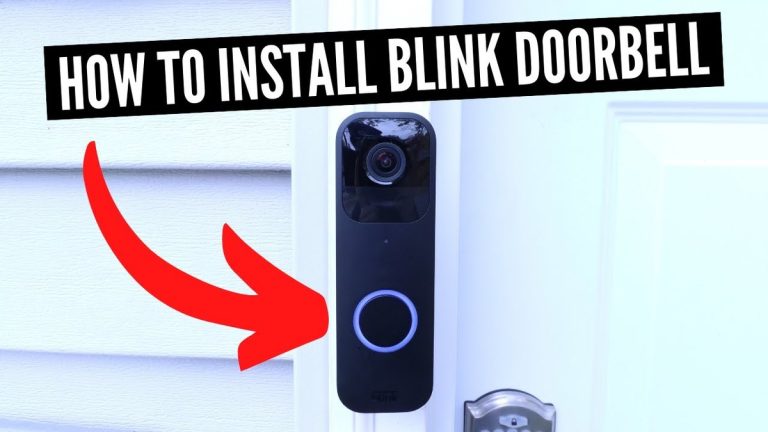
Quick Security Answer Install a Blink video doorbell by checking power, Wi-Fi, and mounting location first, then pairing it in the app. The easiest setups are the ones that match your home wiring, signal strength, and privacy needs before you drill. Learning how to install a blink video doorbell starts with power, Wi-Fi, and placement….
Quick Security Answer A Ring battery doorbell charge can last from weeks to months, depending on motion, live view use, Wi-Fi strength, and weather. The best way to extend it is to tune alerts, improve placement, and keep the battery charged before it runs low. how long does ring battery doorbell charge last is one…
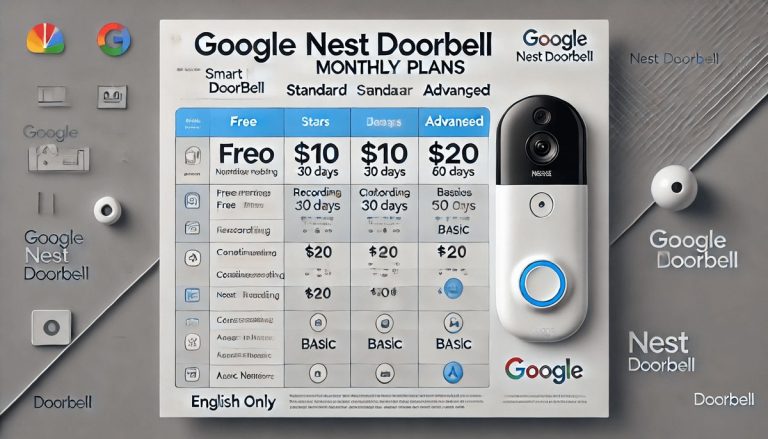
Quick Security Answer Yes, Nest Doorbell can have a monthly fee if you want cloud video history and some advanced features. Basic live view and alerts may still work without paying, depending on the model and current Google Home plan. Does Nest Doorbell Have a Monthly Fee? The short answer is yes, but not always…
Quick Security Answer The best outside camera depends on where you need coverage and how you plan to power it. For most homes, choose the model that fits your entry point, Wi-Fi, privacy needs, and storage preference. Which Camera Is Best for Outside depends on where you want coverage, how you power the camera, and…
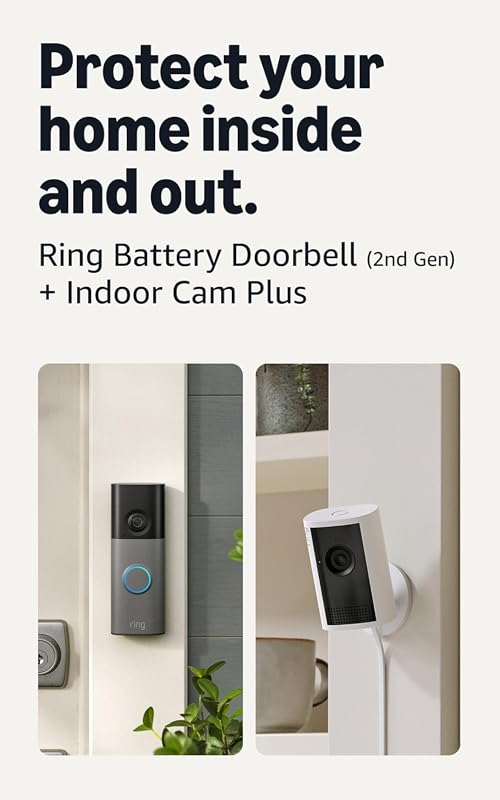
Compare ring battery doorbell bundle by security features, privacy, smart home fit, setup, fees, and value. Read the guide to find the right option for your.
Blink Outdoor 4 and Wyze Cam v4 take different approaches to home security. Blink focuses on long battery life and simple Alexa integration, while Wyze offers higher video resolution, color night vision, and a wider view. Choose Wyze Cam v4 for sharper 2.5K video and more features; choose Blink Outdoor 4 for a battery-powered setup…