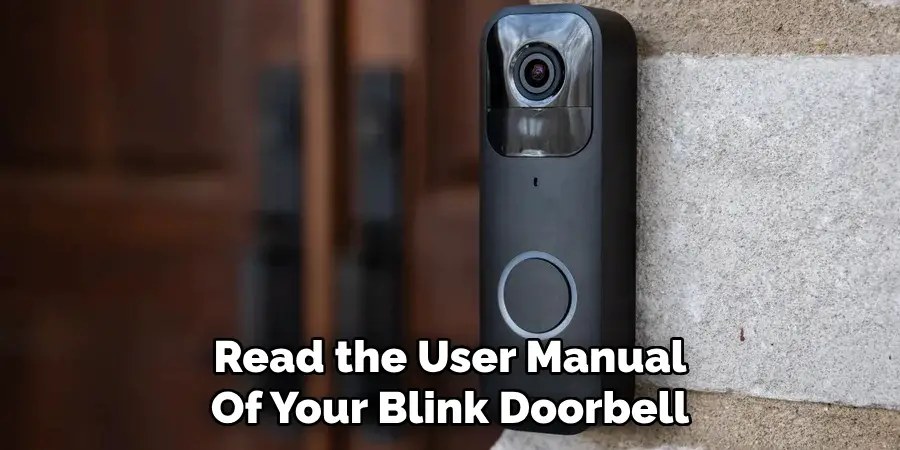
The Blink video doorbell manual is mainly a setup and troubleshooting guide for power, Wi‑Fi, placement, and app settings. Check those basics first, and you can avoid most common installation and alert problems.
The blink video doorbell manual is easiest to follow when you break setup into power, Wi‑Fi, placement, and app steps. Plan ahead, and you can avoid most pairing and notification problems.
Blink Video Doorbell Manual: What It Covers and the Fastest Way to Get Set Up
The manual usually explains how to mount the doorbell, add it in the app, connect it to your home network, and test alerts. It also covers battery, wiring, chime, and motion settings. Those settings matter as much as the first install.
For most homes, the fastest path is simple. Confirm power needs, check your Wi‑Fi band, choose a clear entry view, then finish setup in the app. If you want a broader walk-through of doorbell placement and prep, DecatHome’s installing a video doorbell guide can help with the planning stage.
Before You Begin: Home Layout, Power, Wi‑Fi, and Account Requirements
Preparation checklist for installing a video doorbell before setup begins
Before you mount anything, check whether your home layout supports the camera view, power source, and network connection the doorbell needs. This step saves time. It also helps avoid drilling twice.
Renter vs. homeowner considerations, mounting limits, and permission issues
Renters should check lease rules, landlord approval, and any HOA limits before drilling or changing exterior trim. Homeowners should still confirm where the doorbell can be mounted without blocking doors, screens, or storm doors.
If you cannot drill, look for reversible mounting options that fit the exact model and surface. That matters in apartments, townhomes, and short-term rentals where permanent changes may not be allowed.
2.4 GHz Wi‑Fi, sync module or chime setup, and app/account basics
Many video doorbells rely on 2.4 GHz Wi‑Fi because it reaches farther than 5 GHz in many homes. If your router splits bands, make sure the app connects the doorbell to the correct one.
Some Blink setups also depend on a sync module or a compatible chime accessory, depending on the exact model and package. Check the current manual for your device. Then create or sign in to your account before pairing.
Installing the Blink Video Doorbell Correctly the First Time
Correct installation is mostly about angle, height, and stable mounting. A good setup helps the camera capture faces instead of only hats, packages, or the top of a doorway.
Choosing the right height, angle, and entryway placement for face capture
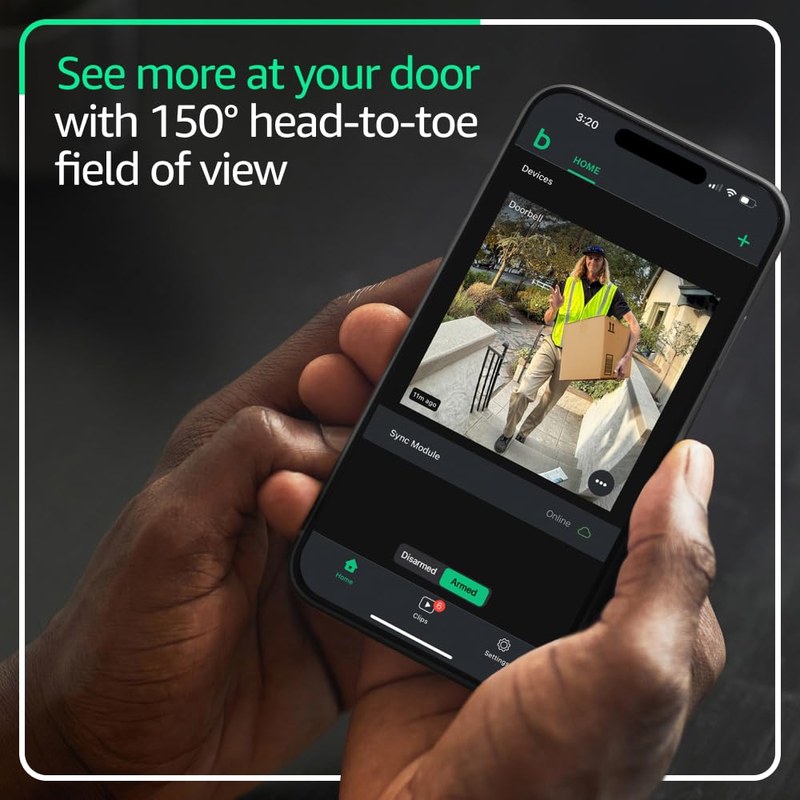
For face capture, the camera should point toward the visitor’s head and upper body, not straight at the sidewalk. Mounting too high often gives you more sky and less useful detail.
If your entry has stairs, a narrow porch, or a side wall, test the view before you screw it in fully. A small angle change can improve motion detection and reduce missed visitors.
For height and angle basics, DecatHome’s video doorbell installation height guide explains the same placement logic in a simple way, even though the brand differs.
Wired installation vs. battery-powered setup, plus weather and doorframe constraints
A wired setup can reduce battery changes, but it also adds wiring checks and compatibility concerns. A battery setup is simpler. It still needs a solid mount and regular charging or replacement.
Weather matters too. If the doorbell sits in direct rain, snow, or afternoon sun, check the manual for the exact operating range and mounting limits.
Using the Manual for Daily Operation: Alerts, Live View, Audio, and Night Vision<
Manual instructions for daily use of alerts, live view, audio, and night vision.
Once the doorbell is running, the manual becomes useful for daily settings. Motion zones, alert timing, and audio options shape how often you get useful notices versus noise.
How motion zones, activity alerts, and two-way talk affect usability
Motion zones let you focus on the part of the view that matters most. That helps reduce alerts from sidewalks, cars, or a busy street.
Two-way talk can help you speak with visitors, delivery drivers, or family members. Still, audio quality depends on signal strength, background noise, and where the device is mounted.
If your entryway gets too many alerts, narrow the detection area before you change anything else. That is usually safer and easier than disabling motion features entirely.
Night performance, porch lighting, and reducing false triggers from streets, pets, or traffic
Night vision works best when the porch has enough light for the camera to see detail. A weak porch light or a bright light behind the visitor can make faces harder to read.
False triggers often come from headlights, moving tree branches, pets, or passing traffic. Adjust the motion zone, lower sensitivity, and check the camera angle before assuming the device is faulty.
Storage, Subscriptions, and Ownership Costs in 2026
Ownership cost is more than the box price. You also need to think about storage, accessories, batteries, and any plan required for clip history or extra features.
Local recording limits, cloud clips, and what the Blink subscription changes
Some Blink setups support local storage through compatible hardware, while cloud clips usually depend on a subscription plan. The exact mix varies by model and package, so check the current product page and manual.
Local storage can reduce recurring cost, but it may add hardware limits and physical access concerns. Cloud storage is easier to reach from anywhere. It also depends on internet service and account security.
Local Storage
Uses compatible hardware or a local device.
Can reduce monthly fees.
May still need app and account access.
Cloud Storage
Stores clips online through the vendor.
Usually depends on a plan and internet access.
Retention and sharing rules are set by the provider.
Long-term cost comparison for renters and homeowners
Renters often prefer lower upfront cost and flexible mounting. Homeowners may accept more installation work if they want a cleaner, more permanent setup.
If you are comparing ongoing costs, include batteries, accessories, storage plans, and replacement parts. A lower device price can still cost more over time if the plan or battery use is high.
US Price & Subscription
Typical device priceVerify current USD pricing before purchase
Accessories or installationMay include mounts, sync hardware, or wiring help
Cloud planVerify current plan requirement
Professional monitoringNot the same as a doorbell-only setup
ContractVerify current terms
Privacy and Cybersecurity Settings Every Owner Should Review
Privacy settings matter because a doorbell camera can capture neighbors, sidewalks, and shared spaces. Cybersecurity matters because the app controls live video, clips, and account access.
Two-factor authentication, shared users, password hygiene, and account recovery
Use a unique password for the account and turn on two-factor authentication if the app supports it. That lowers the risk of someone else viewing your camera through reused login details.
Review shared users and remove anyone who no longer needs access. Also check recovery email and phone details so you can regain access if you lose your device.
Privacy zones, neighbor-facing views, and retention settings
Privacy zones can block parts of the image you do not want recorded. That can help when the camera faces a sidewalk, shared driveway, or a neighbor’s entry area.
Check how long clips are kept and how deletion works. If the service stores recordings in the cloud, account access and retention rules are just as important as the camera itself.
Troubleshooting Common Blink Video Doorbell Problems
Most problems have simple causes, such as weak Wi‑Fi, low battery, or a setup step that was skipped. Start with safe checks before you remove hardware or change wiring.
Pairing failures, offline status, delayed notifications, and weak signal fixes
If pairing fails, confirm the app version, network band, and account login first. Then restart the router, move closer to the sync point if needed, and try setup again.
Offline status often means weak signal, router changes, or a power interruption. Delayed notifications can also come from poor upload speed or a crowded wireless network.
For a related setup path on another model family, DecatHome’s video doorbell chime setup guide can help you think through chime and alert behavior.
Power issues, battery drain, and when wiring or a chime accessory matters
Fast battery drain can come from long live-view sessions, heavy motion, weak signal, or frequent alerts. It can also happen when the doorbell works harder to stay connected.
If the unit is wired, confirm that the transformer and chime match the exact manual. If you are unsure about household wiring, stop and use a qualified professional.
Maintenance, Firmware Updates, and When the Manual Isn’t Enough
Routine care keeps the camera clearer and the alerts more reliable. It also helps you catch small problems before they become bigger ones.
Cleaning lenses, checking mounts, replacing batteries, and seasonal weather care
Wipe the lens with a soft, dry cloth and check the mount for looseness. Dirt, spider webs, and pollen can all reduce image quality or trigger false motion.
In cold or hot weather, watch for battery changes, condensation, and mounting stress. Seasonal checks are especially useful on exposed porches and older doorframes.
When to contact support, replace hardware, or rethink placement
Contact support if the app will not pair, the device stays offline, or the camera view is unreliable after basic troubleshooting. If the same issue keeps coming back, the problem may be the location or the hardware itself.
Sometimes the best fix is to move the doorbell a few inches, change the angle, or add better lighting. If the doorframe, wiring, or weather exposure is the real issue, a new mount or different placement may solve more than another reset.
Sources & US Verification
Check the exact Blink manual, current manufacturer support pages, and current plan details for your model before you buy or install. Time-sensitive items such as storage rules, subscription features, and compatibility can change by device revision and region.
Final Takeaway
The blink video doorbell manual is most useful when you use it for planning, setup, and day-to-day tuning, not just mounting. For renters and homeowners alike, the safest next step is to verify power, Wi‑Fi, privacy, and storage details for the exact model before installation.
Many Blink setups use 2.4 GHz Wi-Fi, but the exact requirement depends on the model and current app flow. Check the manual before pairing so you connect to the right band.
Sometimes, yes, if the model and mounting surface support a reversible option. Renters should still check lease rules and landlord approval before changing exterior surfaces.
Delayed alerts often point to weak Wi-Fi, poor upload speed, router congestion, or power issues. Start with signal strength and app settings before assuming the device is broken.
Storage options vary by model and current plan terms. Some features may work with local storage hardware, while cloud clips usually depend on a subscription.
Use privacy zones, adjust the angle, and avoid capturing more of a neighbor’s space than needed. Also review shared users, retention settings, and account security.
Confirm the app, account login, Wi-Fi band, and any required sync hardware or chime accessory. If wiring is involved, follow the manual and stop if anything seems uncertain.
Hi, I'm Marcus Sterling, a smart home security expert with over 5 years
of hands-on experience testing and reviewing hundreds of security cameras, smart locks, and alarm systems. My mission is to make smart home security accessible, affordable, and easy to understand—and every review I publish is 100% independent, unbiased, and honest. I don't accept payments for positive reviews, just practical advice to help you secure your home with confidence.
Quick Security Answer Most video doorbells do not record nonstop by default. They usually save motion clips or live-view sessions, while continuous recording depends on the model, power, storage, and plan. Many readers ask whether do video doorbells record all the time, and the short answer is usually no. Most models record in short clips…
Quick Security Answer The Ring Battery Doorbell Plus is usually manageable for renters and homeowners if you check mounting rules, Wi-Fi strength, and app setup first. The biggest long-term factors are battery upkeep, privacy settings, and whether you need a paid cloud plan. ring battery doorbell plus install is usually a straightforward project for renters…
Quick Security Answer Ring is usually not a native Apple HomeKit doorbell, so most Apple features depend on workarounds rather than full Home app support. For U.S. buyers, the best next step is to verify the exact model, power, Wi-Fi, and plan details before setup. Ring video doorbell apple homekit is a common search because…
View on Amazon Quick Security Answer No, water leak sensors do not need Wi-Fi to detect water, but Wi-Fi turns a local siren into a phone alert. Pick your connectivity based on whether you are home often or need alerts while away. Smart Home Security Guide Do water leak sensors need wifi? The short answer…
Compare video doorbell for renters by security features, privacy, smart home fit, setup, fees, and value. Read the guide to find the right option for your home.
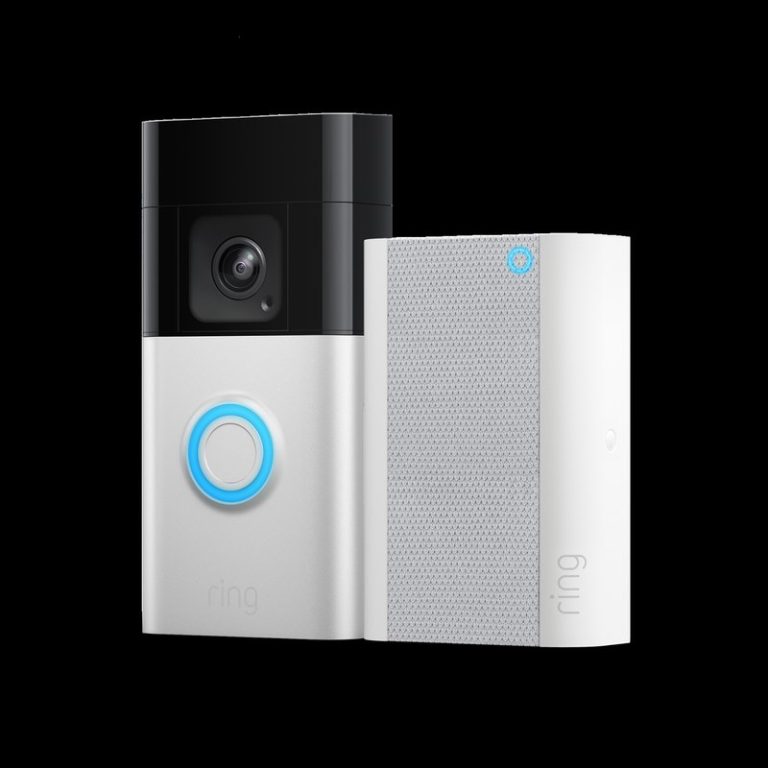
Quick Security Answer A ring battery doorbell chime setup can be a practical choice if you want flexible installation and indoor alerts. Check Wi-Fi, privacy, battery charging, and any subscription needs before you mount it. ring battery doorbell chime setup usually means pairing a battery-powered video doorbell with a compatible indoor alert device, app notifications,…