Are Indoor Security Cameras Safe What You Need to Know
Yes, indoor security cameras are safe when you set them up carefully. The two real dangers are people inside the home losing privacy and outsiders gaining access to your feed.
Are indoor security cameras safe? Yes, for most households, but only when you control two separate risks: privacy and cybersecurity. This guide explains both and shows you how to manage them during setup, placement, and daily use.
Are Indoor Security Cameras Safe? The Short Answer
Yes, indoor security cameras are safe for most homes when you set them up correctly. A camera is a tool. It can protect your home, or it can create new risks if you ignore basic settings. Safety comes from placement, passwords, updates, and storage choices.
What “Safe” Actually Means for Indoor Cameras
Safe means three things: the camera works when you need it, strangers cannot view your feed, and the people in your home still have privacy. No camera can guarantee all three on its own. You create safety through the choices you make before and after installation.
Privacy vs. Cybersecurity: Two Separate Risks to Weigh
Privacy risk comes from people who share your space. A guest, a family member, or a neighbor might appear in your footage without consent. Cybersecurity risk comes from outsiders. Hackers target weak passwords, outdated firmware, and poorly secured networks. These two risks need different fixes, and you must manage both.
Privacy Risks: Who Can See Your Indoor Camera Feed?
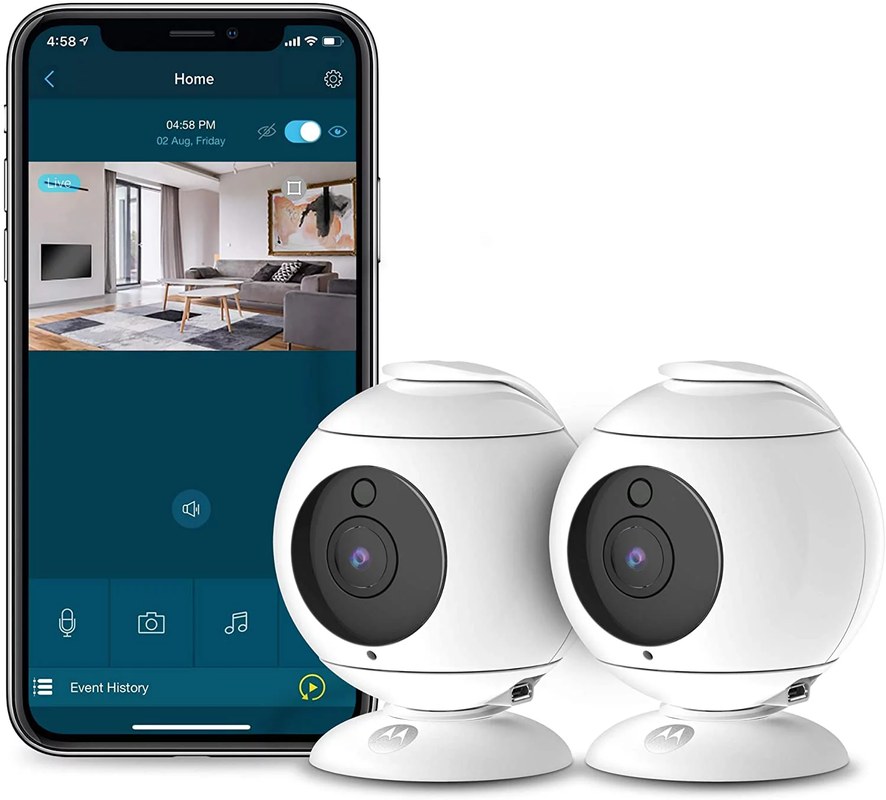
Your indoor camera records whoever walks into its view. That includes people who never agreed to be recorded. Think about everyone who lives in or visits your home before you install anything.
Family, Guests, and the Expectation of Privacy at Home
Household members should know where cameras are and why they exist. Guests deserve a clear heads-up when a camera covers an entryway or living area. Many US states also have separate rules about recording audio without consent. Check your state law before you enable two-way audio or continuous recording.
Neighbor Privacy and Field-of-View Placement
A camera aimed at a window can capture a neighbor’s yard, driveway, or front door. That can create tension and, in some areas, legal trouble. Point the lens away from shared property lines. If you cannot avoid a neighbor’s space, use a privacy zone to block that part of the image.
Using Privacy Zones and Masking to Protect Shared Spaces
Most indoor cameras include a privacy zone or motion-masking tool in the app. You draw a box over areas you want the camera to ignore. This blocks recording and alerts for that region. Use it for windows, hallways to bedrooms, or a neighbor’s property.
Cybersecurity Risks: How Indoor Cameras Get Hacked
Most camera breaches do not involve a hacker breaking into your home. They happen through weak account habits. The fix is simple and takes only minutes.
Default Passwords and Weak Account Security
Many cameras ship with a default password or no password at all. Change it during setup. Use a unique password you do not reuse on other sites. Turn on multi-factor authentication, or MFA, so a stolen password alone cannot open your feed.
Wi-Fi Network Vulnerabilities and the Case for a Separate Network
Your camera connects to your home Wi-Fi. If that network is open or uses outdated security, other devices on it can be at risk. Use WPA2 or WPA3 encryption. If your router supports guest networks, put your cameras on one. That way, a compromised camera cannot reach your computer or phone. Hacking risk also varies by brand and model. Our look at whether Blink cameras can be hacked explains how account security affects real-world risk.
Firmware Updates and the Vendor Support Lifecycle
Firmware is the software inside the camera. Vendors release updates to fix bugs and close security holes. Enable automatic updates when available. Check the app every few months. Also check how long the vendor promises support. A camera that stops receiving updates becomes a growing risk over time.
Where to Place Indoor Cameras (and Where Not To)
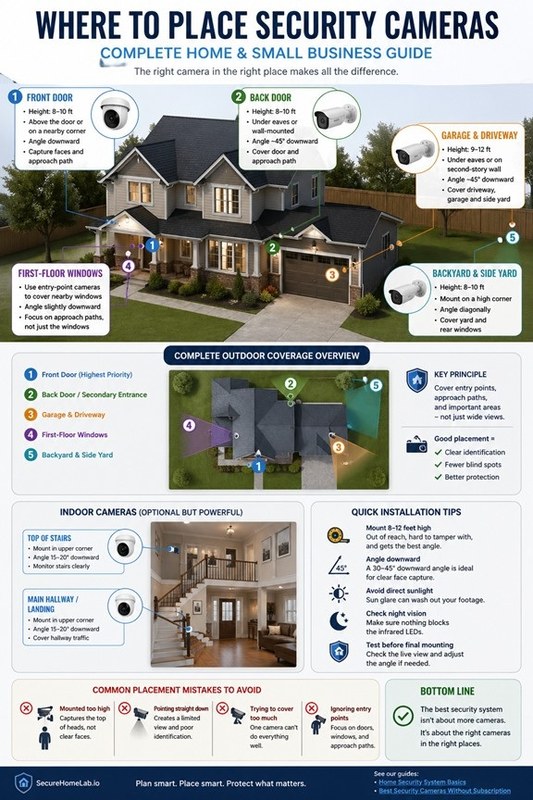
Placement decides both usefulness and privacy. A camera in the right spot catches entry points. A camera in the wrong spot records private moments and creates conflict.
Recommended Rooms, Angles, and Night Performance Considerations
The best spots are main entry points: front doors, back doors, ground-floor windows, and main hallways. Mount the camera at a height that sees a person’s face, usually 7 to 10 feet. Keep it away from bright windows and direct sunlight. Check night vision before you commit to a spot. Some cameras switch to black-and-white infrared, and a nearby wall can wash out the image.
Rooms to Avoid: Bedrooms, Bathrooms, and Shared Living Areas
Do not put cameras in bedrooms, bathrooms, or guest rooms. These are spaces where people expect privacy. A living room camera can be useful, but only if everyone in the home agrees. If a caregiver or babysitter works in your home, tell them where cameras are and what they record.
Renter vs. Homeowner Constraints: Mounting, Power, and Wi-Fi
Renters often cannot drill into walls. Use a shelf, cabinet, or renter-friendly adhesive mount instead. Check your lease before installing anything. Homeowners have more freedom, but still need to think about power outlets and Wi-Fi range. A camera far from your router may drop alerts or record choppy video. If you are comparing models, our indoor cameras guide covers placement, features, and common trade-offs.
How to Secure Your Indoor Camera During Setup
Setup is the best time to build good habits. The first 15 minutes decide how safe your camera will be for years.
Account Setup: Strong Passwords, MFA, and Recovery Options
Create the account with a strong, unique password. Enable MFA right away. Set up recovery options so you do not get locked out. Write down recovery codes and store them somewhere safe. A camera account locked by a hacker is worse than no camera at all.
App Permissions, Shared Users, and Account Access Controls
Review the app permissions on your phone. The camera app does not need access to your contacts or text messages. When you share access with family, use the app’s shared-user feature instead of handing out your main password. Review the user list every few months and remove people who no longer need access.
Power, Wi-Fi Bands, and Hub Placement for Reliable Operation
Plug the camera into a surge protector when possible. Use the 2.4 GHz band if the camera requires it; many budget models do not support 5 GHz. Place a hub or base station in an open area, away from metal objects and thick walls. Test the live view from the app before you finalize placement.
Storage, Subscriptions, and Who Owns Your Footage
Every indoor camera stores footage somewhere. Where it goes and who can access it matters as much as the camera itself.
Cloud Storage vs. Local Storage: Trade-Offs and Retention Limits
Cloud storage sends clips to the vendor’s servers. It is easy to view from anywhere, but it depends on your internet and a subscription. Local storage keeps footage on an SD card or hub. You control it, but a thief can take it, and some local files are not encrypted. Many cameras offer both options. Choose the one that fits your risk level.
- Footage stays on an SD card or hub in your home.
- No monthly fee, but you manage backups yourself.
- A thief can take the card, and some files are not encrypted.
- Clips are saved on the vendor’s servers and easy to view remotely.
- Usually requires a paid plan and a working internet connection.
- The vendor controls access, retention, and deletion.
Subscription Tiers, Costs, and What Happens When You Cancel
Most brands offer a free tier with live view and alerts, then a paid plan for cloud clips and longer retention. Prices vary by brand and change often. Check the current plan page before you buy. Know what happens when you cancel. Some plans delete your clips immediately, while others keep them for a short grace period.
Data Sharing Policies and Vendor Access to Recordings
Read the vendor’s privacy policy. Some companies use footage to train AI models or share data with partners. Look for a policy that limits access and lets you delete recordings. If a policy feels vague, pick a different brand. Your footage is your business, not a product. Cloud-only cameras also stop recording when the internet drops. Our guide to whether security cameras work during an internet outage explains the differences.
Maintenance, Troubleshooting, and Camera Lifespan
A camera is not a set-and-forget device. It needs small, regular checks to keep working and stay secure.
Routine Maintenance: Firmware Checks, Lens Cleaning, and Reboots
Check for firmware updates once a month. Clean the lens with a soft, dry cloth. Reboot the camera every few weeks if it starts acting sluggish. A simple power cycle fixes many small issues.
Common Issues: False Alerts, Connectivity Drops, and Audio Problems
False alerts often come from motion zones that are too large or from moving shadows. Shrink the zone or lower sensitivity. Connectivity drops usually mean the camera is too far from the router or on the wrong band. Audio problems are often a microphone permission issue in the phone’s settings.
When to Replace or Retire an Indoor Camera
Replace a camera when the vendor stops releasing firmware updates, when the app no longer works on your phone, or when the image quality no longer serves its purpose. A camera that cannot be updated is a security risk. Most indoor cameras last 3 to 5 years with normal use.
Your Next Steps Before Installing an Indoor Camera
Before you mount anything, run through a short checklist. It takes ten minutes and prevents most problems.
A Pre-Installation Checklist for Privacy and Security
Confirm your Wi-Fi reaches the spot. Choose a location that avoids bedrooms and neighbor windows. Set up the account with a unique password and MFA. Update the firmware. Test live view and alerts. Tell everyone in the home about the camera. Review the storage and subscription plan.
Limitations to Keep in Mind: Coverage Gaps and Legal Considerations
An indoor camera cannot stop a break-in. It records events and may deter some intruders, but it does not replace locks, alarms, or emergency services. Recording laws vary by state, especially for audio. If you rent, check your lease and local rules. When in doubt, ask a qualified professional or consult your state’s guidance.
A well-placed camera with a secured account is a useful home tool, not a new risk. Control who can see the camera, who can reach the account, and where footage goes. That combination keeps indoor cameras safe for most households.
Frequently Asked Questions
Many indoor cameras record audio, but some states require consent from everyone being recorded. Check your state law and review the camera’s audio settings before enabling two-way talk or continuous recording.
Some cameras can record to local storage without Wi-Fi, but most need a connection for live viewing, alerts, and cloud clips. Check the camera’s specs before buying if you need offline recording.
Battery-powered models may keep recording during an outage, but plug-in cameras stop when power drops. A backup battery or uninterruptible power supply can keep a plug-in camera running for a short time.
Most brands offer free live viewing and alerts, but cloud clips and longer retention usually require a paid plan. Local storage on an SD card or hub avoids monthly fees.
Avoid bedrooms, bathrooms, and guest rooms where people expect privacy. Also avoid pointing the camera at neighbor windows or shared spaces without consent.
Watch for the camera turning on by itself, new users on the account, or strange audio. If you see these signs, change your password, enable MFA, update firmware, and review all shared users.