Security Camera Guest Access Security Best Practices
To keep your home secure, always grant guests temporary, limited access—such as time-bound share links or scoped codes—rather than full admin credentials, and revoke that access as soon as they leave. The most critical limitation is compatibility: if your camera system lacks native guest-account features, you’ll be forced to share your primary login, which undermines both your privacy and the integrity of your entire surveillance setup.
Security camera guest access security comes down to one question: who can see your cameras, and how do you keep that list exactly right? Whether you share access with a spouse, a college-age kid, a dog walker, a house sitter, or a contractor, every extra account is another way into your video feed. This guide explains what guest access controls, where the real risks sit, and how to set up, audit, and revoke access without weakening your home network.
Most modern security camera systems let you share access with other people through the manufacturer’s app. That feature is genuinely useful: a partner can check the front door while you are at work, a caregiver can see when a parent arrives home, and a house sitter can monitor the driveway during a vacation. The same feature, left unmanaged, becomes one of the most common ways camera footage ends up in the wrong hands.
Why Guest Access Deserves Its Own Security Review
A security camera is different from most other smart home devices. It is always on, always listening, and always recording when motion is detected. A smart bulb that a guest can control is an annoyance; a camera feed that a guest can watch is a privacy breach. Guest access multiplies the number of accounts, devices, and apps that can reach your footage, which means it multiplies the number of ways that footage can be exposed.
Manufacturers design guest access with permissions in mind, but the weakest link is usually the human layer: a guest who reuses a password, a family member who clicks a phishing link, or a former user whose access is never removed. None of these problems are unique to any one brand. They apply to Ring, Arlo, Eufy, Nest, Blink, Wyze, and most other camera platforms.
What Guest Access Actually Controls

Guest access is not a single feature. It is a set of permissions that varies by manufacturer, model, and firmware version. Before you invite anyone, open the app and look at the exact sharing options for your camera. The typical controls include:
- Live view only: the guest can watch the feed but cannot rewind, download, or control the camera.
- Event and clip access: the guest can see recorded motion events and sometimes download or share clips.
- Two-way talk: the guest can speak through the camera’s speaker.
- Camera controls: the guest can pan, tilt, zoom, turn motion detection on or off, or change alert settings.
- Settings and deletion: the guest can change device settings or delete recordings. This is usually reserved for the owner or admin.
- Account linking: some platforms require the guest to create their own account and accept an invite, while older or less secure setups allow sharing the master login.
The safest approach is to give each person their own account with the lowest permission level that still lets them do what they need. Never hand out the master login. If a platform only offers one shared login, that is a strong reason to reconsider how you use that product.
The Real Risks of Unmanaged Sharing
When guest access is set up quickly and forgotten, several concrete risks appear. The first is stale access: an invite that was never revoked. The second is credential reuse: a guest uses the same email and password on your camera app that they use on a dozen other sites, and one of those sites gets breached. The third is device compromise: a guest’s phone is lost, stolen, or infected with malware, and your camera app is installed on it. The fourth is insider misuse: someone with legitimate access watches the feed more often than you intended, or shares a clip without asking.
Unauthorized access is not always the result of a sophisticated attack. In many reported cases, the problem is a shared password that was never changed or a guest account that was never removed. If you want to understand how this plays out in practice, our breakdown of what to do if you think someone is watching your Ring camera walks through the warning signs and the steps to lock the account down.
Guest Access Best Practices: A Step-by-Step Framework
Setting up guest access correctly takes about fifteen minutes. The steps below apply to most camera platforms, but always confirm the exact wording and options in your manufacturer’s app and manual.
Check which roles your camera supports, whether guests need their own account, and what each permission level can see and do. Write down who you plan to invite and why.
Before you share anything, make sure the camera is aimed only at areas you own and control. Point it away from neighbors’ windows, public sidewalks, and any space where someone could reasonably expect privacy.
Update the camera firmware, update the app, create a unique password for the master account, and enable MFA. Then send invites at the lowest permission level that works for each guest.
Ask each guest to confirm they can see the feed and nothing more. Set a recurring reminder to review the user list every few months and revoke anyone who no longer needs access.
Cybersecurity Checklist for Shared Camera Accounts
Guest access adds people, and people add risk. The following checklist is the minimum I recommend for any household with a shared security camera account. It is based on widely published security guidance and manufacturer documentation, not on any single product test.
Privacy, Recording Rules, and Guest Expectations
Camera access is not just a technical question; it is a legal and social one. In the United States, audio recording rules vary by state. Some states require the consent of everyone being recorded, while others allow recording with one party’s consent. Video recording of areas where people have a reasonable expectation of privacy, such as a bathroom or a guest bedroom, is a different legal question entirely. This article is not legal advice: check the rules for your state and your specific situation.
Before you give a guest access, tell them the camera is recording. That sounds obvious, but house sitters, contractors, and even relatives are sometimes surprised to discover they are on camera. Set expectations about what the guest can do with clips: watching a feed is one thing; downloading and sharing footage is another. If your camera has privacy zones, use them to block out areas you do not want recorded, such as a neighbor’s yard or a window.
Network and Wi-Fi Considerations
Guest access depends on the camera reaching your home network and, in most cases, the manufacturer’s cloud service. A camera that cannot connect reliably will not send alerts, and a guest who is invited while the camera is offline may not receive the invite or may see a black screen. Most cameras use the 2.4 GHz band, and some support 5 GHz as well. Check the exact model requirements before you assume a camera will work well in a distant corner of the house.
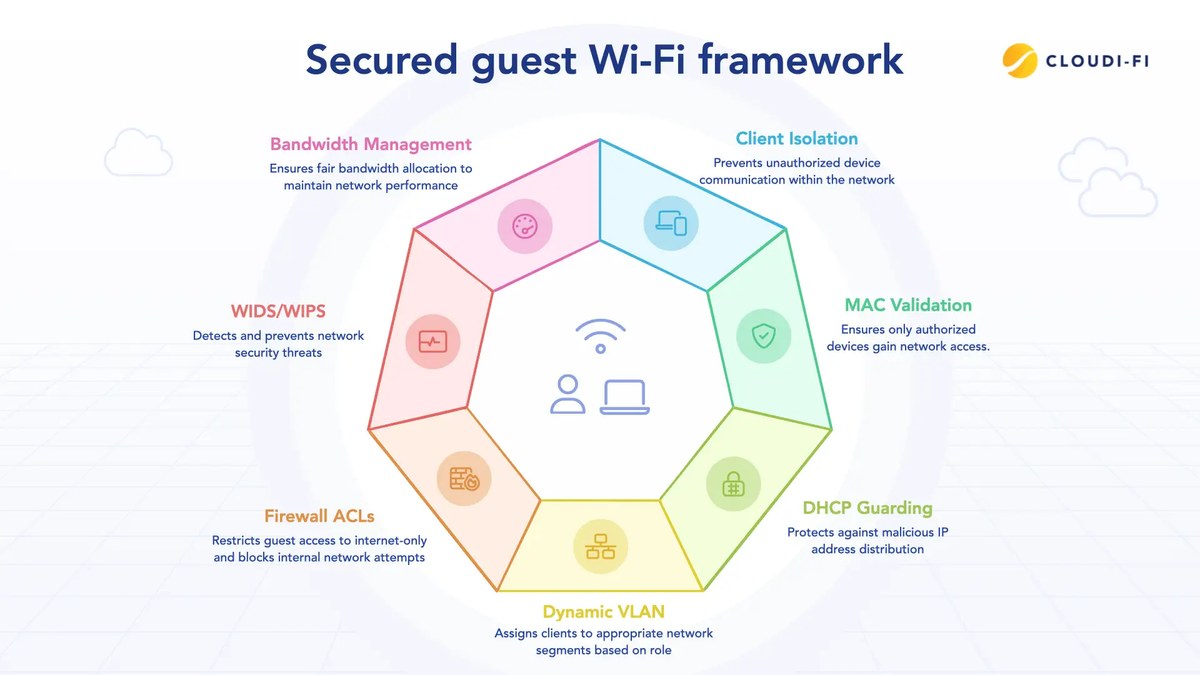
Your router matters as much as the camera. Use WPA2 or WPA3 encryption, change the default router admin password, and keep the router firmware updated. If your router supports a guest network, you can put cameras and other IoT devices on a separate SSID so that a compromised camera cannot easily reach your computers and phones. That separation also helps when you share access: a guest connecting to your main network is a different risk from a guest connecting only to the camera app.
Troubleshooting Common Guest Access Problems
Even a well-configured guest setup can fail. Here are the most common problems and what to check first.
- Guest never received the invite: check the spam folder, confirm the email address, and resend the invite from the owner account.
- Guest sees a black screen or no events: check the camera’s privacy zones, motion settings, and whether the guest’s permission level includes event history.
- Camera goes offline after adding a guest: this is often a Wi-Fi issue, not a guest issue. Restart the camera and check signal strength.
- Notifications stop arriving: check the app’s notification permissions on the guest’s phone and the camera’s alert schedule.
- Cannot remove a guest: some platforms require the owner to remove users from a web dashboard rather than the mobile app. Check the manufacturer’s support page for the exact steps.
- Storage is full: if the guest cannot see older clips, the camera may be recording to local storage that has reached capacity. Review retention settings.
Storage, Retention, and What Guests Can Do With Footage
Guest access and storage are connected. If your camera records to the cloud, the guest may be able to view event clips depending on the permission level and the plan. If your camera records to a local SD card, a base station, or an NVR, the guest’s ability to view footage depends on how the app exposes local recordings to shared users. Before you invite anyone, know which storage type your camera uses and what happens to recordings when a guest is removed. Removing a guest should revoke their ability to view new footage, but it may not delete clips they already downloaded to their own device.
If you are deciding between local and cloud storage, the tradeoff is straightforward. Local storage keeps footage on hardware you control, but it can be stolen or damaged, and it may not be accessible when you are away. Cloud storage makes footage available from anywhere, but it depends on an internet connection and a subscription plan, and it puts the recordings under the provider’s control. Many households use a combination: local storage for continuous recording and cloud storage for motion-triggered events. If you want to know whether your camera can keep recording when the internet fails, our guide to whether security cameras need internet to record explains the difference between local and cloud-dependent recording.
Security camera guest access security is not complicated, but it requires intention. Give each guest their own account, grant the lowest permission level that works, enable MFA on the master account, and review the user list on a regular schedule. Remove access the moment it is no longer needed, and remember that a camera feed is private information: treat it that way when you set up placement, recording, and sharing. The safest next step is to open your camera app right now, look at the current user list, and remove anyone who should not be there.
Frequently Asked Questions
Guest access availability varies by model, so check the user manual or firmware notes first. Verify that your specific camera supports guest mode before setting up shared access.
Some DecatHome cameras require a dedicated hub for local connectivity, while others connect directly to Wi-Fi. Confirm your model’s requirements and install the camera within range of your router for stable guest access.
Basic guest live viewing is usually free, but cloud storage for guest clips may require a paid plan. Review your subscription tier to understand the full ownership cost of shared access.
Enable two-factor authentication on the main account and give each guest a unique, strong password. Limit guests to live view only, and revoke their access immediately once it is no longer needed.
Guest access stops when the camera loses power and resumes after the device reboots. Using a battery backup or PoE switch can keep your cameras and hub online during short outages.
Footage is stored on the local microSD card or in the cloud, depending on your configuration. Guests can typically only view live feeds or specific clips you share, so keep storage settings private to avoid unintended access.