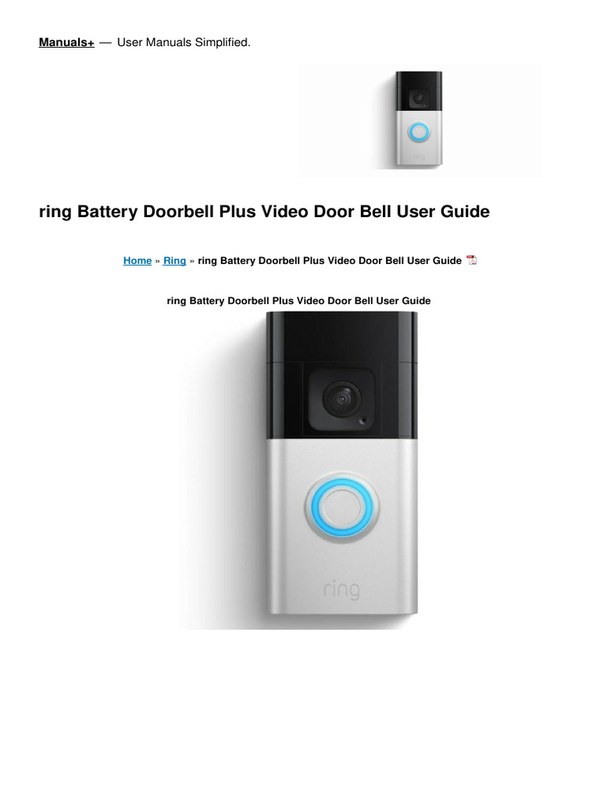
The Ring Battery Doorbell Plus is easiest to set up when you charge it first, pair it in the app, then mount it after testing the view. It works best with solid 2.4 GHz Wi-Fi, careful placement, and the current subscription terms you verify before buying.
The ring battery doorbell plus manual is most useful as a setup and daily-use guide. It helps people follow clear steps, choose safer placement, and know what the doorbell can and cannot do. This article explains the basics in plain US English, with renter and homeowner concerns in mind.
Ring Battery Doorbell Plus Manual: What This Guide Covers and Who It’s For
This guide is for anyone setting up a battery-powered Ring video doorbell. It helps you avoid common mistakes.
It covers app setup, mounting, Wi-Fi, privacy, power, storage, and long-term care. If you are comparing models, see our Ring vs. Eufy comparison for a broader view of tradeoffs.
It is especially helpful if you live in a house, apartment, condo, or rental. Drilling, wiring, or shared access may need extra care there.
How to Set Up the Ring Battery Doorbell Plus Step by Step
Step-by-step guide for setting up the Ring Battery Doorbell Plus.
The safest setup path is simple. Charge first, pair in the app, then mount after the live view looks right.
That order helps reduce rework. It also makes Wi-Fi or placement issues easier to fix before you drill.
1
Confirm requirements
Verify the exact model, battery charge, Wi-Fi access, account access, and any landlord or HOA rules before you start.
2
Plan safe placement
Check height, weather exposure, neighbor privacy, door swing, and how people walk to the entry.
3
Install and secure
Follow the exact manual, pair the device in the app, and use a unique password with MFA.
4
Test and maintain
Check alerts, motion zones, battery status, shared users, and recording settings after setup.
What You Need Before Starting: Charge, App, Wi-Fi, and Account
Before setup, fully charge the battery. Also confirm you can sign in to the Ring app.
You also need a stable 2.4 GHz Wi-Fi network. A phone or tablet with the app installed is required too.
Create or confirm the account before you bring the device outside. That saves time if the battery is low or the weather is bad.
App Setup, Device Naming, and QR Code Pairing
Open the app, choose add device, and follow the pairing prompts. Most setups use a QR code or a similar on-screen pairing step.
That step links the doorbell to your account. Give the doorbell a clear name, such as “Front Door” or “Side Entry.”
Simple names help every household member know which alert is which.
Mounting the Doorbell and Choosing the Final Position
Mount after you confirm the live view and motion coverage in the app. The best position usually balances face height, doorway coverage, and privacy.
For renters, check lease rules before drilling. If your building limits exterior changes, a no-drill mount or a landlord-approved location may be the safer choice.
Placement, View Angle, and Home Layout Considerations
Good placement matters as much as setup. A doorbell can miss faces, over-record sidewalks, or trigger too often if the angle is off.
Think about how guests, delivery drivers, and neighbors move through the area. Small changes in height or angle can improve the result a lot.
Front Door Height, Stairs, Screens, and Narrow Entryways
Standard mounting height often aims to capture faces, not just hats or packages. If your entry has stairs, a screen door, or a narrow landing, test the view before final mounting.
In tight spaces, the camera may see too much wall or too much public sidewalk. That can reduce useful motion alerts and make privacy settings more important.
Field of View, Motion Coverage, and Night Visibility
Motion zones help limit alerts to the areas you care about. They also reduce unnecessary clips from cars, trees, or passing pedestrians.
Night visibility depends on porch lighting, reflective surfaces, and how far the entry sits from the camera. A dim porch can make faces harder to identify, even when the camera is working normally.
Power, Battery Life, and Weather Performance<
Indicates power, battery life, and weather performance for the doorbell setup guide
/h2>
A battery doorbell is easier to install than wired models. It still needs routine charging and weather awareness.
Battery life varies with motion activity, live view use, temperature, and alert settings. Plan for maintenance instead of waiting for a low-battery alert.
Charging Routine, Battery Swaps, and Maintenance Timing
Set a simple charging routine based on your household traffic. Busy front doors usually need more frequent checks than quiet entryways.
If your model supports battery removal, keep a spare charged battery only if the manual allows it. Always follow the exact product instructions for removal and reinsert steps.
Cold, Heat, Rain, and Sun Exposure Limits
Battery performance can drop in cold weather. Direct sun can stress outdoor electronics.
Rain and wind also matter if the mount is exposed. Check the exact model’s weather rating and operating range in the manual or spec sheet.
Do not assume all battery doorbells handle the same conditions.
Wi-Fi, Connectivity, and App Behavior
Most setup problems start with Wi-Fi, not the camera itself. A strong connection improves alerts, live view, and clip uploads.
If the app feels slow, check the network first. That is often the easiest fix.
2.4 GHz Network Needs, Signal Strength, and Router Placement
Many battery doorbells use 2.4 GHz Wi-Fi because it reaches farther through walls than 5 GHz. That band is often better for front porches and garages.
If the router is far away, move it, add a mesh node, or reduce interference from thick walls and metal doors. A weak signal can cause delayed alerts or failed pairing.
Live View, Alerts, Latency, and Troubleshooting Connection Drops
Live view latency means a delay between the event and what you see in the app. Short delays are normal, but long delays can point to weak Wi-Fi or network congestion.
Start with safe checks. Reboot the router, confirm the app is updated, and test the doorbell closer to the router if possible.
If drops continue, check mesh settings or network isolation features. For setup help with a similar battery model, our Eufy E340 setup guide shows the same kind of network and placement decisions many readers face.
Storage, Subscriptions, and Ownership Costs
The real cost of a video doorbell is not just the device price. It can also include cloud storage, accessories, replacement batteries, and possible installation help.
Before you buy, check what works without a plan and what needs a subscription.
What Works Without a Plan and What Requires Ring Protect
Some features may work without a paid plan, while others may require Ring Protect or another current service tier. Exact features can change, so verify the current plan page before you decide.
Common differences include video history, event review, and download access. If you want to compare storage styles, see our local storage guide for a simple cloud-versus-device explanation.
Without a Plan$0
May allow live view and basic alerts, depending on current app features
May limit video history and clip access
Monthly PlanVerify current price
Often adds cloud recording and event review
May include retention and device limits
Annual PlanVerify current price
May lower monthly cost versus month-to-month billing
Check cancellation terms before enrolling
Cloud Retention, Event History, and Long-Term Cost Tradeoffs
Cloud storage is convenient because it keeps clips off the device. The tradeoff is ongoing cost and dependence on the vendor account.
Local storage can reduce subscription costs, but it may require extra hardware and a different setup. Either way, review how long clips stay available and how you can export them.
Local Storage
Can reduce recurring fees
May depend on extra hardware or a hub
Physical access and theft risk still matter
Cloud Storage
Usually easier to access from the app
Depends on internet and account access
Plan terms can change over time
Privacy, Cybersecurity, and Shared Access
Video doorbells affect more than the front door. They can also capture visitors, neighbors, package delivery, and parts of public space.
Good privacy habits protect the household and reduce friction with neighbors.
Motion Zones, Privacy Settings, and Neighbor Considerations
Motion zones help you focus on your entryway instead of the sidewalk or street. Privacy zones can block parts of the frame that do not need recording.
That matters in apartments, townhomes, and close-set houses. A careful angle can reduce complaints and improve useful footage.
MFA, Password Hygiene, Shared Users, and Account Recovery
Use multi-factor authentication, a unique password, and current contact details for recovery. Those steps help if a phone is lost or a family member changes devices.
Review shared users and connected apps at least once in a while. Remove access that is no longer needed.
Common Problems, Limits, and When to Contact Support
Most issues are fixable with a few safe checks. Start with power, app, Wi-Fi, and placement before assuming the device is faulty.
If the problem involves wiring, mounting damage, or repeated failures, it may be time for support or a professional.
Installation Issues, Wi-Fi Pairing Errors, and Motion Detection Problems
If pairing fails, check the battery charge, phone Bluetooth and Wi-Fi settings, and the router band. If motion alerts seem wrong, adjust the motion zone and test from the actual doorway.
If the camera keeps dropping offline, move the router, reduce interference, or check for mesh handoff problems. Avoid unsafe shortcuts or bypasses.
Compatibility Limits, Rental Rules, and When a Wired Alternative Makes More Sense
Battery models are often best when you want simple installation and flexible placement. A wired option may make more sense if you want fewer charging tasks or already have compatible doorbell wiring.
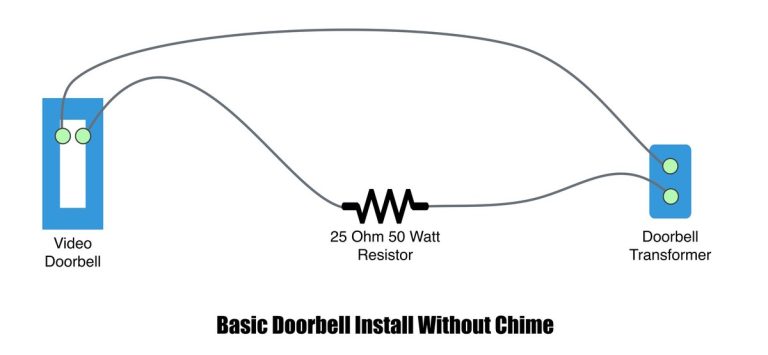
Renters should check lease terms before drilling or altering exterior surfaces. Homeowners should also verify transformer and chime compatibility if they plan any wired connection.
Care, Updates, and Best Practices for Long-Term Use
Good maintenance keeps the doorbell useful after the first week. That means cleaning, updating, and checking settings on a regular schedule.
A short monthly check is usually enough for many homes.
Cleaning, Firmware Updates, and Seasonal Checkups
Wipe the lens and housing with a soft, dry cloth. Avoid harsh cleaners that could damage seals or finish.
Check for firmware and app updates, then review battery level, motion settings, and notification behavior. Do another check before winter, heavy rain, or vacation periods.
For readers who want a deeper look at camera upkeep and alert behavior, our Ring camera setup guide covers the same kind of long-term app and maintenance habits.
Next Steps After Setup: Testing Alerts, Tuning Settings, and Documenting Ownership
After installation, test doorbell presses, motion alerts, and live view from inside and outside the home. Make sure every household member who needs access can sign in.
Save the model name, purchase record, and support details in one place. That makes warranty help, replacement parts, and account recovery easier later.
Final Takeaway
The ring battery doorbell plus manual is most useful when you want a clear setup path, better placement, and realistic expectations about power, Wi-Fi, privacy, and subscription costs. It is a practical fit for many homeowners and renters, as long as you verify current plan terms, follow the exact manual, and stop short of any wiring or mounting step that feels uncertain.
Yes, it needs Wi-Fi for alerts, live view, and cloud features. A strong 2.4 GHz signal near the door usually helps the most.
Sometimes, but it depends on your lease and the mount you choose. Check landlord or HOA rules before making any exterior changes.
Charging frequency depends on motion activity, live view use, weather, and settings. Busy entryways usually need more frequent checks than quiet ones.
Some features may work without a plan, but video history and clip access often depend on the current subscription terms. Verify the latest plan page before you buy.
Use motion zones and privacy zones to limit recording to the areas you need. Also review shared users, account security, and any local rules that apply.
Start with battery charge, app permissions, Bluetooth, and Wi-Fi strength. If wiring, mounting, or repeated power issues are involved, stop and consult the manual or a professional.
Hi, I'm Marcus Sterling, a smart home security expert with over 5 years
of hands-on experience testing and reviewing hundreds of security cameras, smart locks, and alarm systems. My mission is to make smart home security accessible, affordable, and easy to understand—and every review I publish is 100% independent, unbiased, and honest. I don't accept payments for positive reviews, just practical advice to help you secure your home with confidence.
Quick Security Answer A wired video doorbell can be a practical upgrade if your transformer, chime, and Wi-Fi all match the model’s requirements. Renters and shared buildings should check rules first, because wiring access and mounting limits can change the best option. Wiring video doorbell usually means connecting a new smart doorbell to the low-voltage…
Blink Outdoor 4 and Ring outdoor cameras take different approaches to home security. Blink focuses on low cost, long battery life, and simple operation, while Ring offers more camera choices, stronger detection tools, and a broader smart home system. Choose Blink Outdoor 4 if you want an affordable camera with long battery life and optional…
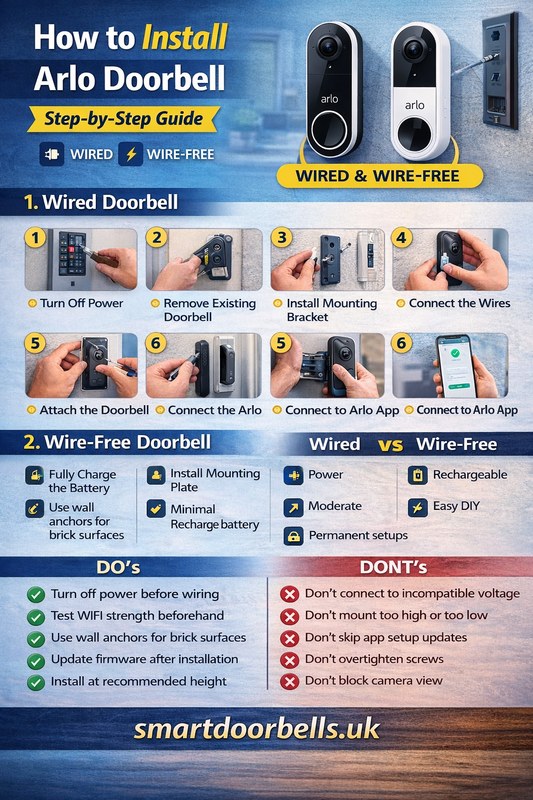
Quick Security Answer If you are checking arlo video doorbell installation, start with power, Wi-Fi, and mounting height. Most beginners can handle it, but uncertain wiring or rental rules are good reasons to choose a battery setup or call a pro. Arlo video doorbell installation is usually manageable for beginners when you check power, Wi-Fi,…
Compare best video doorbell without subscription for home coverage, privacy, power, storage, subscriptions, and value. Read the guide before choosing a system.
Quick Security Answer Check the exact model’s voltage requirement before you wire a Ring video doorbell. If the transformer, chime, or wiring is unclear, use the manual or a qualified electrician. Ring video doorbell voltage is the first thing to check before you wire a new doorbell. The right voltage helps the device power up,…
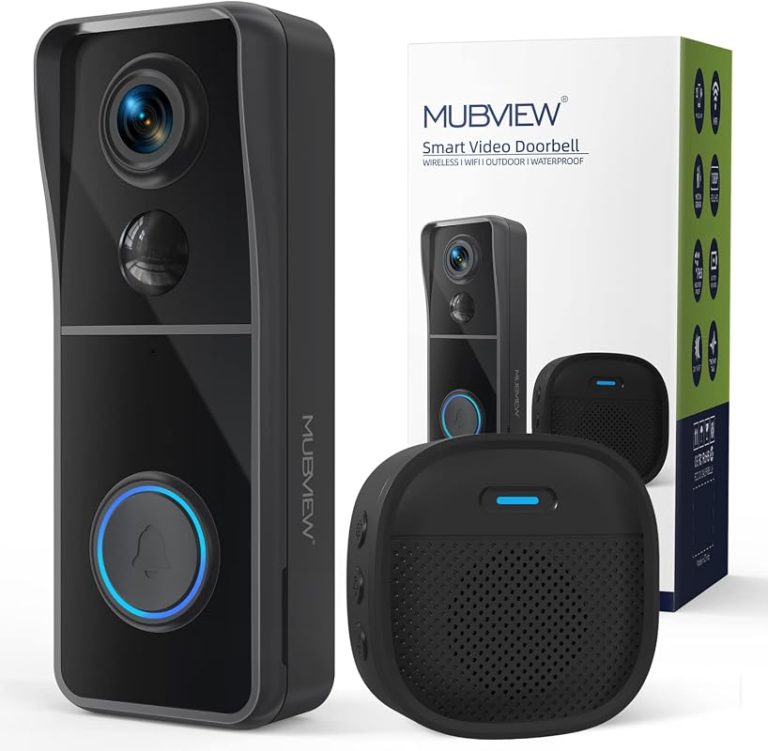
Quick Security Answer Ring Chime is usually the simpler choice if you want a dedicated doorbell sound, while Alexa works better when you already use Echo devices and want alerts in multiple rooms. The best fit depends on your layout, privacy comfort, and how much smart-home setup you want. For ring battery doorbell chime vs…