Check power, Wi-Fi, app permissions, and motion settings first. If those are fine, move to placement, storage, privacy, and support.
Ring video doorbell troubleshooting usually starts with power, Wi-Fi, and app settings. These three areas cause many common issues. If your doorbell is offline, missing motion alerts, or showing poor video, work through the checks below before you reset or replace anything.
Ring Video Doorbell Troubleshooting: The Fastest Way to Identify the Problem
The quickest way to troubleshoot is to test one layer at a time. Check whether the device has power. Then check whether the app can reach it. After that, check whether your motion settings are too narrow or too quiet.
Start with the basics: power, Wi-Fi, app access, and motion settings
Begin with the simplest checks first. Confirm that the doorbell has power. Make sure your phone has internet access. Also confirm that the Ring app is signed in to the correct account. Then review motion zones, alert settings, and Do Not Disturb on your phone.
If the doorbell works in one app feature but not another, that is a clue. For example, live view may fail while motion alerts still arrive. Or the camera may record but not send notifications.
When the issue is the doorbell itself versus your home network or phone
A good test is to compare behavior across devices. If the doorbell is offline on every phone and tablet, the problem is likely power or Wi-Fi. If only one phone misses alerts, the issue is usually app permissions or phone settings.
Also check whether other smart devices in the home are having the same problem. If they are, the router or internet service may be the real cause.
Wi-Fi & Network Check
Explain supported bands, upload needs, router distance, mesh behavior, Ethernet or PoE, hub requirements, outage behavior, and network-isolation options where relevant.
Power Problems, Battery Drain, and Hardwired Doorbell Issues
Common power issues can cause Ring video doorbell battery drain or wiring faults.
Power issues can look like random disconnects, slow alerts, low battery warnings, or a doorbell that never rings. The fix depends on whether your model uses a battery, hardwired power, or both.
How to tell whether your Ring doorbell is underpowered
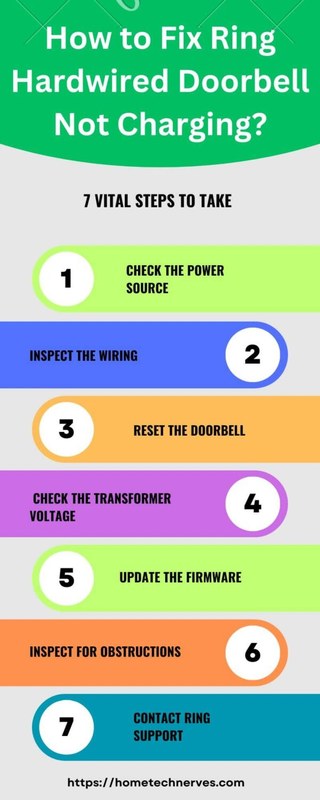
An underpowered doorbell may reboot often, fail to charge, or report that wiring is not enough. If the app shows low power or charging problems, stop and check the exact model requirements in the manual.
For wired installs, transformer and chime compatibility matter. A doorbell can still fail if the transformer does not meet the required voltage or VA rating, or if the chime setup is not supported.
Battery charging, transformer compatibility, and weather-related drain
Battery models can drain faster in cold weather, with frequent motion alerts, or when Wi-Fi is weak. Heavy activity, long live views, and repeated recordings also use more power.
If the battery drains unusually fast, charge it fully and watch whether the problem returns. If it does, check for poor signal, excessive motion, or a wiring issue that prevents proper trickle charging.
What homeowners and renters should check before reinstalling or replacing anything
Homeowners should confirm the transformer, chime, and wiring before buying parts. Renters should check lease rules before drilling or changing existing wiring. In both cases, do not guess about electrical compatibility.
Wi-Fi, Signal Strength, and Connection Drops
Wi-Fi problems are one of the most common reasons a video doorbell acts unreliable. Weak signal, router distance, mesh handoff issues, and crowded 2.4 GHz channels can all cause delays or dropouts.
Where Ring doorbells struggle most: distance, walls, mesh systems, and 2.4 GHz congestion
Doorbells often sit far from the router and behind exterior walls. Brick, stucco, metal doors, and stone can weaken the signal more than drywall.
Many video doorbells depend on 2.4 GHz Wi-Fi, which travels farther but can be crowded. If nearby networks are busy, the connection may slow down or drop during peak hours.
Router placement, network resets, and when a Wi-Fi extender or hub helps
Move the router higher and more central if possible. A simple reboot of the router and doorbell can clear temporary connection issues after an outage or update.
If the signal is still weak, a Wi-Fi extender or mesh node may help. Place it where the doorbell still gets a strong signal, not where the router signal is already poor.
How to confirm the doorbell is connected to the right network band
Some homes have separate 2.4 GHz and 5 GHz names, while others use one combined name. Check the app or router settings to confirm the doorbell joined the band it supports best.
If you recently changed routers or passwords, reconnect the device from the app. A saved network can point to an old band or old login.
Local Storage
Useful when you want recordings stored on your own hardware.
Can keep some access during internet outages, depending on the system.
Hardware can be stolen, damaged, or need backup planning.
Cloud Storage
Useful for remote access and app-based playback.
Depends on internet service and account access.
May require a paid plan and has provider-controlled retention rules.
Video, Live View, and Recording Problems<
App settings screen for video, live view, and recording troubleshooting.
Video problems often come from the network, power, or the camera’s view of the entryway. A black screen, lag, or failed live view does not always mean the camera is broken.
Why the camera may show a black screen, lag, or failed live view
A black screen can come from low bandwidth, a temporary app glitch, or a power interruption. Lag usually points to weak Wi-Fi, high network traffic, or a slow phone connection.
If live view fails, test it on another phone or on a different network. That helps show whether the problem is local to one device or affects the doorbell itself.
Storage, subscription status, cloud retention, and local access limitations
Recording access can depend on the plan and the exact model. If clips are missing, confirm whether your subscription is active and whether the device is set to record motion or only ring alerts.
If you use cloud storage, check the retention rules in your account. If you rely on local access, confirm that the local device is powered, online, and not full.
Night vision, glare, weather, and placement issues that affect image quality
Image quality can drop at night, in direct sun, or during rain and glare. Porch lights, reflective doors, and glass can wash out the image.
Placement matters too. If the camera points too high or too low, it may miss faces and packages even when the video itself is clear.
Motion Alerts, Missed Notifications, and False Alerts
Motion problems usually come from settings, phone permissions, or poor placement. The goal is to detect the right events without flooding your phone with traffic, pets, or passing neighbors.
How motion zones, sensitivity, and activity settings change detection
Motion zones tell the doorbell where to watch. If the zone is too narrow, it can miss people and packages. If it is too wide, it may catch sidewalks, cars, and street movement.
Sensitivity controls how easily motion triggers an alert. Lower it if the doorbell reacts to every small movement. Raise it if people walk up without alerts.
Phone permissions, do-not-disturb settings, and app notification troubleshooting
Check that the Ring app has notification permission on your phone. Also review battery saver, focus modes, and Do Not Disturb, which can silence alerts without changing the doorbell.
If alerts work on one device but not another, compare app permissions and account logins. Shared users may need their own notification settings turned on.
Reducing missed packages, street traffic alerts, and neighbor-triggered events
For packages, make sure the camera sees the drop area and not just the street. For false alerts, reduce the zone size or lower sensitivity before moving the camera.
If your entry faces a busy sidewalk, consider a tighter zone and a lower alert range. That often improves signal quality more than constant setting changes.
Installation, Placement, and Home Layout Constraints
Many performance issues start with placement, not software. A doorbell can only do a good job if it has the right height, angle, and clear view of the entry.
Best mounting height, angle, and field of view for typical U.S. entryways
Most entryways work best when the camera is mounted at a height that captures faces and hands. If the camera is too high, it may miss packages. If it is too low, it may focus on the ground.
Use the app’s preview view before drilling or sticking anything in place. That helps you see whether the doorbell covers the walkway, step, and threshold.
Apartment, condo, and rental limitations: adhesive mounts, shared entrances, and landlord rules
Renters often need no-drill mounts or removable adhesive options. Those can help avoid damage, but they may not work on every surface or in every weather condition.
Shared hallways and entrances raise privacy and building-rule questions. Check lease terms, HOA rules, and local building policies before mounting a camera that points toward common areas.
Front porch layout, stairs, screen doors, and obstructions that block performance
Screen doors, columns, railings, and stairs can block motion or narrow the view. Even a well-set camera can struggle if the porch design hides people until they are too close.
If the entry is tight, angle the doorbell toward the approach path. That often helps more than changing the app settings alone.
Privacy, Cybersecurity, and Shared Access Settings
Doorbell troubleshooting should include account security and privacy settings. A working camera still needs safe sharing, secure login, and careful placement.
Account security: MFA, password hygiene, recovery access, and shared users
Use a unique password and turn on multi-factor authentication if it is available. That lowers the chance that someone else can access recordings or live video.
Also check recovery email and phone details. If you move or lose a device, those details help you regain access without creating a new account.
Privacy zones, neighbor privacy, audio capture concerns, and local compliance considerations
Privacy zones can block parts of the image you do not want to record. Use them if the camera sees a neighbor’s porch, a sidewalk, or another shared area.
Audio recording rules can vary by state and situation, so review local guidance when the camera captures conversations or shared spaces. A doorbell should protect your entry, not create avoidable privacy problems.
App permissions, firmware updates, and secure removal when selling or moving
Keep the app updated, and install firmware updates when offered. Updates can fix bugs and improve security.
If you sell the home or move, remove the device from the account and clear shared users. That prevents the next person from inheriting your access.
Cybersecurity Checklist
Use a unique password and enable MFA.
Update device, hub, router, and app software.
Review shared users, sessions, permissions, and integrations.
Use modern Wi-Fi security and isolate unsupported devices when practical.
Confirm how recordings and account data can be exported or deleted.
Maintenance, Weather Protection, and When to Escalate Support
Regular maintenance prevents many common failures. A clean lens, stable power, and a healthy network usually matter more than frequent resets.
Cleaning lenses, checking wiring, updating firmware, and testing after power outages
Wipe the lens with a soft, dry cloth. Dirt, pollen, and water spots can make the image look worse than the camera really is.
After a power outage, test the doorbell, the chime, and the app. Some devices reconnect on their own, while others need a manual reboot or re-pairing.
Cold, heat, rain, and sun exposure: common environmental causes of failure
Cold weather can shorten battery life. Heat can also stress electronics and affect performance over time.
Rain, direct sun, and glare may create video issues that look like hardware failure. A small change in shade or angle can improve results quickly.
When troubleshooting ends and replacement, electrician help, or Ring support makes sense
Stop troubleshooting if you suspect unsafe wiring, a damaged transformer, or repeated power problems. At that point, the exact manual or a qualified electrician is the safer next step.
If the device still fails after power, Wi-Fi, app, and placement checks, contact Ring support. If the hardware is aging or physically damaged, replacement may be more practical than more resets.
Sources & US Verification
Check the exact model manual, Ring support pages, app guidance, and current plan details before changing wiring, subscriptions, or privacy settings. Time-sensitive facts can vary by model, firmware, and region.
Final Takeaway
Most ring video doorbell troubleshooting comes down to power, Wi-Fi, app permissions, or placement. Start with the safest reversible checks, then move to wiring or support only if the problem remains.
An offline doorbell usually points to power or Wi-Fi trouble. Check the battery or wiring first, then reboot the router and confirm the device is on the correct network.
Missed alerts often come from motion zones, sensitivity settings, or phone notification permissions. Review the app settings and make sure Do Not Disturb or battery saver is not silencing alerts.
A black screen or lag can come from weak Wi-Fi, low power, or a temporary app problem. Test the live view on another phone and check your internet connection before resetting the device.
Recording access can depend on the exact model and plan. Check the current plan details in your account to confirm whether motion clips, retention, or playback features are included.
Renters should review lease rules, HOA policies, and building guidelines before drilling or wiring anything. No-drill mounts or removable adhesive options may help, but they still need a good placement and secure fit.
Use a unique password, enable multi-factor authentication if available, and review shared users often. Also set privacy zones when the camera sees shared spaces or a neighbor’s property.
Hi, I'm Marcus Sterling, a smart home security expert with over 5 years
of hands-on experience testing and reviewing hundreds of security cameras, smart locks, and alarm systems. My mission is to make smart home security accessible, affordable, and easy to understand—and every review I publish is 100% independent, unbiased, and honest. I don't accept payments for positive reviews, just practical advice to help you secure your home with confidence.
Quick Security Answer A Ring battery doorbell is a practical choice if you want front-door alerts without existing wiring. The best results come from careful placement, solid Wi‑Fi, and the right privacy and storage settings. The ring battery doorbell guide below explains what to expect before you buy, mount, or set up a battery-powered video…
Quick Security Answer Most Ring Wi-Fi connection problems come from weak signal, band mismatch, or power trouble. Start with the router, password, and battery or wiring before you reset anything. When a ring video doorbell not connecting to wifi problem shows up, the cause is usually simple. It is often weak signal, a setup mismatch,…
Compare ring battery doorbell kit by security features, privacy, smart home fit, setup, fees, and value. Read the guide to find the right option for your home.
Choosing between the eufy Video Doorbell E340 and S330 depends on how you plan to power, install, and use your doorbell. Both models offer dual-camera coverage, but their storage, hub requirements, and daily features differ. We recommend the E340 for most homes because it works as a standalone doorbell, supports local storage expansion, and offers…
Wiring the eufy Video Doorbell E340 can give us steady power without relying on battery charging. Before we begin, we need to confirm that our existing doorbell transformer meets eufy’s required voltage and that the power is switched off at the breaker. We can connect the E340 to compatible existing doorbell wires, secure it to…
Quick Security Answer A Ring battery doorbell is usually set up by charging the battery, adding the device in the app, and mounting it in a spot with a clear front-door view. The most common problems are weak Wi-Fi, poor placement, or skipped privacy settings. If you want to know how to setup ring battery…