How Much Internet Speed Does a Security Camera Need
Most security cameras need 2 to 5 Mbps of upload speed per camera for smooth video. Check your upload speed first, then add up every camera that streams at once.
The answer to how much internet speed does a security camera need starts with upload speed, not download speed. Most modern cameras need 2 to 5 Mbps of upload bandwidth per camera to stream and record smoothly. This guide explains the math, the limits, and how to plan a system that fits your home and your internet plan.
The Short Answer: Plan on 2–5 Mbps Upload per Camera
Plan on 2 to 5 Mbps upload per camera for reliable video. A single 1080p camera usually needs 2 to 4 Mbps. A 4K camera may need 8 Mbps or more. Your total need is the sum of every camera that streams at the same time.
Why Upload Speed Matters More Than Download
Upload speed sends your video to the cloud or to your phone. Download speed brings video to your screen. Most home internet plans offer more download than upload. That makes upload the limit you must check first.
Run a speed test on the Wi-Fi network the camera will use. Compare the upload result with your camera needs. If upload is below 2 Mbps, video may stutter, buffer, or fail to record events.
How Resolution and Frame Rate Change the Math
Higher resolution means more data per frame. A 1080p camera at 15 frames per second uses less bandwidth than a 4K camera at 30 frames per second. Check the camera’s listed bitrate in the app or manual.
Bitrate is the amount of data the camera sends each second, shown in Mbps. Some cameras let you lower the bitrate to save bandwidth. Lower bitrate also reduces image detail.
Typical planning ranges vary by model and compression. Common estimates are:
- 720p: 1 to 2 Mbps
- 1080p: 2 to 4 Mbps
- 2K: 4 to 6 Mbps
- 4K: 8 to 16 Mbps
How Security Cameras Use Your Internet Connection
Cameras use your internet connection to send video, receive commands, and deliver alerts. The amount they use depends on whether they record continuously or only when motion happens. It also depends on resolution, frame rate, and compression settings.
Continuous Recording, Event Alerts, and Video Doorbells
Continuous recording sends video to the cloud around the clock. That uses the most bandwidth. Event alerts send short clips only when motion or sound triggers the camera. That uses far less.
Video doorbells sit between the two. They wait for visitors, then stream live video and record short clips. Most doorbell events last 30 seconds to a few minutes. A busy front door can still add up.
Some cameras also support two-way audio. That adds a small amount of data on top of the video stream. For a closer look at doorbell data use, see our guide on how much data a video doorbell uses.
Calculating Your Total Bandwidth Needs for Multiple Cameras
Add the upload needs of every camera that streams at once. If you have four 1080p cameras at 2 Mbps each, plan for at least 8 Mbps upload. If one camera records continuously and others only on motion, count them differently.
| Camera setup | Typical upload per camera | Total upload needed |
|---|---|---|
| One 1080p camera, motion events | 1–2 Mbps | 1–2 Mbps |
| Two 1080p cameras, continuous | 2–4 Mbps each | 4–8 Mbps |
| Four 2K cameras, continuous | 4–6 Mbps each | 16–24 Mbps |
| One 4K camera, continuous | 8–16 Mbps | 8–16 Mbps |
These are planning ranges, not guarantees. Check the exact bitrate settings for each model. Also leave room for other home uploads, such as video calls or online gaming.
Wi-Fi Coverage and Camera Placement: Getting a Strong Signal
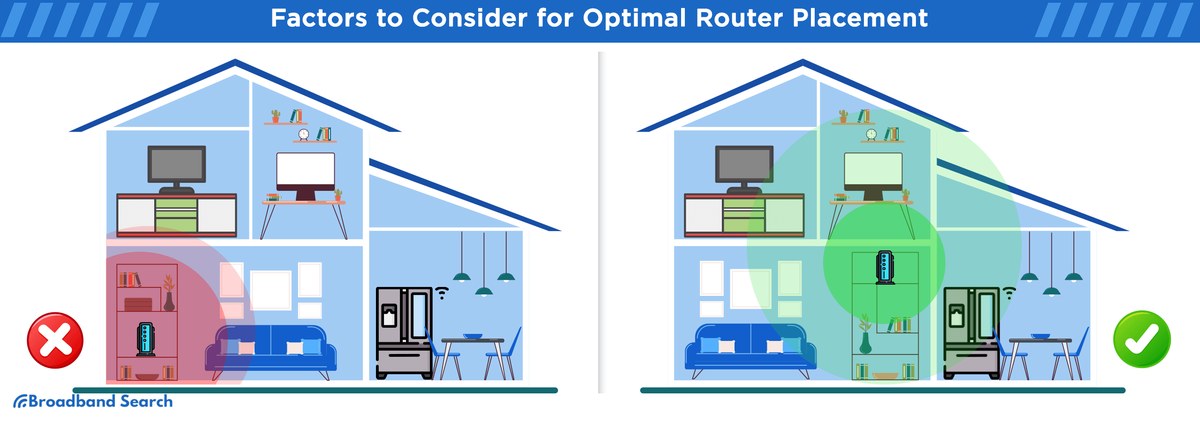
A strong signal matters as much as raw speed. A camera with a weak connection will drop frames even if your internet plan is fast. Place cameras within a good range of your router or add a mesh system.
Outdoor cameras face extra challenges. Walls, windows, and metal siding block Wi-Fi. A camera mounted at the far corner of a yard may sit outside the router’s range.
Home Layout, Power, and Installation Constraints for Renters and Homeowners
Where you place a camera affects both signal and power. Plug-in cameras need an outlet within reach. Battery cameras give placement freedom but need periodic recharging.
Renters should check lease rules before drilling holes. Many landlords allow cameras but restrict wiring changes. Homeowners face fewer rules but still need to think about HOA limits and neighbor privacy.
For outdoor mounting, use a ladder safely and follow the manual. If the camera needs low-voltage wiring, consider a qualified installer. Our guide on fixing cameras that will not connect to Wi-Fi covers common signal problems.
Cloud Storage vs. Local Storage: What Actually Consumes Bandwidth?
Cloud storage sends video to the provider’s servers, which uses upload bandwidth. Local storage keeps video on a memory card or network drive in your home, which uses almost no internet bandwidth.
Cloud Subscriptions, Retention Limits, and Monitoring Costs
Most cloud plans charge a monthly or yearly fee. The fee usually covers a set number of cameras and a retention period, such as 30 or 60 days. Check the plan page for the exact limits before you buy.
Cloud storage has benefits. Video is safe if the camera is stolen or damaged. You can view clips from anywhere. The trade-off is ongoing cost and internet dependence.
Local Storage and Network-Attached Storage
Local storage records to a microSD card, a base station, or a network-attached storage (NAS) drive. It avoids monthly fees and keeps video inside your home. The trade-off is that a thief can take the recorder, and you must manage backups yourself.
- No monthly cloud fee for most setups.
- Uses little or no upload bandwidth.
- Video stays on hardware you control.
- Monthly fee per camera or per home.
- Uses upload bandwidth for every clip.
- Video remains accessible if the camera is stolen.
Some systems offer both. You can record locally and back up important clips to the cloud. For more detail, read our explanation of local storage for security cameras.
Smart Home Integration, Privacy, and Cybersecurity
Cameras often connect to smart home platforms and voice assistants. Integrations add convenience but also add account access points. Review app permissions and shared users each time you set up a new device.
Router Settings, Hubs, and Wi-Fi Bands
Your router is the gatekeeper for every camera. Use a strong Wi-Fi password and modern security settings. Some routers let you create a separate network for smart devices, which limits access if one device is compromised.
Hubs and base stations can reduce Wi-Fi load. A hub connects cameras over a private protocol and sends one stream to the internet. That can simplify setup and improve reliability.
MFA, Firmware Updates, Privacy Zones, and Neighbor Privacy
Enable multi-factor authentication (MFA) on your camera account. MFA asks for a second code after your password, which blocks many unauthorized logins. Update firmware when the app prompts you, since updates patch known flaws.
Point cameras at your own doors, yards, and entry points. Avoid recording neighbors’ windows, shared walkways, or public streets where local rules apply. Use privacy zones in the app to block out areas you do not want recorded.
Troubleshooting Slow Cameras and Routine Maintenance
Start with safe, simple checks. Restart the camera, router, and app. Then measure the Wi-Fi signal at the camera’s location. Weak signal is the most common cause of slow or choppy video.
Move the camera closer to the router, or add a Wi-Fi extender or mesh node. Check for interference from nearby devices. Change the camera to a less crowded channel if the app allows it.
Routine maintenance keeps cameras reliable. Clean the lens, check for spider webs, and trim branches that block the view. Replace batteries on schedule and reboot the camera after firmware updates.
If a camera still fails after these steps, stop and check the manual. Some issues need a factory reset or a replacement unit. Do not bypass safety features to force a connection.
Limitations and Next Steps: Build a System That Fits Your Internet
Your internet plan sets the ceiling for your camera system. If your upload speed is low, you cannot simply add more cameras. You must either reduce quality, use local storage, or upgrade your plan.
Know Your ISP Data Caps and Camera Limitations
Some internet providers enforce data caps. Continuous recording can consume hundreds of gigabytes per month. Check your plan’s cap and your current usage before installing several cameras.
Cameras also have their own limits. Battery models may record only on motion to save power. Some models cannot record continuously without a wired power source. Read the exact manual for your model.
Next Steps: Audit, Prioritize, and Future-Proof
Start with an audit. List every camera you plan to install, its resolution, and whether it records continuously. Add up the upload needs and compare them with your current plan.
Run a speed test and check your upload speed and data cap.
Record continuously only where it matters most. Use motion events elsewhere.
Choose cameras with adjustable bitrate and local storage options. Leave headroom for new devices.
If your internet cannot support the system you want, look for cameras that keep working during an internet outage. Local recording and cellular backup options can fill the gap.
Plan on 2 to 5 Mbps upload per camera, and add the total for every camera that streams at once. Check your upload speed first, place cameras within good Wi-Fi range, and use local storage to reduce bandwidth. Match the system to your internet, not the other way around.
Frequently Asked Questions
Most cameras need at least 2 Mbps upload per camera. A 1080p camera typically uses 2 to 4 Mbps. Check the exact bitrate in the app or manual for your model.
No. Cameras mostly use upload speed to send video to the cloud. Download speed matters when you view live video, but the camera itself does not need a fast download connection.
Yes, if you lower the resolution or record only motion events. Some cameras also support local storage, which uses almost no internet bandwidth.
It depends on the model. Cameras with local storage can often record to a memory card during an outage, but cloud streaming and remote viewing stop. Check the manual for offline behavior.
A 1080p camera recording continuously at 2 Mbps uses about 648 GB per month. A camera recording only motion events uses far less, often under 50 GB. Data use depends on bitrate and recording time.
Many security cameras only support 2.4 GHz, which travels farther through walls. Some newer models support 5 GHz. Check the model specs before setup.