Smart Lock vs Keypad Lock Which One Is Better for You
A keypad lock opens with a code and stays offline. A smart lock adds phone control, remote access, and alerts but needs Wi-Fi, more battery power, and regular updates.
The smart lock vs keypad lock decision comes down to one question: do you want a lock that only accepts codes, or one that also connects to your phone and home network? This guide explains the real differences in access, alerts, installation, privacy, and long-term cost so you can choose the right entry lock for your door.
The Short Answer: It Comes Down to Connectivity, Not Hardware
Both lock styles share similar hardware: a deadbolt, a motor, and a keypad. The real difference is connectivity. A keypad lock stores codes on the device. A smart lock adds a wireless radio, which brings remote control, alerts, and app management.
If you only want to stop carrying keys, a keypad lock does the job. If you want to know who comes and goes, share temporary codes, or check the lock from work, choose a smart lock. Your door, your lease, and your routine decide which one fits.
What a Keypad Lock Is (and Isn’t)
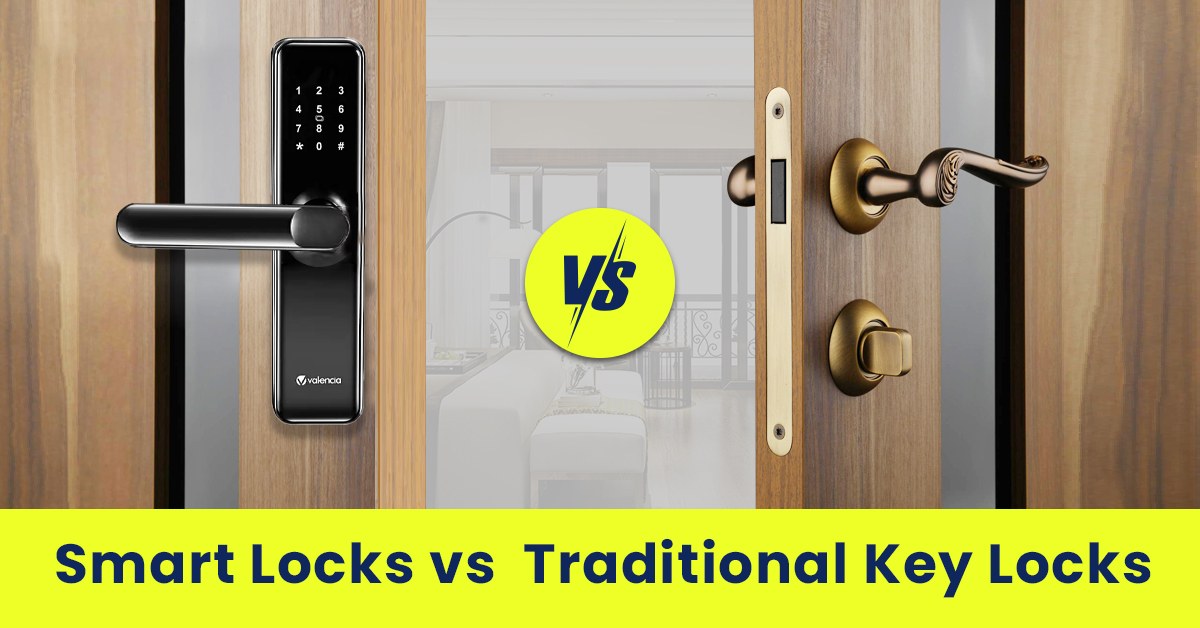
A keypad lock replaces the key cylinder with a number pad. You enter a code to unlock the deadbolt. Many models still include a physical key slot as a backup. These locks are also called electronic locks or keyless locks.
Keypad locks do not connect to your home network. You program codes directly on the device. Some models support multiple codes, schedules, or a basic audit trail, but you usually manage them at the door.
This simplicity has real benefits. Keypad locks are often easier to install, cheaper to replace, and free from Wi-Fi problems. They solve the “forgot my key” issue without adding an app. Compare keyed vs keyless entry door locks to see which style matches your door.
What Makes a Lock “Smart” Beyond the Keypad
A smart lock starts with the same keypad but adds a wireless radio. That radio lets the lock talk to an app, a hub, or a voice assistant. With a smart lock, you can:
- Lock and unlock from anywhere with an internet connection
- Create and revoke codes remotely
- Get alerts when someone enters or leaves
- Review a history of codes and events
- Connect to a video doorbell or alarm system
- Use voice commands through Alexa, Google Home, or Siri
Some smart locks use Wi-Fi directly. Others use Bluetooth or Z-Wave and need a hub. Matter and Thread support are becoming more common. Check the exact model’s compatibility before you buy. Before you switch, see how smart locks compare to traditional key locks.
Side-by-Side: Access, Alerts, and Everyday Use
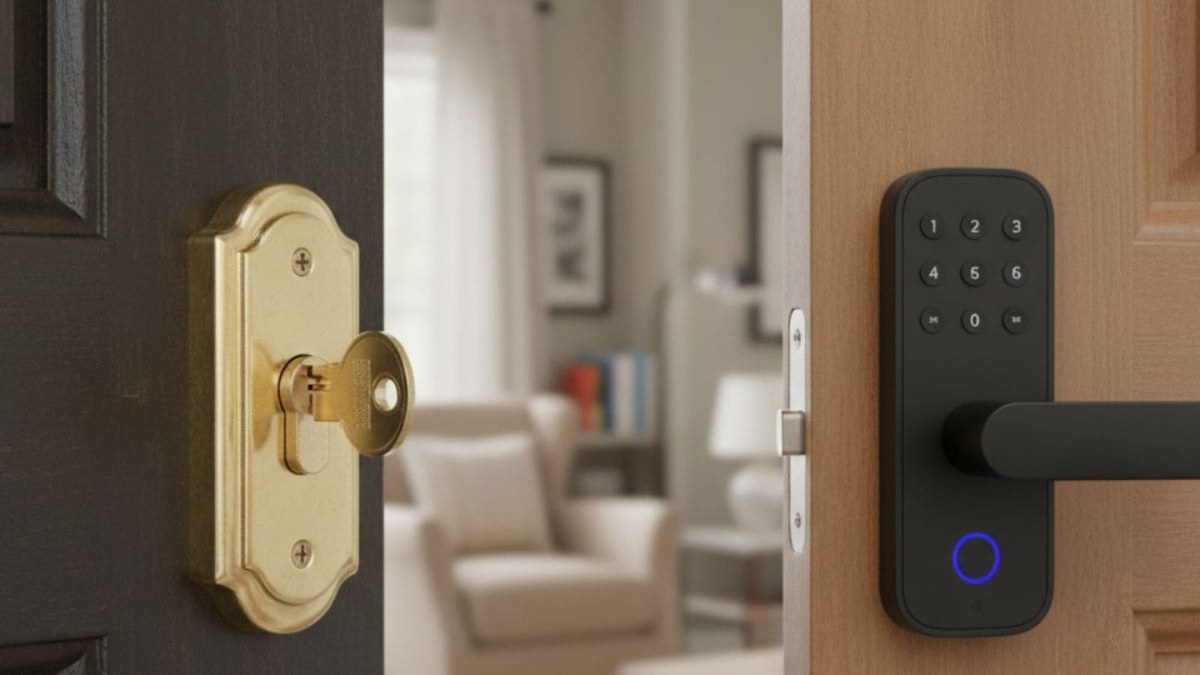
Both lock types keep the door closed and let the right people in. They differ in how you manage access and what you learn about each entry.
| Feature | Keypad lock | Smart lock |
|---|---|---|
| Remote lock and unlock | No | Yes, with internet |
| Codes managed from phone | No | Yes |
| Entry alerts and history | Limited or none | Full log, app alerts |
| Needs Wi-Fi or hub | No | Usually yes |
| Battery drain | Lower | Higher with Wi-Fi |
| Typical price | Lower | Higher |
Codes, Sharing, and Revoking Access
Keypad locks let you share a code with family, a dog walker, or a cleaner. But if everyone uses the same code, you cannot tell who entered. To remove access, you must delete the code at the keypad.
Smart locks give you more control. You can create a unique code for each person, set it to work only on certain days or hours, and revoke it from your phone. If a guest never returns, you can delete their code in seconds. This matters for renters, caregivers, and households with frequent visitors.
Activity Logs, Notifications, and Video Doorbell Checks
A basic keypad lock may record only the last few events. A smart lock keeps a fuller log: which code was used, when, and whether the door was left open. Many smart locks pair with a video doorbell so you can see who is at the door before you unlock it.
Notifications can tell you when the kids arrive home or when a delivery driver rings. These features depend on a stable network and, in some cases, a subscription plan. Check the vendor’s plan page for the exact model.
Battery Life, Power Outages, and Backup Entry
Both lock types run on batteries, usually AA or lithium cells. Battery life varies by model, usage, and connectivity. Smart locks with Wi-Fi tend to drain batteries faster because they keep a network connection alive.
Power outages rarely affect battery-powered locks. But a dead battery can lock you out. Many locks include a physical key. Others have a 9V terminal on the outside for a temporary power boost. Some newer models use a USB-C emergency port. Know your backup method before you install the lock. See what happens if a smart lock battery dies so you are prepared.
Installation and Fit: Your Door Has a Say
Not every lock fits every door. Before you buy, measure your door and check the manufacturer’s specifications. Most smart and keypad locks replace a standard single-cylinder deadbolt.
Deadbolt, Backset, and Handing Checks
You need to know four measurements:
- Backset: the distance from the door edge to the center of the deadbolt hole, usually 2-3/8 or 2-3/4 inches
- Cross bore: the diameter of the hole, usually 2-1/8 inches
- Door thickness: typically 1-3/8 to 1-3/4 inches
- Handing: whether the door opens left or right
Most retrofit locks fit standard US doors. Some require a larger hole or a new strike plate. Mortise locks, multipoint locks, and older doors may need extra work. When in doubt, follow the exact manual or hire a qualified installer.
Rental vs. Owned: What You’re Allowed to Install
Renters face extra limits. Many leases require you to restore the door to its original condition. A smart lock that replaces the deadbolt may be allowed if you keep the original hardware and swap it back when you move. Keypad-only locks that attach to the interior side of the door are often easier to remove.
Some landlords restrict any change to the entry door. Ask for written permission before drilling or replacing hardware. If you own your home, you have more freedom, but you still need to match the door’s existing bore and handing.
Privacy and Cybersecurity: The Connected Trade-Off
A keypad lock has no network connection, so it has no online attack surface. A smart lock adds convenience but also adds risk. The lock sends data over your network and often to the vendor’s cloud. That data can include your schedule, your codes, and your entry history.
App Permissions, MFA, and Account Recovery
When you set up a smart lock, the app asks for permissions such as location, Bluetooth, and notifications. Grant only what the lock needs. Use a unique, strong password for the vendor account and enable multi-factor authentication (MFA) if the app supports it.
Review who has access to the account, especially after a breakup, a move, or a change in roommates. Understand the account recovery process. If you lose your phone and forget your password, can you still get into your home? Some vendors offer a backup code. Others require a support ticket. Know your recovery path before you need it.
Firmware Updates and Vendor Support Lifecycle
Smart locks receive firmware updates that fix bugs and security issues. Install updates when the app prompts you. Check whether the vendor still supports the model you own. A lock that stops receiving updates becomes less safe over time.
Look at the vendor’s support page and see how long the product is covered. Some brands commit to years of updates; others do not. If the vendor goes out of business, your lock may lose app access and cloud features. The keypad and key override usually still work, which is a good reason to keep them.
Total Cost of Ownership: Batteries, Subscriptions, and Hidden Fees
The sticker price is only the start. You also pay for batteries, possibly a hub, and sometimes a subscription. The total cost depends on the model, your usage, and how long you keep the lock.
Upfront Price vs. Five-Year Cost
Keypad locks typically cost less than smart locks. Prices vary widely by model, brand, and retailer, so check current listings. A smart lock with Wi-Fi usually costs more upfront and may need a bridge or hub. Batteries are a recurring cost for both.
A keypad lock may run on four AA batteries for a year or more. A Wi-Fi smart lock may need fresh batteries more often, depending on signal strength and usage. Over five years, the gap grows. Estimate your total cost before you buy.
Which Subscriptions You Might Actually Need
Many smart locks work without a subscription. You get remote lock and unlock, basic notifications, and a short activity log. Some vendors reserve video recording, extended history, or unlimited users for a paid plan.
Read the plan page for the exact model. Do not assume a subscription is required. If the lock needs a hub, factor in that cost too. Some locks include a bridge in the box; others sell it separately.
Backup Entry and the “What If” Scenarios
Every lock needs a backup plan for when the main method fails. Think through these moments before you install anything:
- You drop your phone in a lake.
- Your Wi-Fi router dies.
- The lock batteries die at midnight.
- A guest’s code stops working.
A keypad lock still opens with a code, as long as the keypad works. A smart lock also opens with a code, but remote features stop without power and network. Most smart locks keep local code entry functional during an outage.
The physical key is the most reliable backup. Choose a lock with a key override if you want a true fallback. Some smart locks have no keyhole at all. That is fine until you need it. A keypad door lock with key override gives you both options and is worth considering.
The Final Checklist: Match the Lock to Your Life
The right lock depends on your door, your lease, and your daily routine. Answer these questions before you buy:
- Do you want to control the lock from your phone? If no, a keypad lock is enough.
- Do you need remote codes for guests, cleaners, or caregivers? Choose smart.
- Do you want entry alerts and an activity log? Choose smart.
- Is your door a standard US deadbolt? Check backset and handing.
- Do you rent? Get written permission first.
- Can you handle battery changes and firmware updates? Smart locks need both.
- Do you want a physical key backup? Look for a key override.
The right lock depends on how much connectivity you want. A keypad lock is simple, private, and low-maintenance. A smart lock adds remote access, alerts, and convenience at the cost of more setup, more battery use, and a larger digital footprint. Measure your door, check your lease, and choose the backup method you trust.
Frequently Asked Questions
A keypad lock stores codes on the device and works offline. A smart lock adds a wireless connection so you can control it from an app, receive alerts, and manage codes remotely.
No. Most keypad locks work without Wi-Fi or any network connection. You program codes directly on the lock. Smart locks, by contrast, usually need Wi-Fi, Bluetooth, or a hub for remote features.
Battery-powered locks keep working during a home power outage. If the battery dies, use the physical key, a 9V emergency terminal, or a USB-C backup port if the model has one. Check the manual for your exact backup method.
It depends on the lease and the landlord. Many renters install a smart lock that replaces the deadbolt and swap the original hardware back when they move. Get written permission before drilling or changing the entry door.
Many do not. You often get remote lock and unlock and basic alerts without a plan. Some vendors charge for extended activity history, video doorbell recording, or unlimited users. Check the plan page for the exact model.
No device is unhackable. A smart lock adds an online attack surface, so use a unique password, enable MFA, install firmware updates, and review shared users. A keypad lock has no network connection and therefore no remote attack surface.